
Afinia L502 Ink Choice and Printhead Switching Service
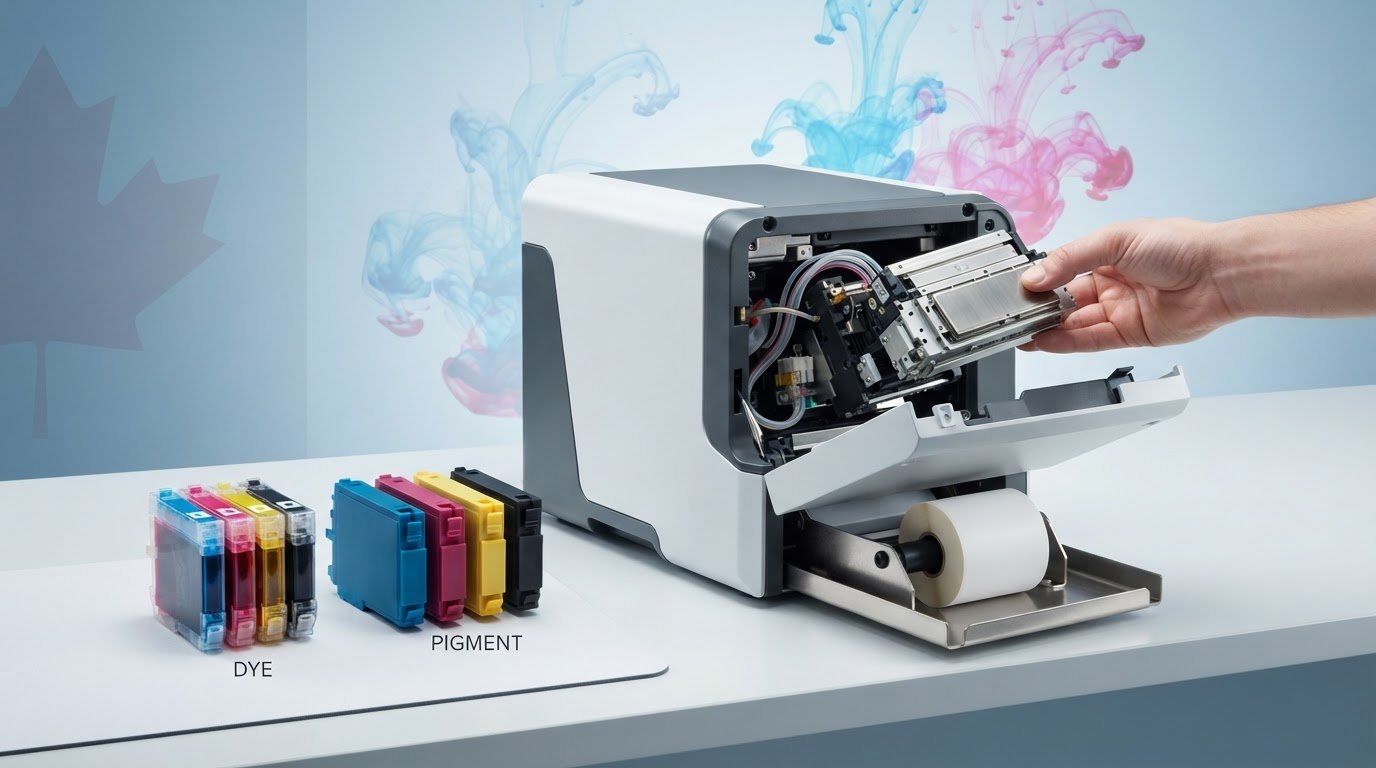
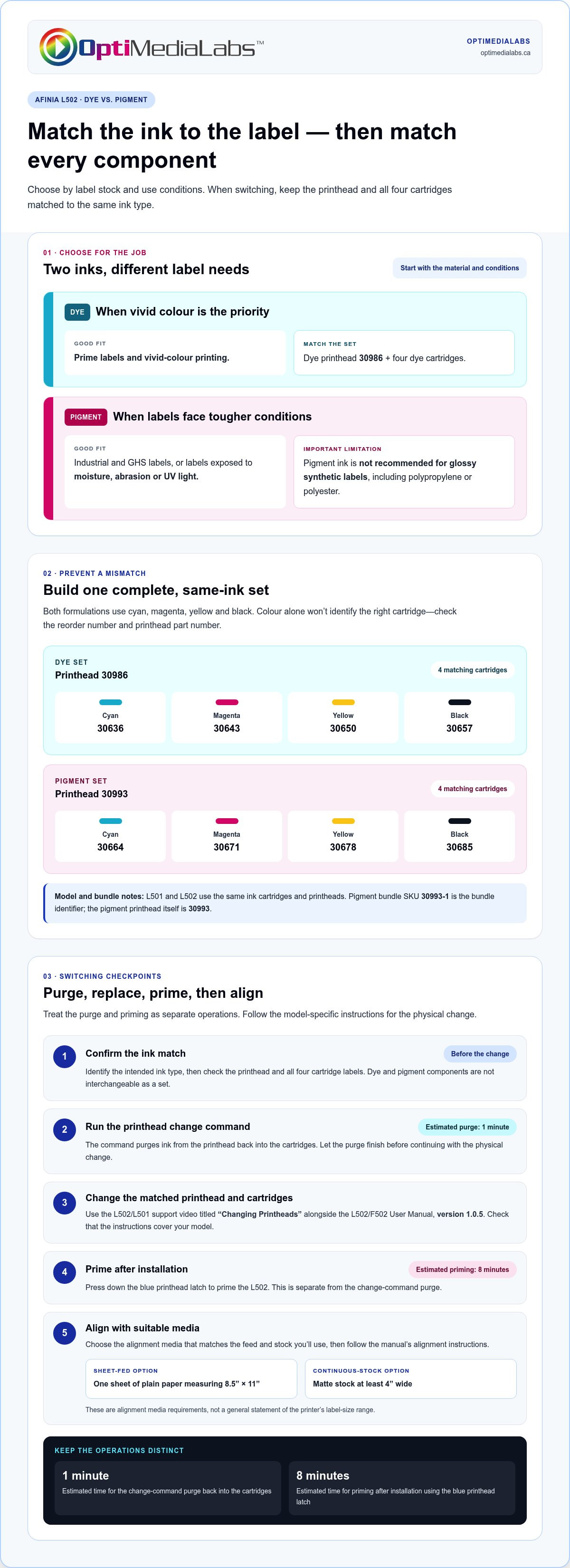
Choosing the right ink matters as much as changing it correctly: the Afinia L502 dye vs pigment printhead switching procedure requires the printhead and ink cartridges to match. Dye ink is recommended for prime labels and vivid colour, while pigment ink is suited to industrial and GHS labels and labels exposed to moisture, abrasion or UV light. The printhead change command purges ink back into the cartridges, a process estimated to take one minute.
It’s easy to focus on the ink, but the printhead and cartridges must also match when switching. Pigment ink has an important limitation: it isn’t recommended for glossy synthetic labels, such as polypropylene or polyester.
This guide explains how to choose between dye and pigment ink for your label stock and printing needs, what the switching process involves, and how to use the relevant Afinia guides and manuals. It also covers compatible printhead and cartridge identifiers, plus priming and alignment steps to plan for after a change.
Key Takeaways
- Match the ink choice to the label material and the conditions the finished label will face; glossy synthetic stock is an important consideration for pigment ink.
- Use Afinia L502 cartridges and the printhead designed for the selected ink type. The article outlines the dye and pigment part numbers to help identify compatible components.
- Plan for priming after a switch, then use the alignment procedure to prepare the printer for the selected media.
- Find the L502/L501 “Changing Printheads” support video and the L502/F502 User Manual version 1.0.5 for step-by-step reference.
- Understand what the ink-switch procedure covers, and keep warranty and service-support questions separate from assumptions about changing ink types.
Guides and manuals
Use Afinia’s L502/L501 support video titled “Changing Printheads” as the visual guide to the head-change process. It gives the procedure a clear reference point when preparing the printer for a different ink type. The L502/F502 support page also lists the User Manual, version 1.0.5. That support page applies to both L502 and F502 label printers, so make sure the instructions you follow cover your model.
Before you start, identify the ink type you plan to use and prepare the matching printhead and cartridges. Dye and pigment components aren’t interchangeable as a set: the printhead must match the ink. Keep the relevant manual nearby and follow its model-specific instructions rather than relying on memory or a video alone.
The printhead change command purges ink from the printhead back into the cartridges. The purge is estimated to take 1 minute. Allow the command to finish before continuing with the physical change; interrupting a procedure or skipping a prompt can leave you unsure whether the purge completed. Then use the “Changing Printheads” video and User Manual version 1.0.5 to guide the remaining steps.
- Confirm that the replacement printhead and cartridges are for the same ink type.
- Open the L502/L501 “Changing Printheads” video and the L502/F502 User Manual version 1.0.5.
- Run the printer’s printhead change command and allow the estimated 1-minute purge to finish.
- Follow the documented instructions to change the printhead and cartridges.
- Complete printhead alignment using suitable media before assessing the output.
For alignment, the L502 procedure can use one sheet of plain paper measuring 8.5” x 11”. If you’re aligning with continuous stock, use matte stock at least 4” wide. Choose the option that matches the media feed and stock you’ll use, then follow the alignment instructions in the manual. These media requirements are specific to alignment, not a general statement of the printer’s label-size range.
Keep the manual and video available throughout the change, especially if you’re switching ink types for the first time. The command, physical replacement, and alignment are separate parts of the process, so treat each as a checkpoint. This makes it easier to pause, find the relevant instruction, and resume without skipping a documented step. The guide explains the procedure; the manual is the model-specific reference for operating the printer.
Which dye and pigment ink cartridges or printheads are compatible with the Afinia L502?
Match all four cartridges and the printhead to one ink type. The Afinia L502 uses Afinia cartridges, and its dye and pigment printheads are different components. The dye printhead part number is 30986; the pigment printhead part number is 30993. Don’t pair a pigment printhead with dye cartridges, or a dye printhead with pigment cartridges.
The L501 and L502 use the same ink cartridges and printheads. That shared compatibility can help identify the correct cartridge family, but the ink formulation still needs to match the installed printhead. For L502 and L501 cartridge details, see the Afinia L501 and L502 ink cartridges.
Use the following reorder numbers to distinguish each colour and ink type:
- Dye cyan: 30636
- Dye magenta: 30643
- Dye yellow: 30650
- Dye black: 30657
- Pigment cyan: 30664
- Pigment magenta: 30671
- Pigment yellow: 30678
- Pigment black: 30685
Check the full set before installation. For example, a pigment cyan cartridge, number 30664, belongs with pigment magenta 30671, pigment yellow 30678, and pigment black 30685. The dye set uses a different sequence: 30636, 30643, 30650, and 30657. Comparing each cartridge’s reorder number helps prevent mixing formulations during replacement.
An L501 or L502 dye printhead package includes cyan, magenta, yellow, and black dye cartridges. The L502 pigment-ink bundle includes a replacement pigment printhead and a full CMYK set of pigment cartridges. Its product SKU is 30993-1. Treat the SKU as the bundle identifier, not as the pigment printhead part number: that component is 30993.
Before changing ink types, identify the installed printhead and read each cartridge label. Then assemble a complete matching set. If the printer has a pigment printhead, use Afinia pigment ink; the L501 pigment printhead cannot be used with dye ink. The same ink-type matching principle helps avoid confusion when selecting compatible L502 components.
Use the part and reorder numbers as your final selection check. A correctly matched dye set has dye cartridges and printhead 30986; a pigment set has pigment cartridges and printhead 30993. This component-level check is more reliable than choosing by colour alone, since both formulations have cyan, magenta, yellow, and black cartridges.
How long does the L502 take to prime and stabilize after an ink-type switch?
After installing the matching printhead and cartridges, press down the blue printhead latch to prime the L502. This priming process is estimated to take 8 minutes. Treat that as the priming interval, not the total time for every part of an ink-type change. The change command’s separate purge is estimated to take 1 minute, so the purge and prime are distinct steps.
Keep the printer’s sequence clear. The purge command moves ink from the printhead back into the cartridges. The blue latch then primes the printhead after installation. Allow each operation to finish before moving to the next step. For example, don’t count the 1-minute purge as the 8-minute priming process; they serve different purposes.
- Complete the printhead and cartridge change using components for the same ink type.
- Run the printhead change command and allow its estimated 1-minute purge to finish.
- Install the matching printhead and cartridges as directed in the L502 instructions.
- Press down the blue printhead latch to begin priming, then allow the estimated 8 minutes.
- Align the printhead and assess a sample before starting a production run.
Once priming finishes, alignment helps prepare the L502 for printing with the selected media. The alignment procedure can use one sheet of plain paper measuring 8.5” x 11”. For continuous stock, use matte material at least 4” wide. Choose the option that fits your feed setup, then follow the manual’s alignment steps. Those sizes refer to alignment media, not the printer’s full media range.
Assess the first aligned output before printing a batch. Look for whether text, edges, and colour areas appear positioned as intended on the label stock. If alignment is visibly off, revisit the L502 alignment procedure instead of treating the 8-minute priming estimate as a substitute for alignment. A clean sample on the intended stock gives a more useful check than judging from a different material.
The total time for a complete switch depends on the work involved, including purging, replacing components, and aligning the printhead. Available time estimates apply to the purge and priming steps individually, not to the full switch. Plan for each stage separately, and allow time to review the first aligned label before starting a larger print run.
For example, a switch from dye to pigment involves the same distinction: finish the purge, fit the matching pigment components, prime with the blue latch, and align. The 8-minute estimate applies to priming after the latch is pressed. It doesn’t cover cartridge handling or printhead alignment. This sequence gives operators clear checkpoints without assigning unsupported times to the other tasks.
Can switching ink types void the Afinia L502 warranty or affect service support?
A dye-to-pigment change alone doesn’t establish whether an Afinia L502 warranty is void or remains intact. The switching procedure explains printer operation; warranty coverage is a separate matter governed by the applicable warranty terms. Don’t assume the change automatically cancels coverage, and don’t assume every issue remains covered. The key distinction is between changing ink as instructed and a fault linked to a component or installation.
Keep the L502 setup and change details together. Record the installed ink type, printhead part number, cartridge reorder numbers, and the steps completed. For example, note whether the printer changed from dye printhead 30986 to pigment printhead 30993. Include whether you ran the purge command, pressed the blue latch to prime, and completed printhead alignment. These records describe what happened without making assumptions about warranty eligibility.
Compatibility matters for both operation and any later service discussion. The L502 requires Afinia cartridges, and the printhead must match the ink type. A pigment printhead paired with dye cartridges is a different situation from a properly matched pigment set. If the printer displays an error or produces a print defect after a change, document the exact message or output and the ink components installed. Avoid repeatedly swapping parts before recording the original configuration.
For a support case, prepare a concise record with these details:
- The printer model, Afinia L502, and the ink type currently installed.
- The printhead identifier, such as dye 30986 or pigment 30993.
- The cartridge reorder numbers for cyan, magenta, yellow, and black.
- The change steps completed, including purge, priming, and alignment.
- A description of the issue and when it first appeared.
This information helps distinguish an ink-selection question from a printer fault. For example, if output looks faded after a switch, record the ink formulation and sample conditions. If an error appears during the change, note the displayed message and the step in progress. Neither example alone determines warranty coverage; the written terms and the circumstances of the issue matter.
Use the applicable warranty document for coverage conditions, and keep it with the L502 service record. If a change is planned while the printer is under warranty, follow the Afinia instructions for the correct printhead and matching cartridges. Stop if a step differs from the documented procedure, rather than improvising with the latch or ink components. For help choosing compatible printer and ink equipment, discuss your L502 setup.
Afinia label
Choose the L502 ink type by matching the label material and intended use. Dye ink is recommended for matte paper, high-gloss paper, matte and glossy polypropylene, clear labels, and polyester in clear, white, gold, or silver. It also suits matte and high-gloss tags. Pigment ink is recommended for matte paper, matte polypropylene, and GHS BS5609 chemical labels.
Start with the stock, not just the artwork. For a vivid prime label on high-gloss paper, dye is the recommended choice. For a GHS BS5609 chemical label on compatible stock, pigment is recommended. Pigment ink is not recommended for glossy synthetic labels, including glossy polypropylene or polyester. That distinction can rule out an ink choice before you prepare a print file.
Consider the conditions the finished label will face. Pigment ink is recommended when labels may experience moderate or extended abrasion, moisture, or UV exposure. Dye ink suits vivid-colour applications, including marketing stickers and retail presentation. Lamination adds a thin, transparent protective film that helps shield printed labels from UV light and moisture. It is a separate finishing consideration, not a substitute for matching the ink to the stock.
Check the L502’s size limits before selecting label stock. It supports media widths from 1.5” to 8.625”, label widths from 1.0” to 8.5”, and label lengths from 0.75” to 48”. These are separate measurements: media width describes the stock entering the printer, while label width and length describe the individual label. Confirm both the roll or sheet and the finished label dimensions.
Use this practical sequence when preparing an Afinia label job:
- Identify the material, such as matte paper, glossy polypropylene, or polyester.
- Match that material to the recommended dye or pigment ink category.
- Consider the label’s use, including prime presentation, GHS identification, or exposure to moisture and UV light.
- Confirm the stock and individual label dimensions fit the L502’s supported ranges.
- Print and assess a sample on the intended material before a production run.
For example, a clear polyester retail label points to dye ink, while a GHS BS5609 label points to pigment ink on recommended stock. A glossy polypropylene label needs particular care because pigment ink isn’t recommended for that surface. The material, finish, and use case together guide the decision.
For help matching an L502 label application to compatible stock and ink, contact the label team.
OptiMediaLabs Canada: Afinia Color Label Printers
OptiMediaLabs Canada offers Afinia Color Label Printers for businesses producing colour labels in-house. If the L502 fits your label workflow, consider how the printer, label stock, and finishing equipment work together. The right setup depends on the label application and the materials you plan to print.
OptiMediaLabs Canada offers Afinia label cutters and finishers, RFID label printers, and thermal transfer ribbons. These product categories serve different workflows, from colour label production to RFID and thermal transfer applications. Choose according to the equipment and output your operation needs.
For information about Afinia Color Label Printers and related equipment, contact OptiMediaLabs Canada or visit optimedialabs.ca.
Set up your next label run with confidence
Make the next step a repeatable workflow: define the label material, intended use, and print finish before selecting an ink setup. Keep those choices with the job specifications so future runs start from a clear production brief. Use the Afinia L502 dye vs pigment printhead switching procedure as a reference when planning a change, and keep the printer configuration aligned with the label application.
OptiMediaLabs Canada offers Afinia Color Label Printers and RFID Label Printers. These product categories can support different label and identification needs as your operation evolves. For an L502-related question or help considering your next equipment step, contact OptiMediaLabs Canada.
Clear specifications make it easier to move from an ink decision to a practical production plan. Take the next step when you’re ready.
Frequently Asked Questions
What Will I Need To Do?
Plan the change around the label job, then prepare a complete matching ink setup. Use the Afinia L502 dye vs pigment printhead switching procedure as a checklist, and keep the intended label stock beside the printer. For example, note whether the next run uses paper, clear film, or another material. After installation, assess a sample from the actual job before releasing the full batch.
What if I need both?
You can use both ink types for different jobs, but configure the printer to match the ink for each job. Don’t treat the two types as interchangeable during a run. Scheduling jobs by ink type and label material can reduce unnecessary changeovers. Store dye and pigment cartridges separately, and label each set clearly so operators can identify the intended configuration before loading supplies.
Does the Afinia L502 support switching between dye and pigment ink?
Yes. The L502 supports dye and pigment configurations when the installed printhead and cartridges match. Switching is a hardware change, not simply a colour or media selection in software. Before starting, identify the current setup and the intended one. This makes it easier to prepare the correct components and avoid starting a job with the wrong formulation loaded.
What is the official Afinia L502 procedure for switching from dye ink to pigment ink?
Follow Afinia’s L502 printhead-change instructions in sequence. The Afinia L502 dye vs pigment printhead switching procedure uses the printer’s change command before replacing the dye setup with matching pigment components. Once the replacement is complete, prime and align the printer before production. Keep the job’s label material ready so the first test output reflects the stock you’ll actually use.
Does switching ink types require replacing the L502 printhead or other components?
Yes. Switching from dye to pigment requires the corresponding printhead and cartridges; changing cartridges alone doesn’t change the printhead’s ink type. Prepare the complete replacement set before starting, then identify removed parts by formulation. This is especially useful if you plan to return the printer to dye jobs later. Align the printhead after replacing the components; no additional ink-system part needs replacement for alignment.
How should the L502 ink system and printhead be flushed or purged when changing ink types?
Use the L502’s printhead-change command for the purge step. It returns ink from the printhead to the cartridges, rather than calling for a manual flush. Let the command finish before removing components. Don’t introduce cleaning liquids or improvise a flushing method. After installing the new matching set, continue with the printer’s priming and alignment steps.
What printer settings or driver changes are needed after switching L502 ink types?
After changing components, set the media choice to match the label stock for the next job. For example, select the appropriate setting for matte paper rather than assuming the previous job’s setup still applies. Then align the printhead and run a sample. These checks account for the new combination of ink, material, and job settings. A driver change alone does not convert the ink system.
What are the risks of mixing dye and pigment inks in an Afinia L502?
Mixing the two types can leave cartridges that don’t match the printer’s printhead, resulting in an incorrect configuration and making output problems harder to troubleshoot. Keep formulations separate and verify each cartridge before loading it. If a cartridge’s type is unclear, don’t combine it with a known set. Identify the ink type first and maintain a consistent configuration for the job.