
Afinia LT5C Toner Label Printer vs. Inkjet: Which Fits Your Label Work?
The printer that costs less to run isn’t automatically the right choice for your labels. In the Afinia LT5C toner label printer vs inkjet label printers comparison, the better fit depends on the stock you need, the design you’re printing and how labels move through your workflow.
Print quality and operating costs matter, but broad claims about toner or inkjet won’t answer the practical questions: Will the printer handle your label material? Can it reproduce the colours and details your design needs? What do consumables and routine upkeep mean for your production process?
This guide compares the LT5C’s dry-toner process with inkjet printing, including its white-toner capability, media considerations and factors that shape total cost of ownership. You’ll also find practical criteria for matching print volume, label design and workflow to a printer. Use them to assess the Afinia LT5C alongside inkjet options based on the work your labels need to do.
Key Takeaways
- Compare the Afinia LT5C toner label printer vs inkjet label printers by the labels you need to produce, not by technology claims alone.
- Understand how toner and inkjet printing differ, and why media compatibility must be assessed printer by printer.
- Consider when the LT5C may suit a job, including work where white toner or selected media options matter.
- Use a practical checklist to assess label stocks, artwork, workflow and the inputs that affect cost per usable label.
- Consider how printer technology and supplies work together when choosing a colour-label setup.
Afinia LT5C toner label printer vs. inkjet: what is the real difference?
The practical difference starts with how each technology puts colour onto a label. Toner-based electrophotographic printing uses charged powder: the printer forms an image, transfers toner to the label stock, then applies heat and pressure to fuse it. Inkjet printing deposits liquid ink through printheads onto compatible media. Inkjet systems differ in their ink formulations and print processes, so their results and media requirements aren’t all the same. Inkjet printing technology provides a useful overview of how ink is deposited.
Those process differences matter, but they don’t make one technology universally better. When comparing the Afinia LT5C toner label printer vs inkjet label printers, focus on how each specific model handles your label job, chosen stock and production workflow. Start with the design and media requirements, then compare the specifications and consumables for the models you’re considering.
How toner and inkjet create a colour label
A toner printer transfers powdered toner onto the label and fuses it to the surface. An inkjet printer uses printheads to place tiny droplets of liquid ink onto media designed for that printer’s ink system. Both methods build images from colour components, but the way colour reaches and interacts with the stock differs. The result depends on the printer, consumables, settings and label material, not just the technology category.
What the LT5C’s CMYK+White configuration means
Afinia identifies the LT5C as a five-colour digital LED toner label printer with CMYK+White. CMYK stands for cyan, magenta, yellow and black. These four toner colours combine to reproduce a broad range of printed colours, while the additional white toner provides another design option.
White toner can potentially add contrast to artwork on selected coloured or clear label stocks, where a white layer may help other printed colours stand out. Its appearance depends on the artwork, printer settings and specific stock. Don’t assume every coloured or transparent material is suitable, or that white will look the same across different jobs. Match the media to current LT5C and label-stock documentation, and consider how the design will print on that surface.
This is why it helps to assess the actual label rather than rely on a generic toner-versus-inkjet claim. A design using white as a visible colour or base layer has different requirements from one using only CMYK. Similarly, “inkjet” alone doesn’t tell you which ink system or label media a particular printer requires.
For a broader view of equipment options, OptiMediaLabs’ colour label printer selection includes professional colour-label printing choices. Use the job and stock requirements to guide your comparison, then review the relevant model documentation before choosing a setup.
How LT5C toner printing and inkjet differ in everyday label production
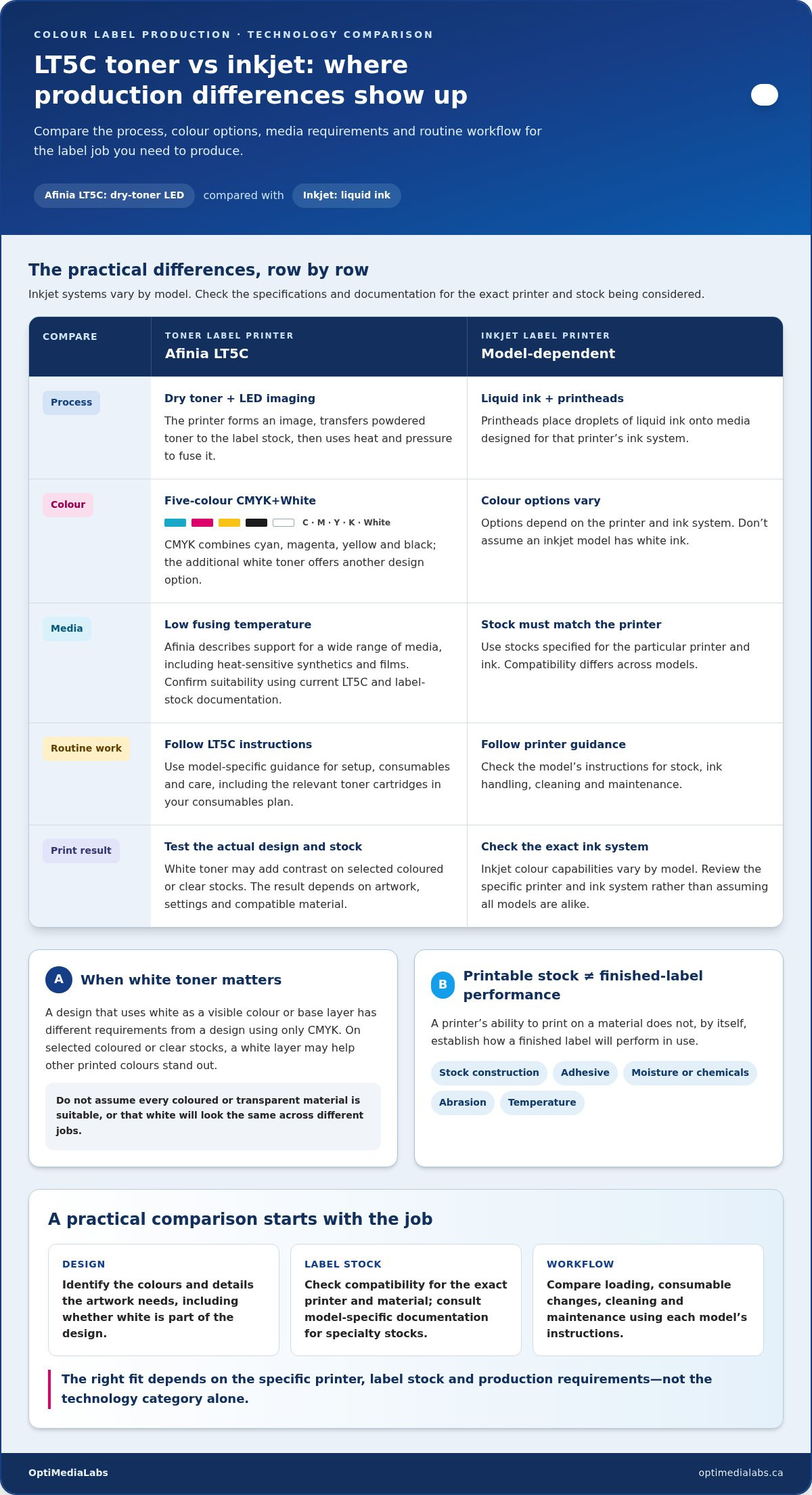
In day-to-day production, the differences show up in the materials, output requirements and routine tasks involved in each job. This table separates manufacturer information about the LT5C from general inkjet considerations. Inkjet printers vary by model, so use the documentation for the specific printer you’re evaluating.
| Comparison point | LT5C manufacturer information | General inkjet consideration |
|---|---|---|
| Print process | Dry toner with LED imaging and fusing. | Liquid ink is deposited through printheads; ink and print systems vary by model. |
| Colour options | Five-colour CMYK+White configuration. | Colour options depend on the printer and ink system. Don’t assume an inkjet model has white ink. |
| Media | Afinia describes a low fusing temperature and support for a wide range of media, including heat-sensitive synthetics and films. | Use stocks specified for the particular printer and ink. Compatibility differs across models. |
| Workflow | Follow model-specific instructions for setup, consumables and care. | Follow the printer’s guidance for stock, ink handling, cleaning and maintenance. |
HP’s overview of how toner printers work offers additional background on transferring and fusing toner. A printer’s ability to print on a material doesn’t, by itself, establish how a finished label will perform in use. Stock construction, adhesive, exposure to moisture or chemicals, abrasion and temperature can all matter. Evaluate the complete label against its intended environment.
Media, colour and design requirements
White toner may add contrast to artwork on selected coloured or clear stocks, depending on the design, print settings and compatible material. Inkjet colour capabilities also vary by model. Check the specific printer and ink system rather than assuming every inkjet offers the same options. For metallic or other specialty stocks, consult model-specific compatibility information. Printable media capability and finished-label performance are separate considerations.
Whether toner or inkjet suits a job depends on the specific printer, label stock and production requirements.
Workflow, upkeep and consistency
Compare loading procedures, consumable changes, cleaning and routine maintenance using documentation for the exact models. For a toner workflow, include the relevant LT5C toner cartridges in your consumables plan. Each printer has its own care requirements, so don’t assume either technology is maintenance-free.
Banding, uneven colour and other print defects can depend on equipment condition, settings, artwork and media. If consistent output matters, evaluate representative jobs on the intended stock and record the results. OptiMediaLabs offers colour-label printers and consumables to support your workflow. Explore the colour-label printing options.
When is the Afinia LT5C a better fit than an inkjet label printer?
The LT5C may be worth considering when your label design calls for white toner or its documented media options align with the stock you need. An inkjet printer may be the practical choice when a specific model supports your artwork and approved media and fits an established workflow. Narrow the options by job requirements rather than treating either technology as the default winner.
The matrix below is a starting point, not a promise of performance. Review model-specific details and evaluate the actual stock and artwork before making a decision.
| Job requirement | LT5C consideration | Inkjet consideration |
|---|---|---|
| White elements or a white base layer | Investigate whether the design may benefit from the LT5C’s CMYK+White configuration. | Check whether the inkjet model offers the required colour capability; inkjet models differ. |
| Coloured or clear label stock | Assess whether the selected stock is documented for the printer and whether a white layer suits the artwork. | Confirm compatibility with the specific printer and ink system, then assess colour appearance on the stock. |
| Existing production workflow | Compare the setup and consumables with your current processes before considering a change. | An existing inkjet setup may remain practical if its media, output and operating routine meet the job requirements. |
| Artwork without a white-toner need | Consider the LT5C if its other documented capabilities suit the job. | A capable inkjet model may be a good fit if it produces the required result on approved stock. |
| Specialty or packaging labels | Review current specifications and test the intended material and design. | Compare the exact model’s supported media and evaluate output under the planned workflow. |
Label jobs that may favour the LT5C
Consider the LT5C for artwork where white could help separate design elements from a coloured background, or potentially add contrast on selected clear stocks. For example, a food, beverage or cosmetic package design might use a white layer to make text or colour areas more distinct. That’s a design possibility, not a guaranteed result. Stock construction, print settings and artwork all matter. Review the printer and media documentation, then evaluate a representative print before committing to a production workflow.
Label jobs where inkjet may remain the practical choice
An inkjet printer can make sense if your current model supports the required label stock, colour output and job volume, and your team has a familiar process for preparing files and handling consumables. A job that doesn’t need white toner may not benefit from adding that capability. Compare the specific inkjet model and its ink system rather than assuming all inkjet printers share the same media range, output or maintenance routine. Options include professional VIPColor inkjet label printers.
Shortlist a printing technology only after testing your intended label stock and artwork on the specific printer model. This keeps the Afinia LT5C toner label printer vs inkjet label printers decision grounded in the labels you actually need to produce.
How to compare LT5C and inkjet for your label workflow
A useful comparison starts with the work you need to produce, then checks whether each printer can handle the stock, artwork and routine that work requires. Use the same job assumptions for both technologies. This makes the results more meaningful than comparing broad claims or isolated specifications.
- Define the jobs. List label sizes, quantities, order frequency and required turnaround for typical production runs. Note whether jobs repeat or artwork changes often.
- Identify the stocks. Record the exact label materials, finish, colour and format you intend to use. Compare each stock with the printer and media documentation.
- Review the artwork. Flag small text, fine lines, colour-critical areas, clear or coloured backgrounds, and any design that uses white.
- Assess the workflow. Map file preparation, printer setup, stock loading, consumable changes, cleaning and handling printed labels. Include who performs each task.
- Compare ownership inputs. Use the same label format and production assumptions to account for media, toner or ink, expected waste, routine upkeep and staff time.
This checklist keeps the Afinia LT5C toner label printer vs inkjet label printers decision tied to real production needs. Don’t compare one technology using a short, simple job and the other using a more demanding one.
Build a representative label test
Choose an artwork file and the actual label stock used in production. Include the hardest elements to reproduce, such as fine text, small details, colour-critical areas and any white design elements. Assess legibility and appearance, then handle the labels as your workflow requires. Record whether the output meets documented requirements and fits downstream steps. Avoid judging from a sample printed on different stock.
Compare the complete operating picture
For a consistent cost-per-usable-label estimate, divide the total inputs for a defined run by the number of labels that meet your acceptance criteria: (media + toner or ink + expected waste + allocated maintenance) ÷ usable labels. Use the same run size and label format for each printer. Track setup and staff tasks separately if they affect your workflow, and treat the result as an estimate, not a guaranteed cost.
Consumable planning should include the supplies used by the exact model. When evaluating the LT5C, review Afinia LT5C toner cartridges alongside media, waste and maintenance inputs. OptiMediaLabs’ Afinia printer information can also help you compare the LT5C with other printers in the Afinia range. Keep a brief test record of stock, settings, output observations and workflow adjustments so future comparisons use the same criteria.
Have a specific stock or label workflow in mind? Explore colour-label printing options from OptiMediaLabs.
Find the right colour label printing setup with OptiMediaLabs
Choosing between the Afinia LT5C toner label printer vs inkjet label printers comes down to how well a complete setup supports your label work. Stock, artwork, white-toner requirements, production patterns and routine upkeep all influence the decision. OptiMediaLabs Canada is a Canadian distributor of professional colour label printers and related supplies, including Afinia printers and label-printing consumables.
A printer is one part of the workflow. The stock must suit the model, the artwork must reproduce as needed, and consumables and routine operating tasks must fit your production process. Bringing these factors together gives you a more useful basis for comparing technologies than a single specification or general performance claim.
Match the printer and consumables to the job
Start with the actual labels: their dimensions, material and finish, plus the colours and details in the artwork. If the design may use a white layer, include that requirement in your comparison and evaluate the intended stock against current printer and media documentation. Then consider how often jobs run, how frequently artwork changes, and what setup and upkeep the workflow involves.
OptiMediaLabs Canada distributes Afinia printers along with related label-printing supplies. Planning the printer and consumables together helps you account for the materials and operating inputs required by your selected workflow. Keep model-specific specifications in view, especially when comparing supported stocks or print features.
For a useful comparison, carry the same job assumptions across every option. A printer that suits one design may not be the best match for another stock or production routine. Use representative artwork and label material to evaluate output, and include the tasks involved in preparing files, loading media and handling consumables.
Take the next step with a clear brief
Before comparing options, assemble a concise brief with:
- Label dimensions, format and stock details, including the material and finish.
- Artwork requirements, such as colour-critical elements, fine text or a possible white layer.
- Typical production patterns, including how often jobs run and how frequently designs change.
- Workflow considerations, such as setup, consumable handling and routine upkeep.
This information keeps the comparison focused on your real requirements, rather than assumptions about toner or inkjet as a category. It also gives you a practical starting point for comparing printer choices and related supplies as one system.
OptiMediaLabs Canada offers colour label printers and supplies for production workflows. View colour label printer options and supplies.
Turn your label evaluation into a confident next step
Before selecting equipment, turn your test results into clear decision criteria. Identify which requirements are essential for every job and which are preferences you can adapt, such as a particular finish or design effect. This distinction helps keep a printer decision useful as label artwork, product lines or production needs change.
The Afinia LT5C toner label printer vs inkjet label printers choice doesn’t need to be settled by a general claim about either technology. Let the actual label work guide the decision, and keep your tested stock, artwork and workflow requirements together as a reference for evaluating options.
Ready to compare printers and supplies for your label requirements? Contact OptiMediaLabs to explore colour label printing options.
Frequently Asked Questions
What does electrophotographic printing mean on the Afinia LT5C?
Electrophotographic printing is a toner-based process that forms an image using electrical charges, transfers powdered toner onto the label, then fuses it with heat. On the LT5C, colour is applied as toner rather than liquid ink. The fused print doesn’t need liquid ink to dry, though the stock and any coatings still affect how the finished label should be handled and used.
Can the Afinia LT5C work with Windows?
Windows compatibility depends on the LT5C driver and the Windows version used in your setup. Before integrating the printer, review Afinia’s current driver and operating-system documentation for the specific computer environment. In a managed workplace, include the connection method, driver installation permissions and any existing print-server requirements in the review. This helps identify setup needs before adding the printer to a production computer.
Does the Afinia LT5C support professional label design software?
Professional label design software works seamlessly, though successful printing also depends on the LT5C driver and software configuration. Confirm that the current LT5C driver can be installed in the target computer environment and selected in your design software's printer setup. Before production, print a test label with the intended dimensions, barcode elements and artwork, then verify sizing and legibility before releasing a template for regular use.
What maintenance does the Afinia LT5C require?
Follow the LT5C’s current manufacturer guidance for routine cleaning, stock handling and replacement of consumables or service components. Maintenance needs can vary with use and operating conditions, so don’t apply a generic schedule from another printer. Keep the manual accessible and record cleaning or replacement tasks alongside print-quality issues. That record can help operators spot recurring problems and follow the correct model-specific procedure.
Does toner printing need time to dry before labels can be handled?
Toner is fused to the label in the printer, so it doesn’t require the same ink-drying step as a liquid-ink process. That doesn’t mean every finished label is ready for every next step immediately. Stock coatings, adhesives and finishing processes can affect handling. Follow the media guidance and evaluate printed labels in the actual workflow, especially before stacking, rewinding or applying them.
How should I test label stock before choosing a printer?
Use the exact stock intended for production, not a similar substitute. Print a representative file with small text, colour-critical artwork, barcodes and any white elements, using the planned settings. Check alignment, legibility and appearance, then handle the labels as they’ll be handled in production. Record the printer model, stock details and settings so results can be compared consistently across options in the Afinia LT5C toner label printer vs inkjet label printers decision.