
BarTender Professional vs. Automation: Feature Comparison

The higher-tier edition isn’t automatically the better fit. If staff start print jobs themselves, Professional may cover the workflow. If printing should begin when another business system records an event, Automation’s integration features may be the deciding factor. This BarTender Professional vs Automation edition feature comparison focuses on that practical difference, not just a list of technical terms.
Both editions support data-driven label workflows, while Automation adds tools for triggered printing and connections to systems such as ERP or warehouse management software. To choose between them, map how labels are created, where their data comes from, and whether a person or a system initiates printing.
This comparison outlines shared capabilities, what Automation adds, and how those differences can apply to everyday printing processes. It also covers licensing factors and workflow details to consider before selecting an edition. Use it to assess whether Professional meets your current needs or Automation better fits a more integrated operation.
Key Takeaways
- Use the BarTender Professional vs Automation edition feature comparison to identify whether your workflow needs user-initiated printing or system-triggered jobs.
- Map label data sources and print steps before deciding which edition’s capabilities fit your operation.
- Automation adds integration options for workflows connected to business systems, while Professional may suit teams that manage printing directly.
- Keep edition capability decisions separate from licensing and deployment choices, which depend on different requirements.
- Learn how to approach edition selection and source BarTender software in Canada.
BarTender Professional vs. Automation: What decision are you making?
Start with how a label job reaches the printer. Does an employee select a template, enter or review information, and start printing? Or should a connected business system trigger a label job as part of another process? This distinction is more useful than choosing by company size alone. A small operation with system-triggered printing may need different capabilities from a larger team whose staff run label jobs directly.
Professional and Automation share core label-management capabilities, while Automation adds more ways to connect printing with business processes. In short: Professional supports data-driven label creation and printing, while Automation adds integrations and triggers for system-led printing workflows. This BarTender Professional vs Automation edition feature comparison focuses on those workflow needs, rather than treating the higher edition as the automatic choice.
What makes Professional and Automation different?
Both editions support barcode and RFID label design, broad printer support, remote printing, and dynamic templates. These capabilities help teams create labels with changing information and work across their printing setup. For context on the codes those labels can carry, see this overview of barcode technology.
Professional supports data-driven label creation, including the use of information from databases and spreadsheets, and offers data-entry forms. Automation builds on Professional with integration tools and trigger-based printing. For example, a file arriving from another system can initiate a print workflow, and connectors can link labelling with business applications. Automation’s on-demand forms can support print requests within these workflows. The practical difference is how much printing can be initiated or coordinated by connected systems, not whether the editions can create useful labels.
Which buyer needs a closer comparison?
A closer comparison is useful when reviewing label software for an existing mix of printers, templates, and data sources. List where label information lives, who prepares each job, and what starts printing. A team that pulls product details from a spreadsheet and submits jobs at a workstation has different requirements from a warehouse linking label output to item or order activity in its management system.
Pay attention to hand-offs. If staff routinely move data between applications or repeat steps to launch print jobs, assess whether system integrations and triggers fit that workflow. If people need to review information or choose a label before printing, map that interaction too. Forms and dynamic templates address different parts of the process, so identify what users need to enter, select, or change before a job runs.
This section compares capabilities, not product prices or licensing terms. Those are separate purchasing decisions. First define the workflow the software must support, then consider how the appropriate edition can be licensed and deployed. OptiMediaLabs Canada offers BarTender label software in Canada, alongside labelling equipment and supplies for operations assessing their requirements.
Professional vs. Automation: Shared and added features
A feature list is most useful when you connect each item to a task. The comparison below separates capabilities listed for both editions from those highlighted for Automation. “Listed for Automation” doesn’t automatically mean a feature is exclusive to it. Check the current manufacturer documentation for the version and deployment you’re considering.
Capabilities listed for both editions
- Barcode and RFID label design: Create labels that use barcode or RFID data. The specific data and label requirements depend on your operation.
- Broad printer support: Both editions list support for a wide range of printers. Compare the specific printer models in your workflow with the software requirements.
- Anywhere-anytime printing: Remote printing is listed as a capability. It may matter when print work isn’t limited to one workstation or location.
- Dynamic, data-driven templates: Use templates that accommodate changing label information instead of maintaining a separate file for every variation.
Capabilities highlighted for Automation
- REST APIs: An integration option for connecting software through defined application interfaces.
- File Drop: A file-based integration option for workflows that exchange files with the labelling process.
- No-code builders: Tools for building integrations without writing code. Available functions depend on the specific version and setup.
- On-demand printing forms: Forms are listed as an Automation capability for on-demand printing workflows. Their precise configuration and behaviour depend on the applicable setup.
Which core capabilities do both editions list?
Professional and Automation share the core label-creation capabilities above. For example, a team can use a dynamic template when product or inventory details vary, while barcode and RFID design support different identification needs. Broad printer support and remote printing are also listed, but don’t assume every printer or remote-printing arrangement works identically. Compare the specific models, software version, and deployment requirements with the current manufacturer documentation.
This distinction matters when planning. A feature name describes a capability, not necessarily every technical condition for using it. Treat these as shared items in the edition comparison, then validate version-specific details before purchase. For a useful comparison, note the exact task you need each capability to handle and the printer or data source involved.
What additional capabilities does Automation list?
Automation’s integration tools are relevant when label work needs to connect with other software. REST APIs and File Drop offer different approaches to linking processes, while no-code builders provide another listed way to create integrations. These names identify options, not a guarantee that a particular system or configuration is supported.
On-demand printing forms add a listed way to present print requests. Consider whether users need a form as part of their process, and define what information they should provide. Don’t assume how a form is configured or what triggers a job without consulting the applicable documentation. In this BarTender Professional vs Automation edition feature comparison, the practical test is whether these added capabilities match a real hand-off in your workflow.
For more information about BarTender software and label-printing requirements, visit OptiMediaLabs’ contact page.
Does your labelling workflow need Automation’s integrations?
Automation isn’t automatically the better choice. Its added tools matter when a label job needs to connect with another system or follow a defined request process. If employees already select templates, work with label data, and start printing directly, those integration capabilities may not be central to the requirement. Focus on how work actually moves through your operation, not on which edition has the longer feature list.
Map two things first: where does the label data come from, and what starts printing? A person may enter details or choose a template, or a business application may pass information into a print workflow. That distinction helps translate technical features into operational needs without assuming that automation will necessarily make a process faster or more accurate.
When may Professional fit the workflow?
Professional may suit teams whose requirements centre on creating labels and using changing data. For example, staff might use a spreadsheet or database as a source, select an appropriate template, then initiate the job themselves. Data-entry forms and dynamic templates can support workflows where information varies but people still manage the print step.
Consider Professional when its documented capabilities cover the steps your team needs. This isn’t a claim that it lacks other functionality; it’s a way to avoid selecting additional integration tools without a defined use for them. Write down the data source, the person responsible for each step, and the point where a print job starts. That gives you a clear basis for comparing the edition’s capabilities with your process.
When are Automation’s added tools relevant?
Automation’s REST APIs, File Drop, and no-code builders merit evaluation when label printing must exchange information or connect with a process outside the label application. Identify the hand-off: does another application supply data, or does your team need a repeatable way to submit print requests? The answer can help determine whether these listed tools address a real workflow need.
On-demand printing forms may be relevant when staff need a structured way to provide information for a print request. Document what users must submit and what should happen next, but don’t assume a particular form setup or trigger behaviour. Those details depend on the version and configuration.
- Record the data source: Note whether label details come from staff entry, files, spreadsheets, databases, or another business system.
- Trace the print initiation: Identify who or what starts the job, and whether a person needs to review or submit it.
- Mark each hand-off: Note where information moves between applications or teams, and whether an integration is required now or only a future possibility.
- Validate the technical fit: Compare system compatibility, version-specific features, and implementation requirements with current manufacturer documentation.
This workflow test keeps the BarTender Professional vs Automation edition feature comparison grounded in your process. Choose Professional when its capabilities meet the documented need; evaluate Automation when system connections or structured print requests are required. Treat compatibility and implementation as separate technical checks, and don’t assume a feature name guarantees support for a specific setup.
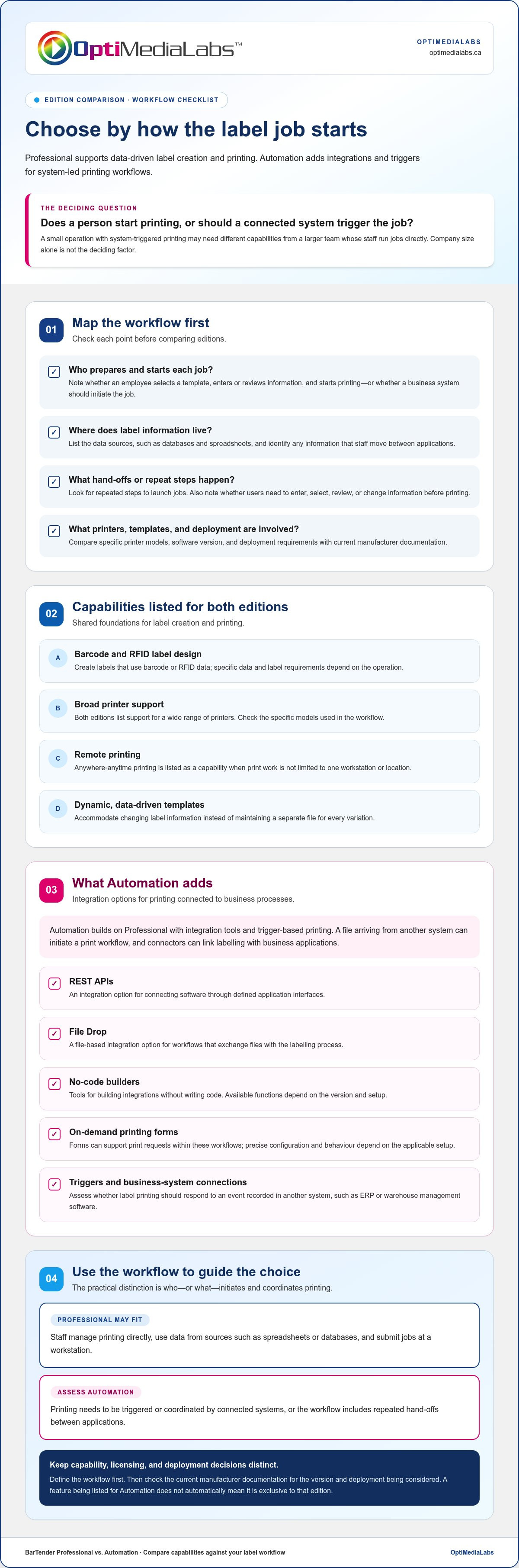
How to choose between BarTender Professional and Automation
Use your actual print process to decide which edition capabilities matter. Identify what the software must do, then assess licensing and deployment separately. This keeps the BarTender Professional vs Automation edition feature comparison focused on workflow fit, rather than assumptions about company size or the idea that a higher edition is always necessary.
- Inventory the label work. List the labels your team creates and the information each one needs. Note which fields change between jobs, which templates staff use, and whether barcode or RFID labelling is part of the process. This gives you a concrete requirements list instead of a general request for “more automation.”
- Trace each data source. Record where label information originates: staff entry, a spreadsheet, a database, or another business system. Identify steps where employees copy or transfer information between applications. Keep the current process distinct from future plans so you can tell which connections are essential now.
- Document how printing starts. Note who initiates each job and what prompts them to do it. Is a staff member selecting a template and submitting a print request, or should a job be linked to information from another system? Record where a structured on-demand form might fit, including what information a user would need to provide.
- Match requirements to edition capabilities. Start with the features listed for both editions, such as dynamic templates and broad printer support. Then consider Automation’s listed REST APIs, File Drop, no-code builders, and on-demand printing forms only where they address a defined process requirement. A feature with no clear role in your workflow shouldn’t decide the edition by itself.
- Validate the technical details. Compare your requirements with current manufacturer documentation for the relevant edition and version. Record open questions about system compatibility, feature availability, and implementation. A feature name alone doesn’t establish that a particular system or configuration is supported.
Once the capability fit is clear, review licensing and deployment as separate decisions. Licensing details may depend on the specific option being considered, while deployment planning should account for the environment in which the software and printers will be used. Don’t let printer counts, user access, or a licensing model replace the earlier question: what must the labelling workflow do?
Bring your process map and open questions into the purchasing discussion. This helps keep the conversation focused on relevant edition capabilities, followed by the separate licensing and deployment details. OptiMediaLabs offers BarTender software and related labelling equipment. Find more information through OptiMediaLabs’ contact page.
Choose and source the right BarTender edition in Canada
Make the edition decision in two stages. First, identify the capabilities your label-printing workflow requires. Then review licensing and deployment as separate purchasing decisions. The BarTender Professional vs Automation edition feature comparison is most useful when you apply it to specific tasks, data sources, and print steps, rather than assuming a larger operation always needs Automation.
What to prepare before discussing your requirements
A short process outline helps keep the discussion focused. Include the label jobs your team runs, the information each job uses, and who initiates printing. Note the printer environment and any business systems that must connect to label printing. If staff submit print requests, describe the information they need to provide and where a structured form could fit.
Keep capability questions separate from commercial and technical details. This makes it easier to distinguish “Can the edition support this workflow?” from “How would it be licensed or deployed?” For example, list the workflow requirements first, then record questions about software versions, printer compatibility, licensing, and deployment.
- Workflow: List representative label tasks and who handles each step.
- Data: Identify where label information originates and how it reaches the print process.
- Connections: Note required business-system links and the printer models already in use.
- Open questions: Record items to review about version, compatibility, licensing, and deployment.
Where to continue your software research
Use current manufacturer documentation to verify edition names, feature details, and version-specific requirements. This is especially important for integration and compatibility questions, because a listed capability doesn’t by itself establish support for a particular system or setup. Keep your workflow notes beside the documentation so you can relate each feature to an actual requirement.
OptiMediaLabs is a Canadian source for BarTender software and related labelling equipment. Explore BarTender label design software as part of your research, and consider how the software will fit with the printers and supplies used in your operation. The barcode labelling software guide and Canadian label printer procurement guide can also help frame your broader research. Compare any guidance with your own requirements and current product documentation.
Once you’ve matched edition capabilities to your workflow, review the applicable licensing and deployment details before making a purchasing decision. Purchasing terms include 100% secure payment and a price-match guarantee.
Have your workflow outline ready for a practical discussion about edition fit and purchasing. Contact OptiMediaLabs about BarTender.
Put your workflow requirements into action
Turn your process notes into a clear purchasing brief. Identify the capabilities your operation needs now, distinguish essential system connections from future possibilities, and keep licensing and deployment questions separate. This gives your team a practical basis for applying the BarTender Professional vs Automation edition feature comparison to its own requirements.
OptiMediaLabs offers BarTender software and related labelling equipment in Canada. Purchasing terms include 100% secure payment and a price-match guarantee, so you can consider software and equipment together as you plan your next steps.
Ready to move from comparison to a decision? Discuss your BarTender edition fit with OptiMediaLabs and outline the workflow you need to support.
Frequently Asked Questions
What is the main difference between BarTender Professional and Automation?
The main difference is the role of system connections in the print process. Professional supports data-driven label creation, including database links, while Automation adds integration options for workflows that connect label printing with other software. For example, a team can assess whether an employee should select and submit each job or whether an existing application needs to pass information into the labelling process. The right fit depends on that requirement.
Does BarTender Automation include the features in Professional?
Yes. Automation includes Professional’s features, then adds capabilities for integrated workflows. Teams can consider Professional’s data-driven label creation features alongside Automation’s listed integration tools. For a rollout, compare the exact edition and software version with the tasks users perform, such as maintaining templates, accessing data, or submitting print requests. The edition name alone doesn’t establish that a specific configuration will work.
Can BarTender Professional connect to databases?
Yes. Professional supports linking label content to databases, spreadsheets, and other files. For instance, a team could use stored product records as a source for changing label fields rather than manually re-entering each value. Before planning around a particular data source, review current manufacturer documentation for the supported connection method and version requirements. Also identify which fields should populate the label and who will review or initiate each print job.
What integrations does BarTender Automation offer?
Automation lists REST APIs, File Drop, no-code builders, and pre-built connectors for some business applications. These provide different ways to connect label printing with other software or exchange data. Available integration depends on the specific system, edition, and version, so treat examples in product materials as a starting point, not a compatibility guarantee. Document the application involved, the information it needs to pass, and the point in the process where printing should occur.
Do I need Automation to use RFID label design?
No. Professional’s listed capabilities include RFID encoding, so Automation isn’t required solely because your labels use RFID. Focus on the full workflow: what information is encoded, where it comes from, and who starts the job. If another business system must connect to that process, Automation’s integration options may also be relevant. Review the current feature details for the version and RFID workflow you intend to use.
Can I use BarTender with different printer brands?
BarTender lists broad printer support, so workflows can include printers from different brands, subject to model and driver compatibility. Before deployment, make an inventory of the exact printer models and how each is connected to users’ workstations or print environment. Compare that list with current manufacturer documentation. A general statement about printer support doesn’t mean every model, driver, or configuration behaves identically.
Should I compare licensing separately from BarTender edition features?
Yes. First decide which capabilities your workflow requires, then assess licensing and deployment as separate questions. Licensing options can involve factors such as workstations, printers, and licence type, so a feature comparison alone won’t determine the appropriate purchase structure. Keep a record of the edition and version under consideration, the printer environment, and the number of users or printers involved. Use current manufacturer documentation for the applicable terms.