
Blank Inkjet Roll Labels for Colour Printers: A Guide
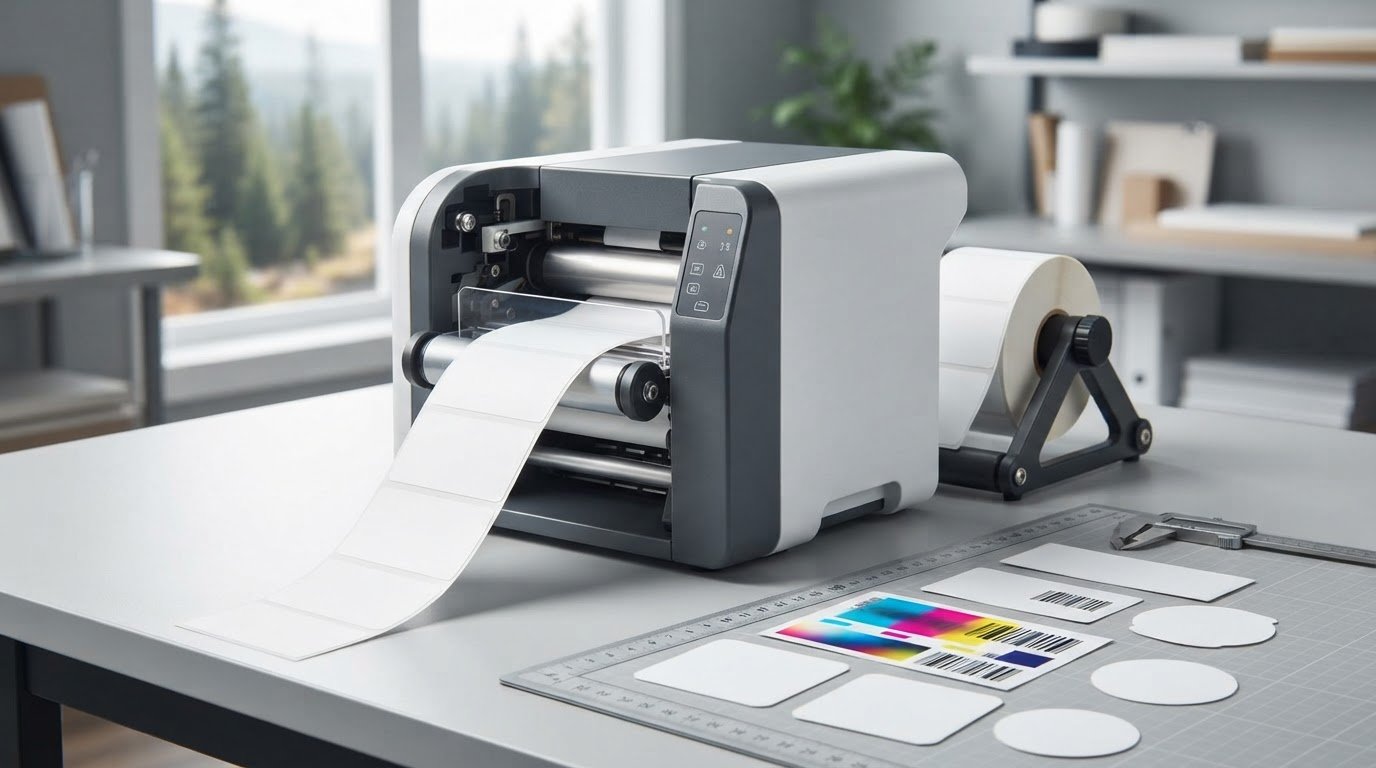
Your printer’s brand is only the starting point. A roll can carry the right name and still be unsuitable if its core, outer diameter, width or ink-receptive coating doesn’t match the printer. Choosing blank inkjet roll labels for color label printers means checking the full setup, not just the logo on the machine.
It’s understandable to focus on print quality, but the label surface and adhesive matter just as much. The wrong combination can affect how colour appears, how well ink holds up, and whether a label stays attached in its intended setting.
This guide explains which printer details to check before choosing roll stock, how paper and synthetic materials suit different products and conditions, and why pigment or dye ink can influence your choice. You’ll also learn how to compare roll formats and find a practical supply path for your production needs, including printer-specific label stock from brands such as Afinia and Epson.
Key Takeaways
- Start with your exact printer model and documentation; brand alone doesn’t establish roll-label compatibility.
- Compare roll format and stock specifications with your printer’s requirements before ordering blank inkjet roll labels for color label printers.
- Match the label surface and adhesive to the product and conditions where the label will be used.
- Check the printer’s media settings, load the roll correctly, and inspect a small test run before using production stock.
- Use the buyer checklist to narrow your options, then explore blank inkjet labels and colour label printing supplies for your setup.
What Are Blank Inkjet Roll Labels for Color Label Printers?
Blank inkjet roll labels are unprinted label stock wound on a roll for printing in a compatible inkjet label printer. The printer applies ink to a receptive surface to produce text, graphics, barcodes or other label content. The right stock depends on the printer’s supported media and ink, not simply the printer brand. That distinction helps prevent poor feeding or print results when selecting blank inkjet roll labels for color label printers.
Roll labels differ from sheet labels in how the media is supplied and fed. Sheets hold multiple labels on a flat backing and suit printers designed for sheet media. Roll labels feed from a continuous roll, while pre-printed labels arrive with some or all of their content already printed. Blank stock leaves that printing step to you, which can be useful when information or quantities change.
How roll labels work in a colour inkjet printer
A compatible printer advances the roll and positions each label for printing, using its media-feed and sensing system. The exact process varies by model. The printable face must be designed for the printer’s ink and printing method; otherwise, ink may not form the intended image. For a primer on how inkjet technology places ink on a surface, see Inkjet Printing Technology.
Printer documentation sets the media requirements, including supported label and liner widths, roll format and other dimensions. Check the exact model rather than assuming that a roll will fit because it is intended for the same brand. OptiMediaLabs Canada supplies Afinia label stock alongside colour label printing equipment and supplies.
When blank roll labels suit a production workflow
Blank roll stock can support on-demand printing when label details or required quantities vary between runs. For example, a business updating product information may print the labels it needs for a particular batch rather than rely on a fixed supply of pre-printed labels. The workflow still depends on having a printer and stock that work together.
Roll-fed media can also support repeated runs when the printer is designed for that format. Sheet labels may be an option for some workflows, but only if the printer supports sheets and the format meets the application’s needs. Check the equipment documentation before choosing between rolls and sheets. Matching the media to both the printer and the task is the practical first step toward consistent output.
How to Check Inkjet Roll Label Compatibility Before Ordering
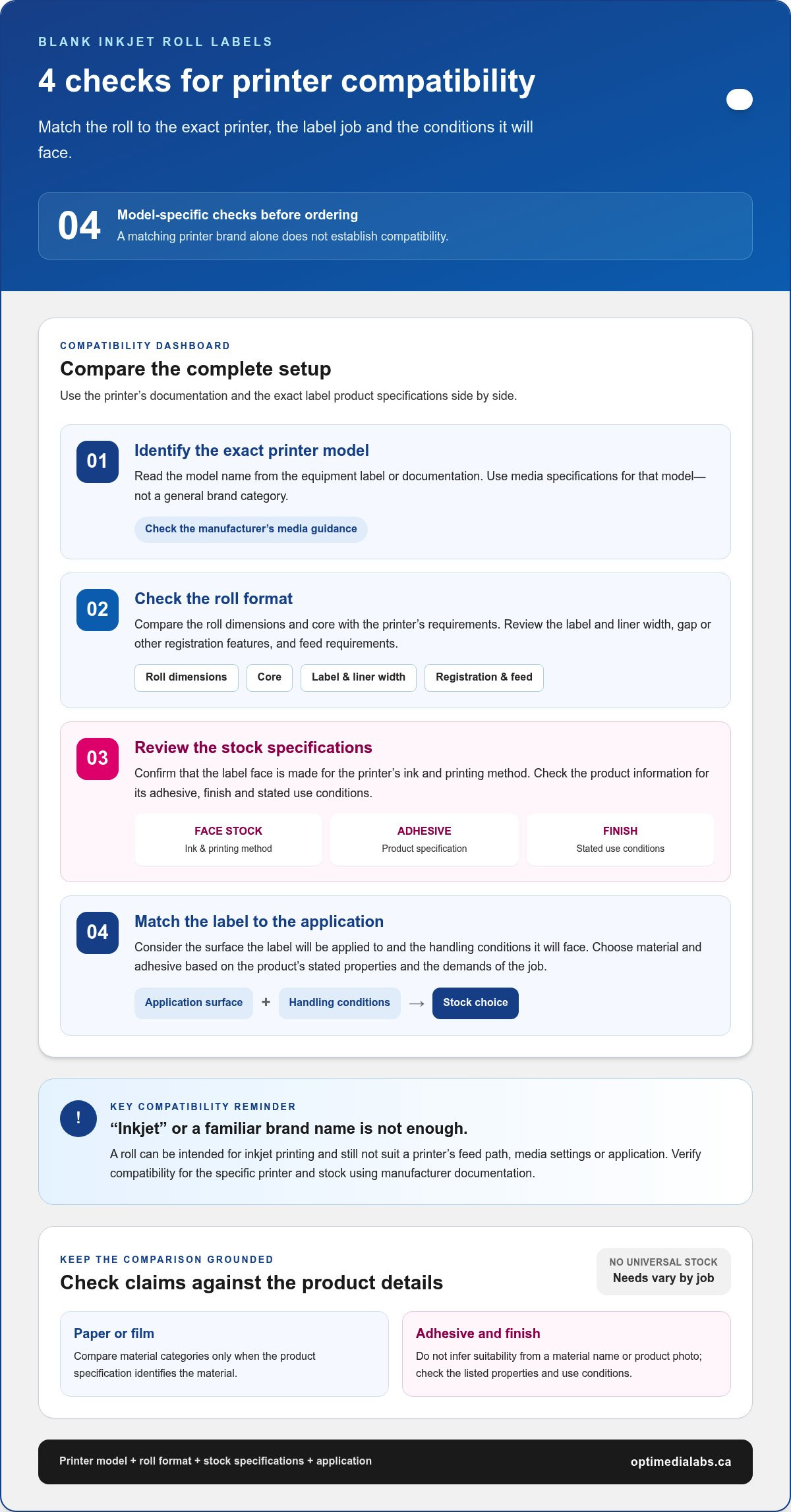
Use a model-specific check before ordering. A label roll can be intended for inkjet printing and still fail to suit a particular printer’s feed path, media settings or application. Brand names help narrow the search, but they don’t establish compatibility on their own. For blank inkjet roll labels for color label printers, compare the printer’s media requirements with the exact label product specifications.
- Identify the printer model. Read the model name from the equipment label or consult its documentation. Use the manufacturer’s media specifications for that exact model, not a general brand category.
- Check the roll format. Compare the roll dimensions and core with the printer’s requirements. Review label and liner width, gap or other registration features, and feed requirements. These details vary by equipment.
- Review the stock specifications. Confirm the face stock is made for the printer’s ink and printing method. Check the product information for adhesive, finish and any stated use conditions rather than assuming similar-looking rolls perform alike.
- Match the label to the application. Consider the surface the label will be applied to and the handling conditions it will face. The required adhesive and material should be based on the product’s stated properties and the demands of the job.
Start with the printer model and media requirements
Keep the model number and manufacturer media guidance beside the label specifications as you compare options. The National Institute of Standards and Technology’s Precision Inkjet Deposition project provides background on inkjet’s controlled placement of material, a useful reminder that print results depend on both the printing process and the receiving surface. Avoid claims that a label is universally compatible unless manufacturer documentation supports that claim for the specific printer and stock.
Match the label face stock and adhesive to the job
Paper and film labels can have different properties, but compare those categories only where the product specification identifies the material. Adhesive selection also depends on the application surface and expected handling. Don’t infer suitability from a material name or a product photo. For brand-specific options, browse Afinia label stock or Epson label stock, then match the listed details to your printer and use case.
Exact compatibility should be verified at the product level before publication or purchase. If you’re comparing options for a particular setup, discuss your label requirements with OptiMediaLabs Canada.
Which Blank Inkjet Roll Label Specifications Matter Most?
Compare the complete label specification, not just its appearance or printer-brand category. A label must suit the printer’s media requirements and the product it will identify. No single label stock suits every product and environment, because printer needs, application surfaces and handling conditions differ.
Use this table to organize your comparison. Treat the descriptions as questions to investigate, not performance claims about a particular stock.
| Specification | What to compare | Why it matters |
|---|---|---|
| Face stock | Material category, such as paper or film, and whether the product is specified for your inkjet printer | The printable surface must suit the printer and the look and function required for the label. |
| Adhesive | Stated adhesive properties and intended application surface | A label applied to a smooth container may have different requirements from one applied to a curved or textured surface. |
| Finish | Matte or gloss, as specified for the product | Finish influences presentation and can affect how text and graphics appear under lighting. |
| Roll format | Roll dimensions, core, orientation and printer feed requirements | The roll must fit and feed correctly in the selected printer. |
| Intended use | Product surface, label content, application method and handling conditions | These details help define the functional requirements beyond appearance. |
Choose label material and finish for the product
Paper and film are broad material categories, not a guarantee of a particular label’s performance or printer compatibility. Check the exact product details and confirm that its printable surface is suitable for your inkjet model. Then consider the visual result: a matte finish may suit a subdued presentation, while gloss may create a more reflective look. Neither finish alone confirms readability or suitability; assess the printed result for the content and lighting where the label will be viewed.
Select adhesive and roll format for application
Consider what the label will attach to, including the container’s shape and surface, and how the label will be applied. Use the product’s stated adhesive information rather than assuming one option suits every surface or handling condition. For roll format, compare orientation, core and dimensions with both the printer documentation and the label product specification. A roll that is physically close to the required format may still feed incorrectly if a detail differs.
Before ordering, verify every material, finish, adhesive and format detail against the selected product specifications and printer requirements. This final comparison helps narrow blank inkjet roll labels for color label printers to options that match both the equipment and the job, without relying on broad category names alone.
How to Prepare and Test Blank Inkjet Roll Labels
A controlled test helps reveal feeding or print issues before you commit production stock. Use the printer and label manufacturer’s instructions for the specific equipment and media. For blank inkjet roll labels for color label printers, follow this sequence:
- Confirm the stock. Check the label product details against the printer’s supported media requirements, including roll format and printable surface.
- Load the roll correctly. Follow the equipment instructions for roll orientation, threading and label positioning. Make sure the stock is seated and feeding as directed.
- Select the media setting. Choose the setting recommended for the label stock and printer. Don’t assume a setting for a similar-looking material will produce the same result.
- Check artwork placement. Confirm the file’s label dimensions and orientation match the loaded stock. Keep important text and graphics within the intended print area.
- Print a small test, where the workflow permits. Review the output before moving to a larger run.
Set up the printer and artwork for a first test
Use the manufacturer’s guidance for loading media and selecting print settings. Keep the artwork simple enough to assess position and legibility, while including the elements that matter in production, such as small text, colour areas or a barcode if applicable. This makes it easier to spot alignment or registration issues without changing several variables at once.
Follow the printer manufacturer’s instructions for ink handling, cleaning and maintenance. Avoid applying generic maintenance steps that may not suit your model.
Review the test print before production
Inspect the label as it exits the printer. Check that it feeds consistently and that the image is aligned with the label. Review colour appearance, text legibility and whether any content is clipped or misplaced. Misfeeding or an unexpected print appearance are signs to pause and review the setup; they don’t point to a single cause on their own.
If you adjust settings, change one at a time and print another test where possible. That makes it clearer which adjustment affected the result. Once the output is acceptable, record the stock identification and printer settings alongside the job details. A reliable record helps reproduce the setup for repeat runs.
Need help organizing the details for your setup? Discuss your roll label requirements with OptiMediaLabs Canada.
Find Blank Inkjet Roll Labels for Your Colour Printer
Choose stock by matching the printer’s requirements to the label’s specifications and the job it needs to do. Broad category names can help you start browsing, but they don’t replace checking the exact model, roll format, printable surface and application. Use this checklist to narrow down blank inkjet roll labels for color label printers before placing an order.
Use a concise checklist to narrow label choices
- Printer: Record the exact make and model. Use its documentation to identify supported roll-feed requirements.
- Roll specifications: Note the required dimensions and format, including any stated core, orientation, width or registration details.
- Label surface: Identify the face stock and finish you need, then compare them with the printer and ink specifications.
- Adhesive and application: Describe the product surface, how the label will be applied, and the handling conditions it will face.
- Compatibility: Compare the intended stock with product-level and printer documentation. Don’t rely on brand or category alone.
This record gives you a practical basis for comparing label options. If a specification is missing from your notes, return to the equipment documentation or product details rather than assuming a similar roll will work.
Plan the next step for your printing workflow
Keep the decision tied to your actual setup. A printer model and a clearly defined application can help distinguish between stock that only appears suitable and stock whose documented specifications match the job. Record the requirements in one place so they’re easy to refer to when comparing media or repeating an order.
OptiMediaLabs Canada specializes in distributing colour label printers and printing supplies across Canada, including blank inkjet labels and brand-specific label stock. For more equipment context, the Afinia Colour Label Printer Guide and Professional Label Printer Consumables Guide can help frame the broader choices involved in building a printing setup.
Have your printer model and label application details ready? Contact OptiMediaLabs Canada about label supplies to discuss the label configuration that fits your workflow.
Choose Stock That Fits Your Printer and Product
The right label choice starts with your printer’s exact model and documented roll requirements. From there, match the label surface, adhesive and finish to the product and its handling conditions. A small test run can help you assess feeding, alignment and print appearance before committing more stock.
These checks make it easier to compare blank inkjet roll labels for color label printers based on real specifications, not just a brand name or broad category. OptiMediaLabs specializes in distributing colour label printers and printing supplies in Canada, including blank inkjet labels and brand-specific label stock.
Have your printer model and label application details ready? Contact OptiMediaLabs to discuss blank inkjet roll labels and identify a practical next step for your setup. With the right information in hand, you can move forward with greater confidence in your label supply choices.
Frequently Asked Questions
What are blank inkjet roll labels?
Blank inkjet roll labels are unprinted labels supplied on a continuous roll for use in a compatible inkjet label printer. The printer applies the design during production, so teams can print labels as needed instead of ordering each design pre-printed. The roll and printable surface must suit the printer’s feed requirements and ink system. Check the model documentation and label specifications before selecting stock. That check helps avoid assumptions about media compatibility.
Can I use any roll labels in a colour inkjet printer?
No, roll labels aren’t universally compatible with every colour inkjet printer. Equipment can have specific requirements for roll dimensions, core, label spacing, orientation and printable surface. Ink and media compatibility can also affect the output. Identify the exact printer model, then compare its documented media requirements with the label specifications. Don’t assume a label will work simply because it’s described as inkjet stock or is marketed for the same printer brand.
How do I choose blank inkjet roll labels for my printer?
Start with the printer model and its media documentation. Confirm the permitted roll format and dimensions, then match the label surface and adhesive to the product and application. Consider the intended appearance and how the label will be handled. Before using blank inkjet roll labels for color label printers in production, run a controlled test if your workflow permits. Inspect how the roll feeds, then check alignment, legibility and colour appearance.
What is the difference between inkjet roll labels and sheet labels?
Roll labels are supplied wound on a roll and feed through compatible roll-based label printers. Sheet labels are arranged on flat sheets and suit equipment designed to accept that format. The two formats aren’t interchangeable in every printer. Roll stock may fit a roll-fed workflow, while sheets can suit different equipment and print routines. Check your printer’s documentation and choose the format that matches both the equipment and your production process.
Do blank inkjet labels need a special coating?
The printable surface must be appropriate for the printer’s ink and media system, but the exact requirements depend on the printer and label product. Not every paper or film label will produce the same result. Check the printer guidance and label specifications for compatible media before ordering. If your workflow allows, print a small test run to assess image appearance and feeding before committing to a larger batch.
Can inkjet roll labels be used on products exposed to moisture?
Suitability depends on the label material, ink, adhesive, product surface and actual exposure conditions. The term “inkjet label” alone doesn’t establish waterproof or moisture-resistant performance. Review the product specifications and test the label in its intended setting before relying on it. If the application has specific durability needs, look for supporting product information rather than relying on broad material descriptions or making assumptions based on appearance.
What should I check if inkjet roll labels feed or print poorly?
First, compare the roll format and label stock with the printer’s documented requirements. Review how the roll is loaded, its orientation, the selected media setting and the artwork placement. Use a controlled test to inspect feed consistency, alignment, legibility and colour appearance. Change one setting at a time so you can evaluate its effect. If the issue continues, follow the equipment manufacturer’s troubleshooting guidance instead of assuming the label stock is defective.