
Connecting a Label Printer to ERP: Data, Triggers and Errors

The ERP should control label data, not every aspect of the label. Connecting a label printer to an ERP system works best when the ERP supplies accurate transaction details and labelling software manages templates and printer-ready output. Print jobs can then start at defined events, such as receiving, production completion, packing or dispatch.
It’s reasonable to use the ERP as the source of truth for products, orders and inventory. The key is deciding which information belongs there and which tasks need separate label controls. This guide explains how to divide those responsibilities, connect systems through suitable integration methods and trace print jobs so errors can be identified and handled.
You’ll also see how ERP and manufacturing execution system (MES) events can trigger printing, why template and printer rules matter, and what to record when a job fails or needs a reprint. The goal is a workflow that keeps label content aligned with business transactions without adding unnecessary manual steps.
Key Takeaways
- Keep operational records and transaction data in the ERP, while managing reusable label layouts and print formatting separately.
- Choose an integration path that fits your systems, and standardize shared identifiers before data begins moving between them.
- Tie print triggers to meaningful workflow events, such as receiving, production completion, packing or dispatch.
- Log each job’s status and transaction reference so teams can investigate failures and control reprints.
- Use pilot testing to uncover workflow issues before expanding automated printing across sites or production lines.
ERP-controlled label data and label-server-managed designs
Keep transaction facts in the ERP and manage label layouts in labelling software. This division helps maintain accurate records while applying the right template to each product, order or shipment.
Label Data and Business-Rule Ownership
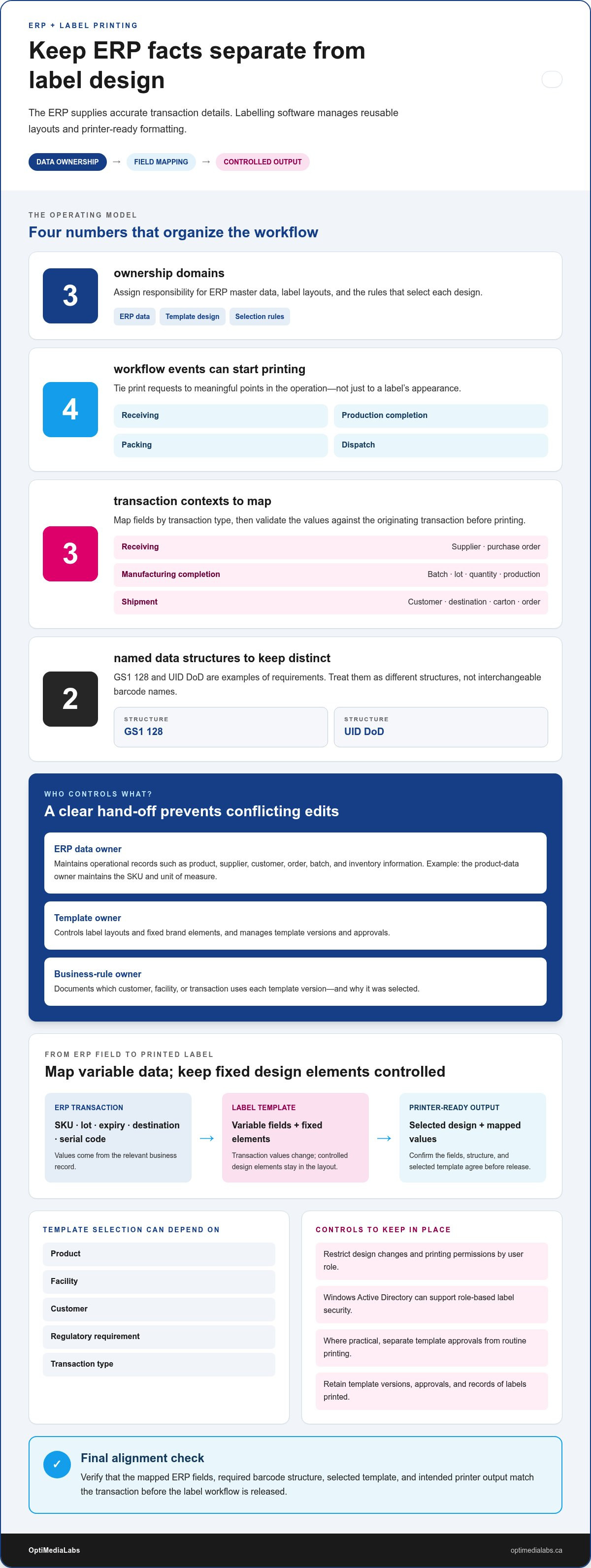
Ownership means assigning responsibility for ERP master data, label templates and the rules that select each design. The ERP should remain authoritative for product, supplier, customer, order, batch and inventory information. Labelling software manages layouts and printer-ready formatting. Clear ownership helps prevent conflicting edits and makes it easier to document why a template was selected.
For example, the product-data owner maintains the SKU and unit of measure, while the template owner controls fixed brand elements. A business-rule owner documents which customer, facility or transaction uses each version. Control template versions, and record approvals and selection logic. Without these assignments, a correct ERP value can still appear in the wrong label format.
Mapping ERP Fields to Label Templates
Field mapping connects a named ERP value to a variable area in a label template. A product SKU can populate the item field; a lot number, expiry date, destination or serial code can populate other fields. Fixed elements, such as a brand mark, stay in the design while transaction-specific values change with each print job.
Map fields by transaction type, not just by label appearance. A receiving transaction can supply supplier and purchase-order details; manufacturing completion can supply batch, lot, quantity and production details. A shipment can provide customer, destination, carton and order identifiers. Validate mapped values against the originating transaction before printing, especially when blank or mismatched fields could cause errors.
Template selection can depend on product, facility, customer, regulatory requirement or transaction type. For example, a shipment for one customer may need a different language, barcode structure or packaging format from another customer’s shipment. Document these selection rules alongside the corresponding template version so a change to a customer or product record doesn’t silently route work to an unsuitable design.
Compliance, Data Structure and Access Controls
Compliance mapping means shaping label content and barcode data to the requirements that apply to a product, customer or shipment. GS1 128 and UID DoD are examples of named data-structure requirements. Treat them as distinct structures, not interchangeable barcode names. The correct template must place required data in the expected format, and the data must match its ERP transaction.
Security risks include unauthorized template or rule edits, exposure of business data, and unapproved print or reprint access. Restrict design changes and printing permissions by user role; Windows Active Directory can support role-based label security. Where practical, separate access to template approvals from routine printing, and retain records of versions, approvals and labels printed.
For a colour product label, the design and printer must produce the intended output from the controlled template; colour label printers are one relevant printer category. Confirm that the mapped fields, barcode structure and selected template agree before releasing a label workflow. This final alignment connects ERP-controlled values with a usable, accurately formatted label.
Integration planning and middleware or API support
Plan the connection around the transaction, receiving software and printer destination. Multiple printers and locations need routing rules that map warehouses, production lines, receiving areas and shipping stations to assigned devices. Connecting a label printer to an ERP system starts with documenting those destinations and the business events that send jobs to them.
Planning ERP Label Integrations
Integration planning defines how ERP data reaches labelling software, templates and printers. This matters because incompatible fields or unclear printer assignments can interrupt a valid workflow. Before connecting a label printer to an ERP system, document the transactions, systems and locations involved. Assess software compatibility and standardize item, lot, serial, quantity and location identifiers across connected systems.
Test the design in a controlled pilot before wider deployment. For example, use a receiving transaction at one warehouse to validate data transfer, template selection, printer routing and output. Involve staff who handle ERP records and labels in planning and feedback. They can identify practical gaps, such as how a changed warehouse assignment should affect the destination printer.
Middleware, APIs and ERP Integration Methods
Integration methods define how ERP data transfers to label-printing software. Options include APIs, middleware, print servers, database links and secure file exchange. API connections can support real-time communication, while middleware can transform data between systems with different formats. Choose a method based on compatibility, required data flow and how each system handles print requests.
A print server can receive a request, select a template and route the formatted job to a designated printer. Keep shared mappings reusable while preserving entity-specific rules across facilities or legal entities. This helps accommodate separate ERP systems without treating every product, location or customer process as identical.
For B2B web-to-print, integration can pass customer orders into the ERP and return order-status and inventory updates. Map incoming order fields to the ERP’s expected structure, and define how the workflow handles missing or mismatched data. This keeps online order information aligned with records used for fulfilment.
Plan for change. A new facility, ERP migration or added printer can affect mappings, templates and destinations. Reusable integration rules reduce the need to rebuild each connection, while pilot testing helps uncover issues before expansion. Keep system responsibilities clear: the ERP provides business data, integration software transfers it, and routing rules direct jobs to the correct location.
If barcode software is part of your labelling workflow, discuss the available software options with the team.
Triggering print jobs from system events or database updates
An ERP trigger starts a label request when a defined transaction or workflow stage occurs. Match each event to its purpose, required data and intended printer destination.
ERP Events That Trigger Printing
An ERP event is a business action that initiates a label-printing request. This ties the right label to the point where goods move or change status. Common trigger points include goods receiving, batch completion, packing and dispatch. Procurement workflows can also connect printing to requisitions, purchase orders, approvals and receiving.
For example, an approved purchase order can start receiving-label printing with item and quantity details. A manufacturing completion event can initiate a batch label using production information. A shipment event can trigger carton labels with customer, destination and order identifiers. Each event should select the relevant template and route the job to its assigned printer.
Define the trigger around a completed business action, not simply a user opening a record. A saved but unapproved purchase order, for instance, shouldn’t start a receiving workflow. This helps prevent labels from reflecting provisional information and makes the link between the ERP transaction and print job clear to staff.
Database Updates and Automated Print Workflows
A database-driven workflow monitors a defined record change and sends a print request when its conditions are met. This matters because a status update can initiate printing without an operator re-entering transaction details. For example, changing a production order to complete could pass its batch and quantity data to the labelling system.
Set specific conditions for each automated trigger. A shipping workflow might require a released order, a destination and carton details before requesting a label. If a required field is missing, hold the request for resolution rather than produce an incomplete label. This keeps customer and shipment information tied to the correct transaction.
Separate the event from the print resource. The ERP identifies what happened; integration logic determines the template, quantity and printer destination. A receiving event at one warehouse, for example, can route jobs to its receiving area, while a dispatch event uses the shipping station. Location-based routing helps staff receive labels where the work takes place.
Test each trigger with representative transactions before using it in live workflows. Include approved and incomplete records, different customers and multiple transaction types. Confirm that each event produces the intended label, uses the right data and reaches the correct printer. Review trigger rules as processes change, since new approval stages or packaging steps can affect when printing should begin.
Refine the rules using operational feedback. A packing team may find that labels should print only after carton quantities are final, while receiving staff may need them immediately after receipt confirmation. Aligning each trigger with the actual process helps automation support the work instead of creating extra corrections.
Print-job traceability and error handling
Traceability links each printed label to its originating transaction and print outcome. For a manufacturing batch, retain the ERP reference, item or lot identifier, template version, printer destination and job status. These details help operations teams identify which label was produced and connect it with inventory or shipment activity.
Capture a record for every print request, including failed jobs and reprints. Useful fields include the transaction reference, requested label quantity, submission time, assigned printer, template version and final status. A status such as queued, printed or failed gives staff a clear starting point when a warehouse or production line reports missing labels.
Monitor three operational conditions: data accuracy, network connectivity and printed output. If a shipment job fails, staff can compare its customer and destination values with the ERP transaction, then check whether the printer received the request. Check printed labels for legible content and barcode output before they move with the carton.
Failure alerts should reach the monitoring system or staff responsible for print operations. The error record needs enough detail to distinguish a missing ERP field from a disconnected printer or an output problem. For example, an incomplete lot value calls for data correction; a connectivity fault calls for restoring the route before resending the job.
- Data error: Hold the job until the source transaction is corrected.
- Connection failure: Record the printer destination and failed status.
- Output issue: Compare the physical label with its approved template.
Control reprints through user permissions and record the reason for each repeat request. This reduces the risk of duplicate labels entering a manufacturing or shipping workflow. A reprint record should point to the original job and ERP transaction, while showing who authorized the repeat and which printer produced it.
Label history can also support operational reviews and regulatory documentation. Label software may retain design versions, approval history and records of labels printed. Along with transaction references, these records help trace a label from its controlled design to a specific production or inventory event. If a template changes, version history helps distinguish labels created before and after the change.
Use print-status reports to spot recurring problems, such as repeated failures at one shipping station or inaccurate data from a particular transaction type. Assign an owner to investigate each pattern and document the resolution. This turns job logs into practical evidence for improving the workflow, rather than a record reviewed only after an incident.
Automating label printing from MES and ERP systems
Compatible printers are those the label software or integration layer can address through supported connections and printer instructions. Compatibility depends on that software path and the printer’s capabilities, not simply the ERP brand.
An enterprise workflow can combine ERP records with manufacturing execution system (MES) events. The ERP supplies business transactions, while the MES can report production status to initiate a label request. For example, a completed operation can provide batch and quantity details, then direct the job to the production-line printer. This connects printing to the work being done.
Manual printing often requires an operator to find a record, choose a label template and enter or confirm values. Automation links those decisions to a defined transaction or production event. Print automation can reduce label-print initiation time from over a minute to just seconds. The workflow still needs clear rules for selecting templates, destinations and quantities.
Direct printing from an ERP can suit a business with few printers, stable templates, uncommon customer-specific layouts and one location. A label server or labelling software becomes more useful when an enterprise needs varied templates, customer formats or printer destinations. It can transform ERP or MES data into printer-ready output while keeping designs managed outside the ERP.
For example, a production completion event can send an item, lot and quantity to a label template. The system validates required values, creates the print job and routes it to the assigned line. If data accuracy matters to inventory records, match label values to the originating transaction before release. This helps prevent printed quantities or lots from diverging from production records.
Plan the workflow around the boundary between business and production systems. The ERP can own order and inventory transactions; the MES can signal that a production step is complete. Integration logic then uses the event to select the correct label template and printer. This division keeps operational records consistent while avoiding manual re-entry at the line.
Test representative transactions before scaling automation. Include a completed production order, a changed quantity and a job routed to another location. Check that the output matches the source data and reaches the intended printer. As production volumes grow, automated labelling systems can handle hundreds of simultaneous print jobs, provided the integration and printer environment support the workflow.
For a production or ERP labelling workflow, discuss your printer and labelling requirements.
Printers are compatible when the label software or integration layer supports their connections and printer instructions. Compatibility depends on that software path and the printer’s capabilities, rather than the ERP brand alone.
OptiMediaLabs Canada: Afinia Color Label Printers
OptiMediaLabs Canada offers Afinia Color Label Printers for businesses producing colour labels as part of an ERP-led workflow. Choose printer equipment to match the label type and production process, while keeping ERP data mapping and print triggers defined in your integration.
For workflows involving RFID printing, OptiMediaLabs Canada also offers RFID Label Printers. Afinia Label Cutters & Finishers can support label finishing needs, while Thermal Transfer Ribbons are available for thermal transfer printing. These offerings address different equipment requirements, so consider which label output your operation needs before selecting a configuration.
Contact OptiMediaLabs Canada or visit optimedialabs.ca to explore equipment options for your labelling workflow.
Make the Next Workflow Decision
Before connecting a label printer to an ERP system, decide what output your operation needs at the point of use: colour product labels, RFID labels or another print format. This gives equipment planning a practical starting point and keeps printer selection tied to production and fulfilment needs. Consider where each label will be produced and who will use it.
OptiMediaLabs Canada offers Afinia Colour Label Printers, professional ink supplies and RFID Label Printers. Match the equipment category to your labelling requirements, then plan how it will fit your printing environment. Turn your needs into a clear equipment shortlist, including label type, print location and intended use.
For a focused discussion about label printing equipment, contact OptiMediaLabs Canada. A well-defined starting point makes it easier to move from integration planning to a workable print setup. Take the next step when you’re ready to shape your label workflow.
Frequently Asked Questions
Which responsibilities should remain inside the ERP?
Keep business records and transaction decisions in the ERP, including product identifiers, order status, inventory quantities and approval outcomes. For example, the ERP should determine whether an order is released, while the labelling workflow uses that status to decide whether printing may proceed. This keeps label requests tied to the records used by purchasing, production and fulfilment, rather than creating a separate source of operational truth.
What connection methods can link a label printer to an ERP system?
Common methods include APIs, middleware, database links, secure file exchange and print servers. An API can pass a print request directly between compatible systems; middleware can transform information when their formats differ. A print server can receive a formatted request and route it to a selected device. The suitable method depends on the ERP’s integration options, the labelling software and how printers are managed.
How do you configure ERP software to print labels automatically?
Configure the ERP workflow to create a print request after an eligible transaction reaches its required status. For example, a released order could provide data for a packing label, while an unapproved order remains ineligible. Define the event, required fields, label quantity and destination, then test complete and incomplete transactions. Confirm that the workflow handles corrections without creating an unintended duplicate request.
What printer drivers, middleware, or APIs are needed for ERP label printing?
The setup needs a compatible communication path from the ERP or integration layer to the printer. A printer driver can translate output for a specific device; middleware can connect systems with different data formats; an API can exchange structured requests. Some workflows use labelling software to convert designs and ERP data into printer instructions. The required components depend on the systems and printer language in use.
How do you map ERP fields to label templates and barcodes?
Match each template variable to the ERP field that holds the intended value, then define how that value should appear. For example, map an item identifier to its label field and use the required source fields to form the barcode content. Check that field order, separators and formatting match the selected data structure. Test with real transaction examples, including records with optional fields left blank.
What are common ERP-to-label-printer integration problems and how do you troubleshoot them?
Frequent problems include missing field values, incorrect mappings, unavailable printers and output that differs from the approved design. Compare a failed job with its originating transaction, then inspect the mapped fields and template version. If the data is correct, check the printer route and connection status. Keep the original transaction reference on reprints, and record the cause and resolution so recurring faults can be identified.
What Canadian barcode and shipping-label standards should ERP label printing support?
Support the barcode structure and shipping-label format required by the product, customer or trading partner. GS1 128 is an example of a shipping-label data structure; it isn’t a universal rule for every Canadian shipment. UID DoD is another distinct requirement that applies only where relevant. Configure templates around the applicable specifications, and validate encoded data and printed output before operational use.