
Epson C6000 Peel and Present vs. Afinia L502: Comparing Applicator Workflows
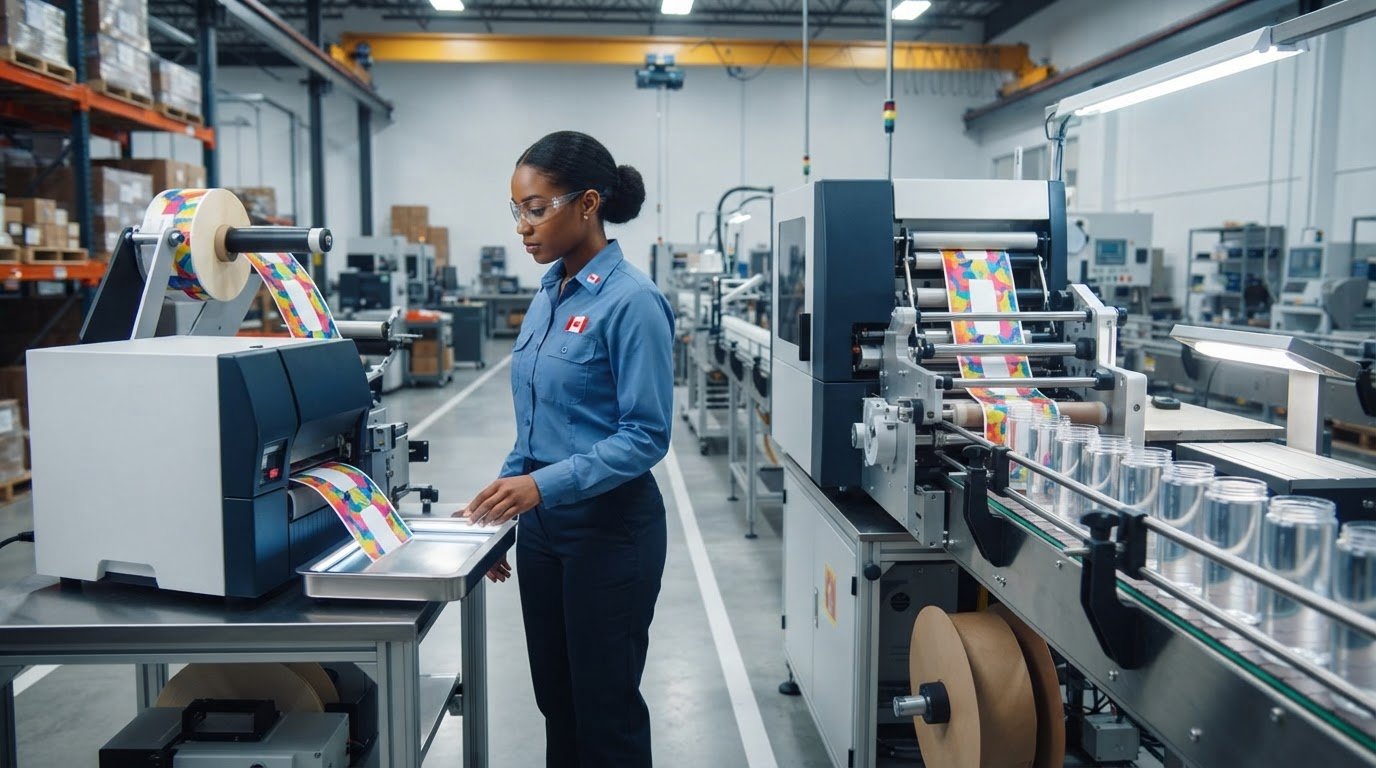
A peeled label isn’t necessarily an automatically applied label. That distinction is central to the Epson C6000 peel and present vs Afinia L502 applicator workflow, and it can change what your production line needs. The Epson C6000P separates each label from its liner and presents it for pickup. An operator or an integrated applicator still has to place it on the product. With the Afinia L502, the handoff depends on the output setup and any separate finishing or application equipment.
When comparing these printers, look beyond print quality and speed. Start with how a finished label moves from the printer to the product, then decide whether that process fits your line. This comparison explains the difference between presenting a peeled label and applying one automatically, including the equipment and integration requirements that shape each workflow.
Media handling, controls and production pace matter alongside printer specifications. Use the steps below to identify what to test, from the label handoff to the complete applicator setup, before choosing equipment for your operation.
Key Takeaways
- Map every workflow step, from the print command to label presentation, application and verification, to identify where equipment or operator actions are needed.
- The Epson C6000 peel and present vs Afinia L502 applicator workflow comparison is about the complete handoff and integration, not printer performance alone.
- Assess printer specifications separately from applicator requirements, including controls, media handling and production pace.
- Test both setups with representative products, labels and production conditions. Record misfeeds, placement issues and workflow interruptions.
- Use the results to identify the printing and finishing equipment that best matches your required application method.
Epson C6000 Peel and Present vs. Afinia L502: What Workflow Are You Comparing?
Does your line need a label peeled from its backing, automatic application to a product, or both? That decision defines the Epson C6000 peel and present vs Afinia L502 applicator workflow. A printer produces the label. The rest of the workflow determines how it reaches the product, when it is applied and whether the result is checked. Treat these as separate functions when comparing equipment.
A print-and-apply system can involve a printer, a mechanism that presents or feeds the label, an applicator, controls that coordinate the steps, and a method to detect or verify application. The components and sequence vary by setup. The general functions of a label printer applicator help frame the distinction, while the capabilities of a specific printer or applicator depend on its model documentation and configuration.
What peel-and-present does, and does not, mean
On the Epson ColorWorks CW-C6000P, “P” identifies the peel-and-present configuration. The printer separates the label from its liner and presents it at the output point. This is a label handoff, not proof that the printer detects a product and applies the label automatically. Use current Epson documentation to understand the C6000P’s output behaviour, remote I/O and requirements for integration with an external applicator.
Keep the actions distinct: the printer prints; the peel-and-present function separates and positions the label; an operator or applicator takes it; and the application step places it on the product. If an operator picks up each label, it is a manual application workflow, even though the printer handles label separation. Automation requires suitable application equipment and a coordinated process.
Where the Afinia L502 fits in an applicator workflow
The Afinia L502 is the printer being assessed, not a presumed print-and-apply package. Its role in a line depends on how it delivers printed labels and how a proposed applicator receives them. Use documentation for the exact L502 configuration and equipment combination to establish output-handling and integration details. Don’t assume a compatible applicator, a particular trigger method or an included rewinder.
For example, a line may print labels for an operator to apply at a workstation, or supply labels to an applicator as products move through a production area. These configurations have different requirements for label presentation, product movement, timing and operator involvement. Explore Afinia label printers as part of the equipment category, and assess any finishing or application hardware separately.
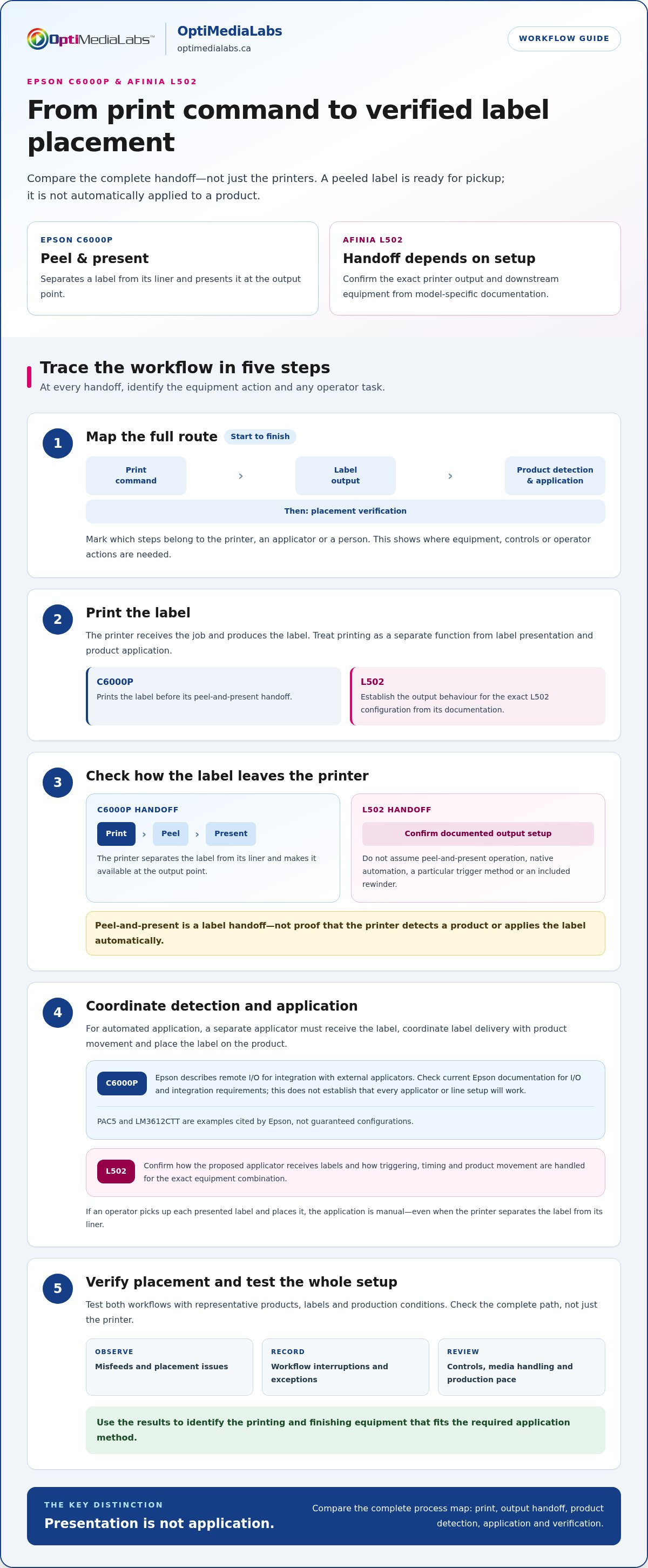
Compare complete process maps, not just printer names: print command, label output, product detection, application and verification. For each step, identify the responsible equipment and any action a person must perform. This shows what the next comparison needs to address, without treating either printer’s output as evidence of a complete automatic application system.
How the Epson C6000P and Afinia L502 Workflows Handle Print, Peel, and Apply
Trace each label from the print command to the point where its placement is checked. This makes clear which actions belong to the printer, which require a separate applicator and where an operator may need to intervene. The Epson route has a peel-and-present handoff. The L502 route depends on its documented output configuration and the equipment connected downstream.
Epson C6000P peel-and-present with an applicator
The C6000P prints a label, separates it from its liner and presents it at the output point. For automated application, an external applicator must receive the label, coordinate with product movement and apply it. Epson describes remote I/O for integration with external applicators. Treat this as a reported integration feature, not proof that every applicator or line configuration will work. Consult current Epson documentation for the printer’s I/O and integration requirements. PAC5 and LM3612CTT are examples cited by Epson, not guaranteed configurations.
A typical sequence to map is:
- Print: The printer receives the job and produces the label.
- Present: The C6000P peels the label from its backing and makes it available at the output.
- Detect and apply: The applicator’s controls coordinate label delivery with the product and perform application.
- Verify: An operator or a defined inspection step checks placement and records exceptions.
Afinia L502 output and the application handoff
For the L502, map the printing step first. Then use model-specific documentation to establish how the printed label exits and how the next device receives it. Don’t assume native automation, peel-and-present operation or compatibility with an applicator. Treat triggering, label presentation and synchronization with product movement as configuration points to verify. A person may handle the label between printing and application, but the actual handoff depends on the documented setup.
Use the same process map to compare both routes, marking each step as a printer action, applicator action or operator task. This avoids treating the C6000P’s peel function as automatic application or assuming the L502 offers an equivalent handoff.
Consumables and finishing equipment in the workflow
Choose label stock and ink for the printer and production task, then test them in the intended workflow. If labels need downstream cutting or finishing before application, account for the added handling and timing requirements. Afinia label cutters and finishers are relevant equipment to consider. For a wider view of Epson equipment, review Epson printer options.
Before selecting a setup, document the actual output, operator actions, application trigger and verification method. Use current model requirements and test the complete sequence with your labels and products. For help considering printer and finishing equipment for your workflow, contact OptiMediaLabs Canada.
Which Applicator Workflow Fits? Compare Integration, Handling, and Line Requirements
Compare the complete label handoff, not a single printer feature. The Epson C6000P’s peel-and-present function separates a label from its liner, but that alone doesn’t detect a product or apply a label to it. Automatic application is a system-level capability involving the printer, applicator, controls and product movement. The right configuration depends on how those parts work together in your line.
Label handoff: C6000P, a peeled label is presented at the printer output. L502, output handling depends on the documented model configuration and downstream setup.
Application method: C6000P, manual pickup or a separately integrated applicator. L502, manual or automated application depends on the verified output and integration arrangement.
Integration: C6000P, use current Epson documentation to confirm remote I/O and applicator requirements. L502, check its output, triggering and synchronization details against model-specific documentation.
Operator involvement: Either workflow may require people to load media, manage exceptions or inspect labels. The exact tasks depend on the selected equipment and process.
Compare manual presentation with automated print-and-apply
At a manual station, an operator picks up or receives the label, positions the product and applies the label. Glove use, access to the presentation point and placement on small or curved surfaces can affect handling. An automated setup transfers application to equipment, but consistency and pace depend on the complete line. Don’t infer throughput gains from a printer’s stated speed. Test the integrated system under your production conditions.
Compare integration and production constraints
Before selecting a configuration, map how a product is detected, what signal starts or coordinates label delivery, and how much space the printer and applicator need. Consider line spacing, operator access and product orientation at the application point. For example, a change in product shape may affect where a label can be placed or how it must be presented. Compare control signals, media path, label dimensions and roll handling with current manufacturer specifications for the exact equipment.
For the Epson C6000 peel and present vs Afinia L502 applicator workflow, keep three evidence categories separate:
- Manufacturer specifications: Confirm printer speed, resolution, supported media, label dimensions and operating requirements for the exact model.
- Integration documentation: Confirm applicator controls, triggers, compatibility and synchronization. Don’t treat a reported integration option as universal.
- Line test results: Record operator actions, placement variation, misfeeds and interruptions using representative products and labels.
Understand printer specifications in context
Print speed and resolution describe printer output, not how quickly an applicator can place labels or how reliably products move through a line. Supplier comparisons may cite figures such as 1200 dpi for an Epson model and 4800 dpi for an Afinia model. Confirm the exact models and measurement conditions in current manufacturer specifications before relying on those figures. Select the print characteristics your label requires, then evaluate application performance separately.
Use this framework to identify which configuration needs a hands-on production test. OptiMediaLabs Canada supplies Epson and Afinia printer equipment and related supplies. Contact OptiMediaLabs Canada about equipment for your workflow.
How to Validate an Epson C6000P or Afinia L502 Applicator Workflow
A controlled production test can expose problems that printer specifications won’t show, such as labels arriving out of sequence, awkward operator access or inconsistent placement on a particular package. For the Epson C6000 peel and present vs Afinia L502 applicator workflow, use the same representative jobs and operating conditions where possible. Decide what a successful result means before testing, then record each handoff from printing through application.
Prepare a representative workflow test
Choose labels, stock and products that reflect routine production, including different package shapes or surfaces if they’re part of the job. Compare media specifications and printer settings with current manufacturer documentation. Before starting, document the application point, whether an operator or applicator handles each step, and the intended sequence from print command to label inspection. If downstream cutting or finishing is required, include it in the test. Afinia finishing equipment can be part of that workflow assessment.
Measure handoffs and workflow reliability
Run each configuration through normal operating events, not just a continuous print sequence. Include start-up, media replenishment and a representative job or product changeover. Log results separately for each printer and applicator arrangement so a print issue isn’t mistaken for an application issue. A simple test record can capture:
- Label output: Was the label printed and presented or released as the configuration requires?
- Application: Was it applied at the intended location and orientation?
- Intervention: Did an operator need to reposition a label, clear a misfeed or restart a step?
- Interruption: What stopped the process, and at which handoff?
Note the product, label, printer settings, equipment configuration and operator actions for each exception. If gloves are used in routine work, include them in the test. If package geometry varies, record which shapes lead to placement problems. These observations help distinguish a media or print-output issue from a control, presentation or application issue.
Set a decision rule before deployment
Translate your operation’s documented quality, labour and output requirements into pass/fail criteria before the trial. Define acceptable placement, required inspection and how exceptions should be handled. Set targets based on your process needs, not a universal speed or accuracy threshold. If you need a particular output rate, measure the complete workflow, including operator tasks and interruptions, rather than relying on printer speed alone.
Compare results against those criteria and list unresolved questions, such as an unverified control signal, media path or applicator handoff. A short trial can inform equipment selection, but it doesn’t guarantee performance under every production condition. Resolve material compatibility and configuration questions using current manufacturer documentation, then extend testing if the operating environment or product mix changes.
Use the findings to select the workflow that meets your requirements with clearly understood operator and equipment responsibilities. Discuss printer and finishing equipment for your workflow with OptiMediaLabs Canada.
Choose a Label Printing Setup That Fits Your Applicator Workflow
Make the decision in two stages: define how a label must leave the printer, then determine how it will be applied to the product. A peeled label presented for an operator is a different handoff from a label delivered to an external applicator. The Epson C6000 peel and present vs Afinia L502 applicator workflow comparison should be based on the complete configuration and documented test results, not brand assumptions.
Match the workflow to the production requirement
If staff will pick up and apply each label, evaluate printer presentation and operator handling as one process. If an applicator will place labels automatically, assess that equipment, its controls and its interaction with products separately from the printer’s output. Confirm the required connection and handoff for the exact models under consideration. Don’t assume a feature or integration documented for one configuration applies to another.
Use your workflow test to guide selection. Compare whether the setup met your operation’s requirements for label placement, operator involvement, interruptions and output. Keep open questions about media handling or equipment integration visible in the decision. This gives purchasing teams a practical record, rather than a conclusion based solely on a printer’s speed or print quality.
Coordinate printers, finishing equipment, and supplies
A complete setup includes more than a printer. Match the printer to the label stock and ink required for the task, then account for any finishing step before application. If labels need cutting or other downstream processing, include that equipment in the workflow map and test. Another handoff can affect handling and timing. OptiMediaLabs supplies Afinia printers, label cutters and finishers, Epson printers, and related printing supplies to customers nationally across Canada.
For broader context, the Afinia printer buyer’s guide can help frame printer selection beyond this workflow comparison. If downstream processing is part of your setup, consult the Afinia finishing solutions guide alongside your test results. Use current model documentation to confirm specifications and compatibility for the actual printer, media and finishing equipment combination.
Discuss the equipment requirements with OptiMediaLabs
Prepare a concise workflow brief before making a selection. Include the printer models under consideration, the applicator’s role, label media, product types, application method and findings from your test. Note any unresolved questions about output handling, control signals or finishing. These details help focus an equipment and supply discussion on your production requirements.
OptiMediaLabs is a Canadian distributor of professional label printers, finishing equipment and printing supplies. Discuss your label printing workflow with the team to review the equipment categories and supplies relevant to your setup.
Turn Your Workflow Test Into a Clear Equipment Plan
Use your production test to create a short equipment brief before making a decision. Record the label handoff you need, who or what applies the label, the media involved and any integration requirements that still need documentation. This gives your team a practical reference for procurement and future line changes, rather than relying on assumptions based on printer brand alone.
The Epson C6000 peel and present vs Afinia L502 applicator workflow decision is most useful when it reflects your products, operators and operating conditions. OptiMediaLabs is a Canadian distributor serving customers nationally, with Afinia printers and label finishing equipment, Epson printers and related printing supplies. Use that equipment and supply scope to frame a focused discussion around your requirements.
Discuss your label printing workflow with OptiMediaLabs. Bring your test notes and the printer models, applicator requirements and label media you’re considering. A clear brief is a useful starting point for selecting equipment that fits your operation.
Frequently Asked Questions
Does the Epson C6000P peel-and-present printer automatically apply labels?
No. The C6000P peels a printed label from its liner and presents it, but that action doesn’t place the label on a product. An operator can pick up and apply the label, or a separately configured applicator can perform application. For example, if labels are applied to cartons moving along a line, the applicator and controls must coordinate label delivery with the cartons’ position.
Can an Afinia L502 be used with an automatic label applicator?
That depends on the specific L502 output configuration and applicator integration, so don’t assume compatibility from the printer model alone. Review current documentation for the printer’s label delivery method and the applicator’s input, triggering and synchronization requirements. Evaluate the actual label stock and product, and confirm that labels transfer reliably between devices before making a production decision.
What is the difference between peel-and-present and print-and-apply?
Peel-and-present describes what happens at the printer’s output: a printed label is separated from its liner and made available for pickup. Print-and-apply describes a broader process in which equipment prints and then applies a label to a product. For a manual packing bench, presentation may be sufficient. A moving line that needs hands-free labelling requires an application mechanism and a coordinated system.
How do I choose between an Epson C6000P and an Afinia L502 workflow?
Start with the point where a label must be handed off, then compare documented equipment requirements and test results. The Epson C6000 peel and present vs Afinia L502 applicator workflow decision may differ for a staffed bench and a conveyor line. For instance, a team applying labels by hand may value convenient presentation, while an automated line must also account for product detection, controls and the applicator’s handling method.
Can the Epson C6000P connect to a label applicator?
Epson reports remote I/O for integration with external applicators, but the exact requirements depend on current printer documentation and the intended applicator. Remote I/O is an integration point, not an applicator built into the printer or automatic confirmation of compatibility. Review signal requirements and system configuration for the specific models, then test the complete sequence with products moving as they will in production.
What should I test before choosing a printer-and-applicator workflow?
Test with the label stock, printed content and product packaging used in routine work. Include different product orientations where relevant, and observe start-up, label replenishment and job changes. Record whether labels feed or present as expected, whether placement meets your internal criteria, and what interventions occur. Set acceptance criteria before the trial, including how your team will handle a misapplied label or interrupted cycle.
Does print resolution determine how well labels are applied?
No. Resolution affects the detail in printed elements, such as small text or fine graphics. It doesn’t determine how an applicator handles or positions a label. Application depends on the equipment configuration, label presentation, product geometry and process controls. Evaluate print quality against the label’s content requirements, then assess placement and handoff separately using the actual product and label materials intended for production.