
Inkjet label printing and setup reference

The Afinia L301 inkjet printer uses two separate cartridges: a tri-colour CMY cartridge and a pigment black cartridge. It prints full-colour labels on inkjet-coated media, with standard label widths up to 6 inches. An optional powered unwinder supports widths from 1.75 to 8.5 inches.
Choosing label media and understanding how the cartridges work are practical parts of getting a reliable setup. Full-bleed printing also depends on configuring the label size and artwork to suit the media.
This reference explains the L301’s label and full-bleed printing capabilities, resolution, cartridge system, and installation and setup process. You’ll find the key specifications and setup considerations in one place, so you can plan your labels and prepare the printer with a clear understanding of how its inkjet system works.
Key Takeaways
- Match label media and print settings to your intended label size and full-bleed layout.
- Understand how resolution and print speed factor into choosing settings for your label job.
- Identify the L301’s cartridge types and the replacement details to consider before changing ink.
- Follow the setup sequence to prepare the printer and configure it for label printing.
- Use the printer’s physical and connectivity requirements to plan its workspace, and select blank inkjet labels suited to your application.
L301 label printing and full-bleed printing
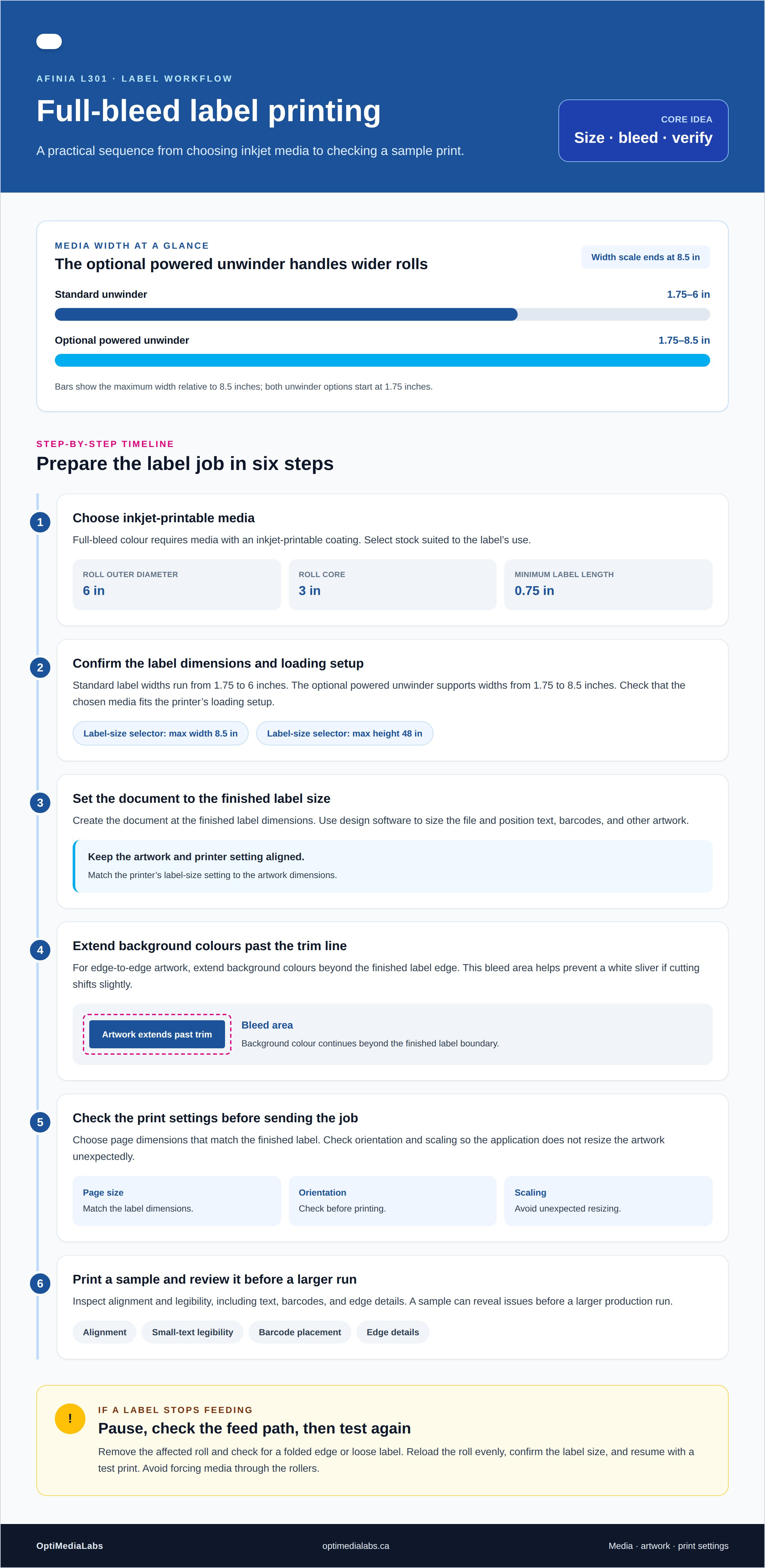
Full-bleed printing extends printed colour to the label’s edges. On an Afinia L301 colour inkjet label printer, the media must have an inkjet-printable coating. Standard label widths run from 1.75 to 6 inches, while an optional powered unwinder supports widths from 1.75 to 8.5 inches. The label-size selector allows a maximum width of 8.5 inches and a maximum height of 48 inches.
For edge-to-edge artwork, set the document size to the finished label dimensions and extend background colours beyond the trim line. This bleed area helps prevent a white sliver if cutting shifts slightly. The L301 supports labels with a minimum length of 0.75 inches. Check that your chosen media fits the printer’s loading setup before preparing a run.
Label media is the coated stock that receives ink and carries the printed design. Compatible rolls have a 6-inch outer diameter and a 3-inch core. The standard unwinder accepts widths from 1.75 to 6 inches; the optional powered unwinder accommodates wider media. For small business applications, examples include product identification, ingredient panels, and coloured packaging labels. Select media suited to the label’s use and designed for inkjet printing.
Labels and design software included with a package are separate from print specifications. Plan the media and artwork as distinct setup items, then use design software to size the file and position text, barcodes, and bleed. A sample label can reveal alignment or legibility issues before a larger production run. Match the printer’s label-size settings to the artwork dimensions.
Label jams happen when media stops feeding cleanly through the printer. Pause the job, remove the affected roll, and check the feed path for a folded edge or loose label. Reload the roll evenly, confirm the label size, and resume with a test print. Avoid forcing media through the rollers, as this can make a feed problem worse.
Compared with similar label printers, the L301 is defined by its 6-inch standard maximum label width and optional powered unwinder for media up to 8.5 inches. Compare other models by compatible media, print width, and workflow needs; those criteria matter more than colour output alone.
The Afinia L301 product listing states a 1-year depot warranty.
Print resolution
Print resolution describes the level of detail a printer can reproduce. The Afinia L301 is described with print specifications of 1600 dpi and full-colour output at 4800 dpi. These figures describe resolution, not physical label size. For fine text, small symbols, or detailed product artwork, use a clear source file and review a sample print before production.
Print speed is the rate at which a printer produces labels. The L301 is described as printing at up to 4 inches per second and 1600 dpi. Higher-detail artwork may need careful review at the chosen settings, since speed and output quality are separate considerations. A colour label printer should be assessed against the detail required by the design, not speed alone.
A custom page size is a print-document setting matched to the label’s dimensions. Set the document dimensions to the finished label size before sending a job. Print-position adjustment moves artwork within the printable area. Use a test label to check text, borders, and barcode alignment, then adjust the artwork or position setting before printing the full batch.
Printer compatibility means that the computer, operating system, connection, and print software can communicate with the L301. The installer prepares the printer software, while the driver translates print jobs into instructions the printer can use. Keep the operating system and connection details in view during setup; compatibility depends on the driver supporting that computer environment.
To prepare a job, start with a file sized for the label, then choose the matching page dimensions in the print dialog. Check orientation and scaling so the application doesn’t resize the artwork unexpectedly. Print a sample and inspect the placement of small text and edge details. The L301’s print-quality report requires labels at least 4 inches wide, a useful constraint when producing that report.
Resolution figures alone don’t determine whether a label will be clear and readable. Artwork quality, text size, media, and print positioning all affect the result. For example, a detailed ingredient panel needs legible small text, while a bold colour block depends more on consistent coverage and accurate placement. Review the label at its intended viewing size, not only enlarged on screen.
If you’re planning an L301 setup, contact us to discuss the printer and label requirements for your workflow.
Afinia L301 inkjet technology and cartridge system
Inkjet technology places liquid ink onto media to create text and images. The Afinia L301 uses two separate cartridges: one for tri-colour ink and one for black ink. This arrangement separates the colour supply from the black supply. For a print job, the printer draws on the appropriate cartridge combination to reproduce the colours and text in the artwork.
The tri-colour cartridge contains CMY ink, meaning cyan, magenta, and yellow. Those colours combine to produce a range of hues in printed designs. The L301 uses Afinia tricolour ink cartridge part number 26548. Match this identifier when choosing a replacement; a cartridge intended for another printer model may not be compatible.
The black cartridge contains pigment black ink, a black ink formulation used for dark text and graphic elements. The L301’s Afinia black ink cartridge is part number 26562. Keeping the two cartridge identifiers distinct helps prevent ordering the wrong supply. Use the model and part number together when organizing replacement inventory or preparing a purchase list.
A separate cartridge system means the colour and black supplies are held in distinct units. The L301 has two cartridges, not separate individual cyan, magenta, and yellow cartridges. That distinction matters for stocking: the colour supply is one tricolour unit, while black is supplied separately. Plan replacements around those two part numbers rather than treating each colour as an independent cartridge.
Before replacing ink, identify which cartridge is due for attention and compare its label with the printer’s required part number. Keep part number 26548 for the tricolour cartridge and 26562 for pigment black. Follow the L301’s cartridge replacement instructions, and seat each cartridge in its designated position. Avoid substituting supplies based only on colour or appearance.
Cartridge selection affects the materials required to keep the Afinia L301 ready for print jobs. A business producing colour product labels and black text needs both cartridge types available. If a job uses little colour, the CMY cartridge remains a distinct supply from black. Review inventory by cartridge type and part number, not by the number of colours visible in a design.
For model-specific supply planning, keep the L301’s two-cartridge arrangement in view and use the exact identifiers when ordering. Afinia ink cartridges are organized by printer compatibility, helping distinguish the correct cartridge family from supplies intended for other Afinia printers.
L301 installation and setup
Installation is preparing the Afinia L301, its driver, and label media for printing. Keep the printer’s installation instructions nearby, since the required sequence and prompts can depend on the computer environment. Use a clear, level work surface, then remove shipping materials as directed before loading supplies or starting a print job.
Start with the computer and printer powered off while you prepare the workspace. Place the L301 where its roll can feed without catching on nearby objects. Keep the roll aligned with the feed path, and leave enough room to open the printer for loading or clearing media. Avoid placing loose tools or packaging where they could obstruct the label path.
Next, install the L301 printer driver, the software that lets the computer send print instructions to the printer. Use the installer intended for the computer’s operating system and follow its on-screen sequence. Connect the printer when the installer prompts you. Once installation finishes, select the L301 in the print application before configuring page size or print position.
Load media only after checking its format against the L301’s requirements. The printer requires an inkjet-printable coating. Its standard unwinder supports widths from 1.75 to 6 inches, and compatible rolls have a 3-inch core and a 6-inch outer diameter. Feed the roll evenly, then set the label dimensions in the print application so the file and loaded stock match.
Before a production run, prepare a short test job with a simple design, such as a product name and a colour block. Check that the label advances properly and the image prints in the intended position. If the sample shifts, review page size, orientation, and scaling in the application before changing the artwork. A test helps distinguish a media-loading issue from a document-setting issue.
Keep setup records with the L301’s driver version, computer environment, selected label dimensions, and media type. Those details make repeat jobs easier to configure consistently. If the printer is moved to another computer, install its driver there and select the matching label settings again, rather than assuming the previous computer’s preferences transfer.
To shut down the L301 using its button procedure, press and hold the button for 5 seconds. Follow that sequence when finishing setup or closing a print session. Before restarting a job, confirm that the printer and application still show the intended label size and that the media remains aligned in the feed path.
What are the Afinia L301's dimensions, weight, and connectivity options?
Dimensions describe a printer’s height, width, and depth; weight describes its mass; connectivity describes how it links to a computer. These factors shape where the Afinia L301 fits in a production area and how the print station is organized. Consider the printer, media, and computer as one working setup rather than planning for the printer alone.
Footprint is the surface area occupied by equipment. Choose a stable work surface with room for the printer and access to its operating controls. Keep label stock close enough for convenient loading, while leaving the area clear for routine printing tasks.
Operating clearance is the space needed to access equipment during use. Allow room to open the printer and reach its controls without moving nearby equipment. For example, keep supply boxes away from the area used to load or service the printer.
Weight affects how equipment is supported and moved. Set the printer on a level surface designed to hold the complete setup, including nearby supplies. If you need to relocate it, clear the work area first and follow the equipment’s handling instructions.
Connectivity is the link that lets a printer communicate with the computer sending jobs. Arrange the print station so the computer and printer can connect without cables crossing walkways or getting in the way of label handling. Select the printer in the application used for production.
In a shared workspace, decide which computer will manage print jobs and where operators will access the controls. Arrange the work area so someone can load media, send a job, and collect printed labels without moving other equipment.
During setup, connect the printer according to its installation instructions, then select it in the print application. Send a test job and confirm the result. Keep the installation instructions with the equipment for future setup or relocation.
For help planning an L301 workspace or printer setup, contact the team with your installation requirements.
Media dimensions are separate from the printer’s height, width, and depth, so check the stock specification when planning labels. The Afinia L301 gap-media specification lists a maximum dimension of 0.5 inches (12.7 mm) for dimension B. The Afinia L301 black-mark media specification lists dimension H from 1.25 to 8.5 inches (31.75 to 216.0 mm), and dimension G from 0.125 to 0.3 inches (3 to 8.0 mm). Use the media type and its listed dimensions to check compatibility before arranging a print run.
For purchasing planning, distinguish a warranty selection from the printer’s physical placement and computer connection. The listing offers an Afinia L301 hot-swap warranty option under SKU AL-32526. Confirm that the selected option matches the intended order, and keep its listing information with setup and purchasing records so the people responsible for the workstation can refer to it later.
OptiMediaLabs Canada: blank inkjet labels
OptiMediaLabs Canada offers blank inkjet labels for businesses preparing their own product, ingredient, or packaging labels. For an Afinia L301, choose media with an inkjet-printable coating and match its format to the printer’s loading setup. The right label stock helps align your print workflow with your intended application.
OptiMediaLabs Canada also offers Afinia Color Label Printers, RFID Label Printers, and Thermal Transfer Ribbons. If you’re planning an L301 setup, focus on suitable blank inkjet labels; the other categories support different printing needs. The Afinia label options can help you consider media for your workflow.
Contact OptiMediaLabs Canada to discuss blank inkjet labels for your application.
Plan the next label run with confidence
Make your next step a repeatable workflow: keep the label artwork, media choice, and printer settings organized together. This gives anyone preparing a later run a clear starting point, whether the design changes or the same label returns to production.
For the afinia l301 inkjet, consider how your label plans may evolve alongside the printer. Keeping your supply decisions connected to the equipment in use can make purchasing and production planning more straightforward, ensuring you have the right consumables on hand when output demands increase.
Use your label requirements to guide the next decision, from selecting suitable stock to planning the equipment and supplies your workflow needs. Contact OptiMediaLabs Canada to discuss your label printing requirements. Take the next step at a pace that fits your operation.
Frequently Asked Questions
What is the Afinia L301 inkjet printer and what is it designed for?
The Afinia L301 is a colour inkjet label printer designed for small-business label production. It suits operations that want to produce labels in-house and adjust artwork as product information changes. For example, a small manufacturer can prepare a revised label file when an ingredient panel changes. The practical fit depends on the business’s media handling, print workflow, and need for colour labels.
What are the Afinia L301 printer's print speed, resolution, and media specifications?
Print speed describes production throughput, while resolution indicates the level of detail in printed artwork. Consider both in light of the label’s purpose. A design with fine text needs readable detail; a run of simple graphics may place greater emphasis on workflow pace. Media selection also affects the result, so plan the label design and stock together rather than judging the printer by one specification alone.
What ink cartridges does the Afinia L301 use, and what are their capacity and cost?
Plan cartridge requirements around the L301’s intended print volume and the amount of ink used by typical artwork. A design with large colour areas may consume supplies differently from one with sparse graphics and more white space. Keep cartridge needs in your production plan, alongside the frequency of label runs. This helps organize purchasing without treating every job as having identical ink use.
Where can I buy the Afinia L301 or compatible supplies in Canada?
Canadian buyers can purchase Afinia label-printing equipment and supplies from OptiMediaLabs Canada. For a supply order, identify the printer model and the media or cartridge needed for the job. Keeping those details together helps distinguish L301 requirements from supplies intended for another printer. OptiMediaLabs Canada also sells label-printing products for other workflows, including RFID label printers and thermal transfer ribbons.
How do you set up and operate the Afinia L301 inkjet printer?
Operate the L301 through a repeatable job routine: prepare the label file, choose the intended printer, and review the finished output before continuing production. For a revised label, compare the new sample with the approved artwork, especially text and graphic placement. Save job files with clear names so operators can distinguish current versions from older designs and reduce the chance of printing an outdated label.
What software and operating systems are compatible with the Afinia L301?
Compatibility depends on whether the computer’s operating system supports the L301 driver and whether the chosen label application can send jobs through that driver. In a shared production environment, keep the same approved print application and job-file format across workstations where possible. This can make it easier for staff to open, revise, and send the same label design without changing its layout.
What are common Afinia L301 problems, and how can they be fixed?
Start troubleshooting by identifying whether the problem is in the label file, the computer’s print queue, or the printer’s output. If text or graphics differ from the approved design, inspect the source file before changing printer settings. If a job remains queued, confirm that the intended printer is selected and review the queue. Change one factor at a time, then assess the next sample.
What warranty, support, and repair options are available for the Afinia L301 in Canada?
The listing states a 1-year depot warranty and offers a hot-swap warranty option, plus extended coverage for year two or for years two and three.