
Label Printer Operator Practices for Clean, Accurate Output
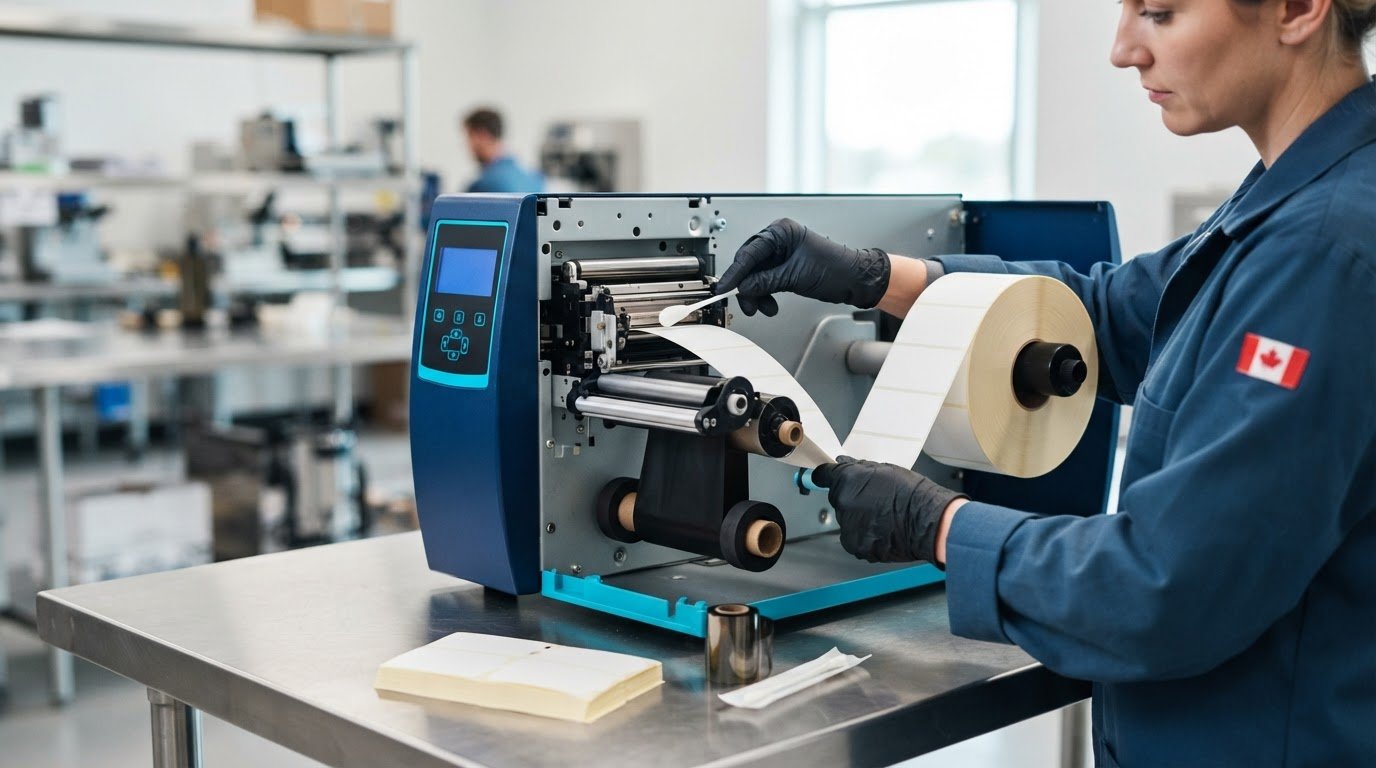
Clean, accurate labels depend on repeatable operator habits, not complicated routines. The best practices for a label printer operator include cleaning the printhead when replacing a ribbon or label roll, inspecting the printer interior, and checking print quality before a production run. Printhead cleaning can take as little as one minute, and digital label equipment can be operated by an administrative worker with very little training.
It’s easy to focus on loading stock and starting a job, but routine checks catch smudges, misalignment, and feeding issues before they affect a full run. Consistent care also helps keep the printer ready for its next task.
This guide covers practical cleaning steps, digital printer operation, automatic label sensing and sizing, and signs that a part may need replacement. Use these habits to build a straightforward routine for clearer output and more controlled changeovers.
Key Takeaways
- Build cleaning into roll and ribbon changes, and inspect the printer interior and media sensor before loading new stock.
- Use automatic label sensing to simplify changes between different label formats, then confirm sizing and alignment with a test print.
- Watch for persistent print defects that remain after cleaning; they can indicate a worn component that needs attention.
- Review each work order, set up the correct stock and print settings, and monitor output throughout the run.
- Combine hands-on practice with equipment-specific training to develop reliable operating and troubleshooting skills.
1. Cleaning printer interiors and accessories
Make cleaning part of each stock change, not just a response to poor output. For a thermal label printer, clean the printhead whenever you replace a ribbon or roll of labels. The task can take as little as one minute. Follow the printer’s maintenance instructions and use the recommended cleaning materials to avoid damaging the printhead.
After changing a roll, inspect the interior for paper particles, dust, adhesive residue, or fragments near the media path. Remove debris before loading the next roll. A clear path helps prevent residue from transferring to new labels and makes it easier to spot wear or obstructions before printing continues.
Clean the media sensor with an air duster before installing a new media roll. Dust can interfere with media detection, so check that the sensor area is clear. Avoid touching sensitive components with your fingers or forcing debris further inside the machine.
Use a lint-free cloth to remove dust and fingerprints from the exterior. If residue remains, apply mild detergent to the cloth. Avoid abrasive pads, harsh chemicals, and solvents, which can damage surfaces. Keep liquid away from openings and electrical components, and follow the equipment maker’s cleaning directions.
Thermal transfer uses a ribbon to transfer ink to the label, while direct thermal printing creates an image on heat-sensitive stock without a ribbon. Thermal transfer is generally better suited to food labels exposed to refrigeration, freezing, moisture, or condensation. Choose media and settings for the job rather than increasing darkness to compensate for unsuitable stock.
Canadian product-label requirements depend on the product category and the information being printed. Barcode formatting and required product wording are separate considerations. Use the approved label copy and applicable product specifications for the job, then keep the printer setup consistent with the artwork. Don’t assume one label layout suits every product.
To verify barcode readability, scan a test label with the scanner or workflow used in production. Confirm that the decoded information matches the intended data, and inspect the printed barcode for smudging, gaps, or distortion. Before releasing the run, compare the complete label with its approved content and job specifications.
Cleaning a barcode label printer also means clearing dust from the sensor and media path. If output shows repeated streaks or missing areas, clean the printhead and print another test label. Regular cleaning supports consistent performance and helps reduce avoidable downtime.
For colour label printers, follow the equipment-specific cleaning and maintenance instructions; colour label printers use a different print process from thermal barcode machines. Record recurring defects and cleaning steps in the job log so the next operator can identify patterns and prepare the machine correctly.
3. Automatic label sensing and sizing
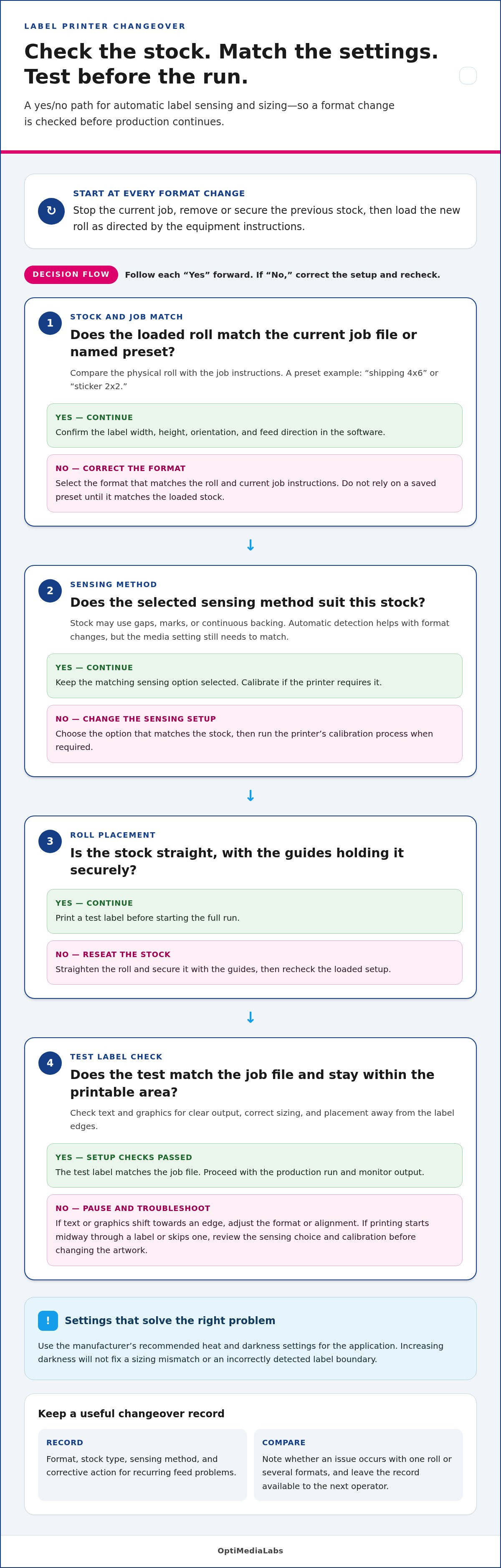
Automatic label sensing helps a printer detect the stock loaded in its media path. During a format change, this can reduce manual adjustments and stop settings from carrying over incorrectly. A workflow might switch from a 4x6 shipping label to a 2x2 thank-you sticker. Each format still needs a matching setup and a test print before production.
Check the loaded roll against the job file. Confirm the label width, height, orientation, and feed direction in the software. Make sure the stock sits straight and the guides hold it securely. Run a test label and check that text and graphics stay within the printable area. Adjust the format or alignment if the design shifts towards an edge.
Automatic detection doesn’t replace checking media settings. Labels may use gaps, marks, or continuous backing, and each requires an appropriate sensing method. Select the option that matches the stock, then run the printer’s calibration process when required. If printing starts midway through a label or skips one, review the sensing choice and calibration before changing the artwork.
Use a short, named preset for recurring formats, such as “shipping 4x6” or “sticker 2x2.” Before printing, compare the preset with the roll and current job instructions. This check catches a saved layout that no longer matches the loaded stock. A checklist of best practices for label printer operator workflows should include that preset-to-stock comparison.
Thermal label stock and printer settings must suit the job. Use the manufacturer’s recommended heat and darkness settings for the application. Check a sample for clear text, crisp edges, and consistent placement. Increasing darkness won’t correct a sizing mismatch or a sensor that detects label boundaries incorrectly. Fix those setup issues directly instead of adjusting unrelated settings.
For a changeover, stop the current job, remove or secure the previous stock, and load the new roll as directed by the equipment instructions. Select the matching format and sensing method, then calibrate if needed. Print a test label and compare it with the job file before starting the full run. These steps make each transition deliberate.
Record recurring feed problems along with the format, stock type, sensing method, and corrective action. Note, for example, whether the error occurs with one roll or several formats. This detail can help distinguish a stock-specific issue from a setting that needs adjustment. Keep the record available to the next operator, especially when jobs are shared across shifts.
Apply best practices for label printer operator changeovers by checking the physical stock, software format, and first printed sample together. If the test label doesn’t match the approved layout, pause and correct the setup before continuing. A consistent verification routine helps prevent mismatched sizing and misplaced content from affecting the rest of the job.
4. Replacing worn machine parts
Replace parts based on observed wear and print defects, not guesswork. A damaged printhead can create persistent missing lines, while a worn platen roller may affect feeding or print consistency. First, clean the affected area and run a test. If the defect remains, record what you see and follow the printer manufacturer’s troubleshooting instructions.
Use the printer’s PAUSE self-test as one diagnostic step. The test prints 15 labels at the printer’s slowest speed, then pauses automatically. Inspect those labels for repeated streaks, gaps, or other defects. If the test confirms a printing problem, the printhead may need replacement by a certified technician. Don’t treat a single flawed label as proof that a part has failed.
Check the job conditions before attributing a fault to hardware. Confirm that the loaded stock suits the application, the media feeds straight, and the print settings match the label material. For thermal transfer jobs, check the ribbon path for wrinkles or uneven contact. These checks help distinguish a setup issue from a worn component.
When a part appears worn, identify the printer model and component before ordering a replacement. Compare the part information with the manufacturer’s documentation. Similar-looking components may not fit every machine. Don’t force a replacement into place or substitute a part based only on appearance.
Follow the equipment maker’s procedure for any operator-level replacement. Power down the printer as directed, allow components to cool if the manual requires it, and keep screws or clips organized during removal. Don’t open assemblies that the manufacturer reserves for qualified service. Incorrect handling can damage nearby components or affect printer alignment.
After a permitted replacement, reload the same label stock and repeat the test print. Compare the new output with the job’s accepted sample. Check text, barcode edges, print position, and feeding across several labels. Record the component changed, the observed fault, and the test result in the job log.
Keep a maintenance record for recurring issues. Note whether a print defect returns after cleaning, appears on every label, and which application was running. This history helps distinguish recurring hardware wear from stock, ribbon, or setup problems. Cleaning equipment and replacing worn parts are part of maintaining production readiness.
Don’t continue a production run with a defect that affects readable content or barcode scanning. Pause the job, preserve a sample, and document the fault before resuming. A clear record gives the next operator or technician useful evidence, while the manufacturer’s maintenance schedule helps guide routine inspection and replacement decisions.
4. What are the daily duties of a label printer operator?
A label printer operator turns each work order into a controlled production run. Start by reviewing the job specifications, including label format, required quantity, ink colour, stock, and variable information. Compare the order with the approved file before loading materials. For example, confirm that barcode data and lot-code fields match the job instructions.
Prepare the machine for the specific run. Load the correct label stock, position it along the media path, and set the guides to hold it straight. For an inkjet press, check the ink supply and fill reservoirs as required. For a thermal transfer job, load the specified ribbon and label material together. Match the printer settings to the stock and application.
Computerized equipment may require the operator to enter codes or programming data at the console. Select the job file, confirm its settings, and make sure the displayed format matches the work order. A saved preset can speed setup, but still needs review. An outdated file could produce the wrong label size, wording, or variable data.
Run a test label before producing the full order. Check print position, colour, text, and barcode appearance against the approved sample. Scan a test barcode when the workflow allows it, and confirm that it returns the intended information. Correct setup issues before continuing. Record the test result and approved settings in the job log.
During the run, operate and monitor the printer rather than leaving output unchecked. Watch for skewed stock, smudging, missing print, or changes in colour. Compare samples with the approved proof and make adjustments when output drifts. If a defect persists, pause production, keep a sample, and document the issue for troubleshooting.
Track production details as the job progresses. A job log or recipe card can capture the work-order identifier, stock used, print settings, quantity completed, adjustments, and interruptions. This record gives the next operator a practical reference for repeat runs. It also helps identify whether a recurring defect relates to a particular material or setup.
At changeover, close the current job before loading materials for the next one. Remove leftover stock, label usable rolls, and store them with their format clearly identified. Update the job log with the final quantity and any quality concerns. These daily duties make each label run traceable, from work-order review through machine setup, production monitoring, and handover.
Treat the work order as the control point for the run. Its ink colour and required quantity guide preparation, while the operator sets up and adjusts the machine, fills ink reservoirs as needed, and loads the stock. These steps connect the stated specifications with the actual print setup rather than relying on memory.
Throughout production, the operator remains responsible for running and monitoring the machine and making adjustments as required. A job log or recipe card records the run and links its setup and progress to the work order. Keeping that record with the production details supports a clear handover and gives the operator a written reference when the job is repeated.
5. What training and skills do label printer operators need?
Label printer operators need practical machine knowledge, careful setup habits, and the ability to assess print quality. An administrative worker can operate digital label equipment with very little training. Reliable operation still requires learning the equipment, materials, job software, and workplace checks.
Start with equipment-specific instruction. Learn how to load stock, choose the correct job, enter data, adjust settings, and respond to feed or print errors. Vendor-provided training introduces the printer’s controls and maintenance routines. Build hands-on experience with real jobs, such as changing label formats, checking a test print, and recording an adjustment.
Operators also need a working understanding of the materials they use. Paper, film, and other substrates can behave differently in the same machine. Learn how stock type, label construction, and the application affect feeding and print results. For thermal equipment, understand how the selected media and settings work together. Don’t treat a darkness adjustment as a substitute for suitable media.
Digital press skills include calibration, colour-density control, and registration. Calibration helps align output with the equipment’s process. Density control supports consistent colour, while registration keeps printed elements correctly positioned. Compare output with the approved proof and investigate any shift or colour change.
Software and data skills matter, too. An operator may select a saved job, enter variable information, or send production data from a computer to the printer. Check that the selected file, label format, and job instructions agree. A careful review can catch an incorrect product code or outdated layout before production begins.
Troubleshooting requires understanding how printer components interact. Learn to distinguish a media-loading issue from a print-quality problem, and use the manufacturer’s procedures for routine maintenance. Follow the equipment-specific schedule, document recurring faults, and escalate work outside operator-level tasks.
Training can combine formal instruction with workplace practice. The competency model recommends industry-sector technical competencies as formal training and occupation-specific competencies as on-the-job training. Printing machine operators receive on-the-job training; completion of secondary school may be required, and college or other printing courses may also be required. Training for printing machine operators may combine formal instruction with occupation-specific on-the-job learning.
Use a skills checklist to track progress across setup, software, quality control, materials, and troubleshooting. Practise each task under supervision, then record which procedures you can perform consistently. To discuss printer and workflow requirements for your operation, contact the team.
Operators should gain hands-on experience in addition to vendor-provided training. Practice builds on instruction by giving them opportunities to apply their machine knowledge during setup and operation.
Operators should understand how to set die and anvil pressures and keep the die running at the appropriate levels. These settings can be part of practical equipment work, alongside learning the controls and carrying out careful checks. Developing both abilities supports a confident approach to operating label-printing equipment.
OptiMediaLabs Canada: Afinia Color Label Printers
OptiMediaLabs Canada offers Afinia Color Label Printers for businesses assessing colour label equipment for their workflow. Consider the label format, print process, stock, and expected job requirements when comparing equipment. For RFID label workflows, RFID Label Printers are another relevant category. Thermal Transfer Ribbons and Barcode Software address different printing and labelling needs, so match each option to the equipment and application you use.
Use the cleaning, setup, and inspection practices in this guide to define your operating requirements. Then explore the available printer and supply categories that align with your work. Contact OptiMediaLabs Canada to discuss your label printer needs.
Build a printer routine that grows with your workflow
Turn the best practices for a label printer operator into a documented routine your team can follow across shifts. Clear handover notes and consistent job records help operators apply the same checks as label formats, materials, and production needs change. Review the routine when introducing a new application so procedures stay relevant to the work.
Equipment and supply choices should also align with the labels you produce. OptiMediaLabs Canada offers Afinia Color Label Printers, high-performance ink cartridges, and RFID Label Printers for different printing needs. Matching the right category to your workflow is a practical next step when planning equipment or consumables.
Ready to discuss your label printing requirements? Contact OptiMediaLabs Canada to explore an approach that fits your operation. Keep refining your process, and make every shift a more confident one.
Frequently Asked Questions
How should label printers be cleaned and maintained?
Follow the printer manufacturer’s maintenance schedule and log each cleaning alongside the job or stock change. Note whether a defect appeared before cleaning and whether it remained on the next test label. Use only cleaning materials and procedures approved for that printer model, since unsuitable products can damage components. If the same print fault returns after cleaning, record the affected labels and settings to support troubleshooting.
What safety practices apply when operating label printers and handling inks, adhesives, and solvents?
Follow the equipment maker’s cleaning and maintenance instructions, keep liquids away from openings and electrical components, and avoid abrasive pads, harsh chemicals, and solvents. Use a lint-free cloth and mild detergent for exterior residue, and don’t touch sensitive components or force debris inside the printer.