
Near-Edge Thermal Ribbon: How to Choose the Right Match
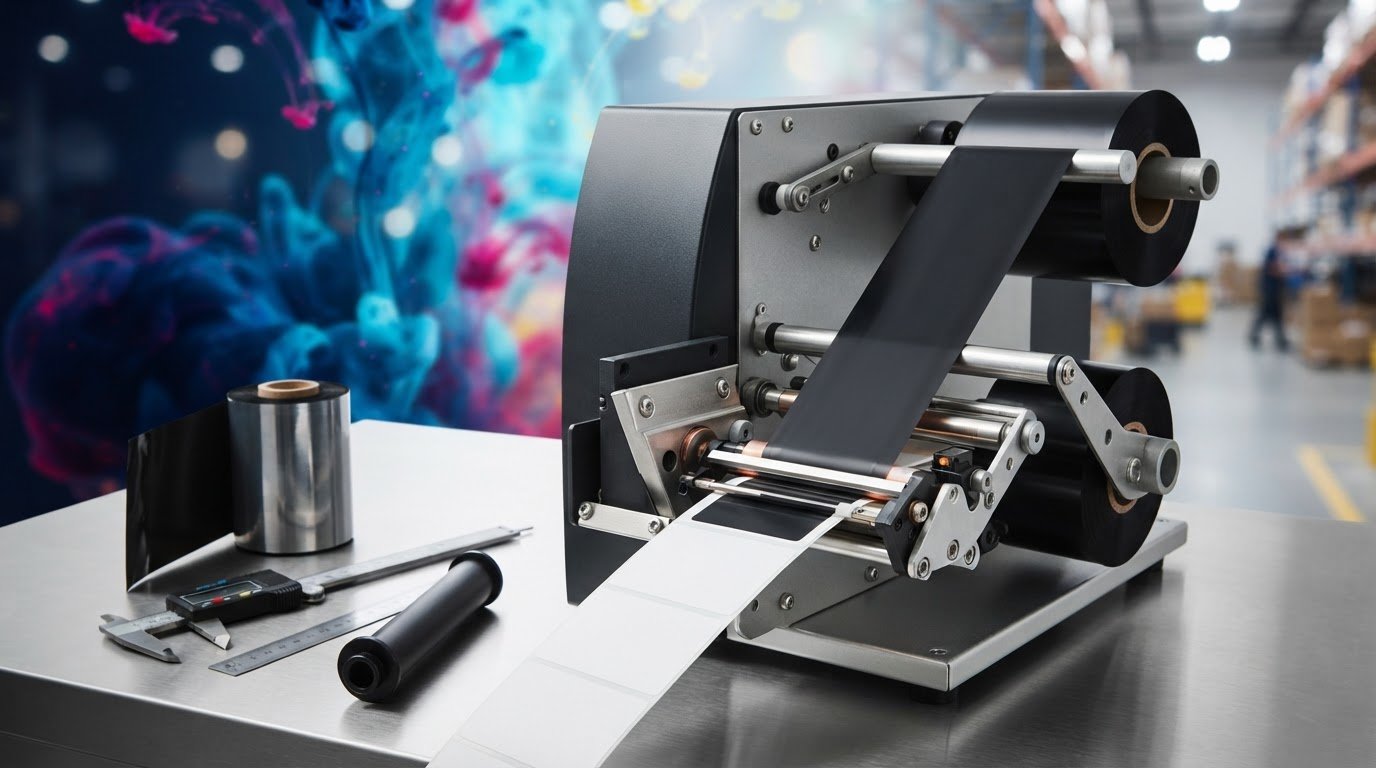
Could a ribbon that fits the roll still be the wrong match for your printer? With a near edge thermal ribbon, compatibility depends on more than dimensions. Near-edge and flat-head printers use different printhead configurations, and the wrong ribbon-and-label combination can affect print results.
Selection involves several details: ribbon formulation, width, length, core size and ink-side orientation. A ribbon may look suitable but still fail to match the printer’s requirements or the demands of the application.
This guide explains how near-edge thermal transfer differs from flat-head printing and what to consider when choosing a ribbon for your printer, label stock and production conditions. You’ll learn which equipment and media details to gather, how formulation relates to print quality and durability, and which specifications to compare with manufacturer information. OptiMediaLabs supplies thermal transfer ribbons, including Toshiba near-edge ribbons, to customers across Canada. Use the steps ahead to reduce avoidable compatibility issues and make a more informed selection.
Key Takeaways
- Identify your printer’s exact model and mechanism before selecting a near edge thermal ribbon. Near-edge and flat-head ribbons aren’t interchangeable by default.
- Assess ribbon formulation separately from printer fit, using the label or packaging material and intended application to guide your choice.
- Compare the manufacturer’s specifications for ribbon dimensions, core and ink-side orientation with your printer requirements.
- Validate the match in order: confirm the model and specifications, check the loading direction, then review a test print for fit and output issues.
- Have your printer model, ribbon dimensions, media type and application details ready to make ribbon sourcing in Canada more straightforward.
What Is a Near-Edge Thermal Ribbon, and When Is It Used?
A near-edge thermal ribbon is an ink-coated consumable used in a compatible thermal transfer printer. It isn’t the print mechanism itself. The printer’s printhead applies heat to transfer ink from the ribbon onto a label or packaging substrate. A ribbon designed for a near-edge printer isn’t a universal fit: the printer model and manufacturer specifications determine which ribbon constructions and dimensions are suitable.
This distinction matters when purchasing. A ribbon described as near-edge isn’t necessarily compatible with your printer. Check the printer requirements before comparing formulations or roll dimensions.
How thermal transfer printing uses a ribbon
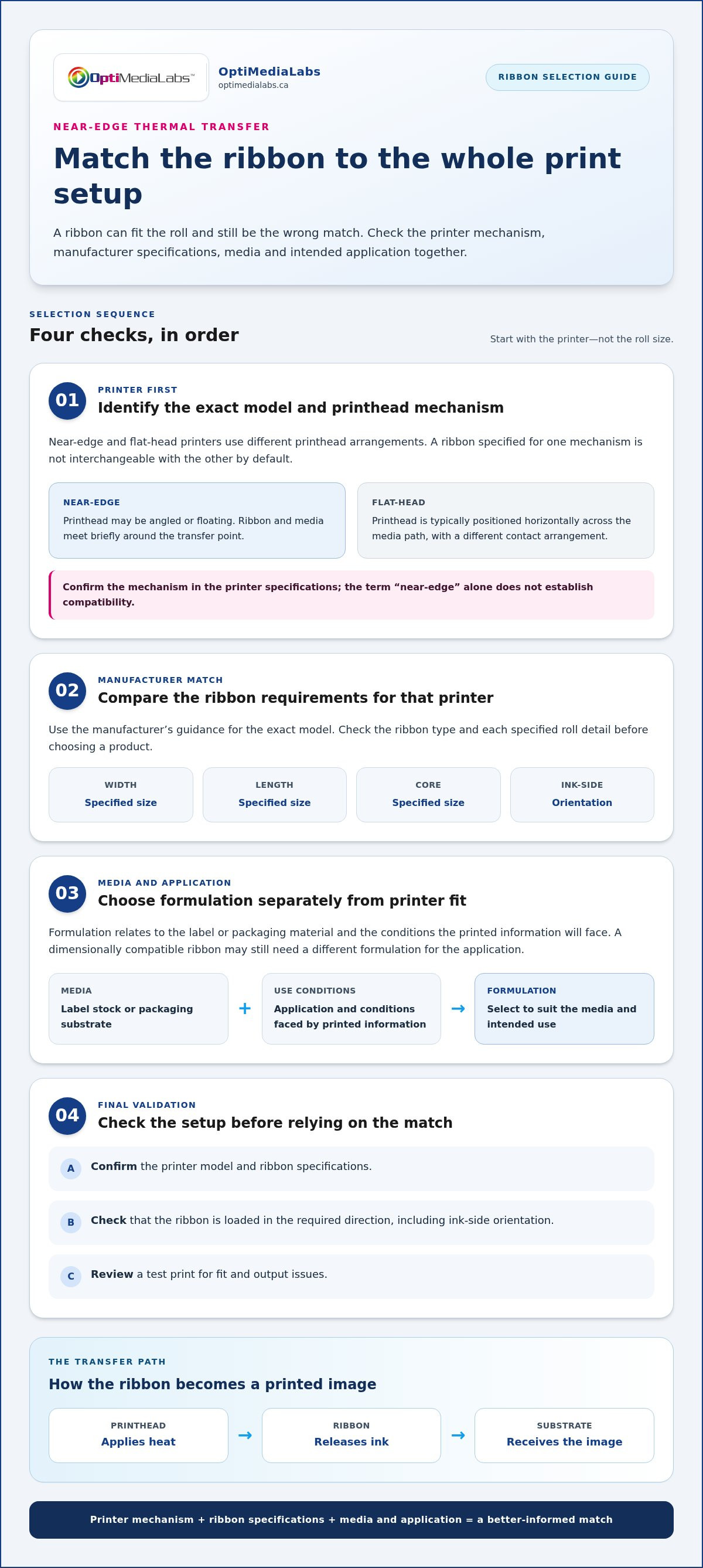
In thermal transfer printing, the printhead, ribbon and substrate work together. The printhead heats selected areas of the ribbon’s ink layer, transferring an image onto the label or packaging material as the media moves through the printer. The ribbon supplies the ink, the printer controls heat and movement, and the substrate receives the printed image.
Simple process path: Printhead applies heat → ribbon releases ink → substrate receives the image. A labelled diagram of this path can help distinguish the ribbon from the label stock and printer components.
What “near-edge” means in a printer setup
Near-edge describes the printhead arrangement in a printer, not a special shape of ribbon. Depending on the printer design, the printhead may be angled or floating. The ribbon and substrate meet briefly at the transfer point as they pass the head. Confirm the arrangement in the printer specifications rather than relying on the term alone.
In plain terms, near-edge thermal transfer uses a compatible printer’s printhead to transfer ribbon ink onto moving media at a brief contact point. The mechanism affects which ribbon can be loaded and used correctly.
Near-edge systems are commonly considered for packaging and production-line applications, where printing may be integrated into a larger process. That context doesn’t establish whether a particular ribbon suits the job. Assess the printer, media and intended use together.
Keep these selection factors distinct:
- Printer compatibility: Confirm the exact printer model and the ribbon type it supports.
- Formulation: Identify the required ribbon formulation separately from the printer mechanism. Formulation relates to the label or packaging material and the conditions the printed information will face.
- Dimensions: Match the specified ribbon width, length, core and ink-side orientation to the printer requirements.
For example, a production line may use a near-edge printer to mark packaging, while another application prints onto labels. Both involve thermal transfer, but the media, print conditions and printer specifications can differ. Treat the near edge thermal ribbon as one part of the complete print setup, not as a standalone choice based only on its name or roll size.
How Near-Edge Printing Differs from Flat-Head Thermal Transfer
The key difference is the printhead layout. A near-edge printer brings the printhead to the ribbon and moving media at an angle, while a flat-head printer positions the printhead across the media path. This changes the transfer geometry and ribbon requirements. It doesn’t make one mechanism a simple upgrade or substitute for the other.
| Feature | Near-edge | Flat-head |
|---|---|---|
| Printhead position | Angled or floating, according to printer design | Typically positioned horizontally across the media path |
| Ribbon contact | Brief contact around the transfer point | Ribbon and media pass beneath the printhead in a different contact arrangement |
| Compatibility | Requires a ribbon specified for the printer’s near-edge mechanism | Requires a ribbon specified for the flat-head printer |
Printhead position, ribbon contact, and ink release
Because near-edge printing involves brief ribbon-to-media contact at the transfer point, the ribbon’s release behaviour needs to suit the printer design and operating settings. Flat-head and near-edge systems manage heat and contact differently. Ricoh’s comparison of flat-head and near-edge printing provides additional context on these mechanisms.
Speed depends on the full setup, not the printhead category alone. Printer model, ribbon grade, media and manufacturer settings all affect results. A speed quoted for one configuration shouldn’t be treated as a guarantee for another printer or production line.
Why the ribbons aren’t interchangeable by default
Ribbon coatings and printer mechanics must work together for ink to transfer as intended. A near edge thermal ribbon designed for one mechanism may not perform correctly in a flat-head printer, and the reverse is also true. Follow the manufacturer’s ribbon requirements for the exact printer model, including specified dimensions and loading direction.
Changing ribbon type won’t convert a flat-head printer into a near-edge system. The printhead assembly and operating arrangement define the mechanism; the ribbon is a matched consumable, not a mechanism-changing component. Before ordering, identify the printer model and confirm the manufacturer’s compatibility guidance. The thermal transfer label printer category can help put printer mechanism compatibility in context as part of the overall supply decision.
Keep performance expectations tied to the application. A ribbon or printer may be described in terms of speed or print quality, but actual output depends on the specific combination of equipment, media and settings. For a production-use comparison, share your printer and application details with OptiMediaLabs to focus the ribbon discussion on your setup.
How to Choose a Near-Edge Ribbon for Your Labels and Application
Make the selection in three steps: identify the exact printer model, document the label or packaging material, then define how the printed item will be used. This helps avoid a common mix-up: a ribbon formulation may suit a substrate, but its roll dimensions or construction may not suit the printer. Confirm printer compatibility independently from your formulation choice.
Start with the printer manual or manufacturer specifications. Record the model and supported ribbon grades. Then describe the substrate as precisely as possible, including whether it’s a paper label or packaging film, and note any coating or surface treatment you know about. Finally, consider handling and storage. Will labels be scanned soon after printing, handled repeatedly or stored before use? These conditions help define practical legibility and durability requirements without assuming a particular ribbon will meet them.
Match ribbon formulation to substrate and durability needs
Wax, wax-resin and resin are formulation categories, not a ranking that guarantees a specific result. Consider them only if the near-edge printer manufacturer supports those grades. Print adhesion and durability depend on the ribbon and substrate working together, as well as on printer settings. A formulation name alone doesn’t prove resistance to abrasion, chemicals or environmental exposure.
Use the actual media and intended conditions to guide your evaluation. For example, a label that will be handled often has different practical demands from packaging marked for short-term identification. For a demanding application, test the proposed ribbon on the target substrate under representative print settings. Then assess whether text and barcodes remain legible through expected handling and storage.
Match ribbon dimensions and construction to the printer
Physical specifications affect fit and operation, not just ordering convenience. A roll that’s too wide, has the wrong core or has an incompatible ink-side orientation may not load or run as the printer requires. Check every detail against the exact model’s documentation. Don’t infer compatibility from a similar printer or a familiar roll format.
| Information to gather | What it helps establish |
|---|---|
| Printer make and exact model | Supported near-edge ribbon types and construction |
| Substrate and surface details | Which compatible formulation to evaluate |
| Use and conditions | Required legibility and durability in practice |
| Ribbon width, roll length and core | Whether the roll matches printer requirements |
| Ink-side orientation | Whether the ribbon is wound for the printer’s loading path |
Checklist: Record the exact printer model, supported ribbon construction, substrate, application, width, roll length, core and ink-side orientation before comparing near edge thermal ribbon options.
Keep those details together when evaluating ribbon grades. They give you a clear basis for comparing candidates and planning a test, without relying on assumptions about performance across different printers, labels and operating conditions.
How to Validate Fit and Troubleshoot Near-Edge Print Results
Validate a ribbon match before using it in routine production. A structured check helps separate a physical fit issue from an output problem caused by settings, media or printer condition. Follow the printer manufacturer’s instructions throughout, and change one variable at a time so you can identify what affects the result.
A practical pre-order and installation checklist
Use this sequence to check a near-edge thermal ribbon against the printer and assess a test print:
- Confirm the printer. Record the make and exact model. Consult the current manual or manufacturer specifications for supported ribbon types and requirements.
- Compare ribbon specifications. Check width, roll length, core and ink-side orientation against the requirements for that model. Don’t assume a ribbon is compatible because it fits a similar printer.
- Load it as directed. Follow the printer manual for ribbon path and loading direction. Use the manufacturer’s guidance for tension, temperature and speed settings.
- Run a controlled test. Print on the intended label or packaging material using the planned settings. Inspect text, graphics and barcodes for legibility, consistency and placement.
A ribbon that won’t fit, track or load as specified may indicate a compatibility or installation issue. Stop and compare the roll and loading path with the printer documentation before changing print settings. Don’t force a roll or adjust tension outside the manufacturer’s instructions.
Diagnose faint, uneven or smudged print
Print defects can have more than one possible cause. Faint output may relate to settings, ribbon-substrate compatibility or printhead condition. Uneven areas can also warrant checking ribbon loading and media movement. Smudging may prompt a review of the ribbon, substrate and print settings. These are diagnostic possibilities, not a certain diagnosis. Assess the printer and sample together.
Keep the test repeatable. Record the ribbon grade and dimensions, media type, printer settings and observed defect. If you adjust a setting, change only that setting, then print another sample on the same media. Note whether the result changes. If it doesn’t, restore the previous value before testing another factor. Follow the manual for cleaning or maintenance, and don’t treat a ribbon change as a substitute for maintenance.
This process creates a useful record for comparing test results and identifying what still needs attention. OptiMediaLabs supplies thermal transfer ribbons, including Toshiba near-edge ribbons, to customers across Canada. For a ribbon-sourcing discussion based on your printer and application, contact OptiMediaLabs about your ribbon requirements.
Where to Source Near-Edge Thermal Ribbons in Canada
A useful ribbon enquiry starts with information that ties the supply to your printer and job. Include the printer’s exact make and model, the ribbon specifications required by its manufacturer, the label or packaging material, and how the printed item will be handled or stored. These details give the sourcing discussion a practical basis instead of relying on a grade name alone.
What to include when sourcing a near-edge ribbon
Gather the details below before comparing options. Use the printer manual or manufacturer specifications for model-specific requirements, and distinguish known facts from details you still need to verify.
- Printer: Make and exact model, plus any stated ribbon requirements.
- Dimensions and construction: Required ribbon width, roll length, core and ink-side orientation.
- Media: Label or packaging material, including any known coating or surface details.
- Application: What the label identifies and the conditions it will encounter during handling and storage.
- Print requirements: Documented legibility or durability needs, along with relevant test results or print settings.
Keep the information concise and specific. “Near-edge printer” alone doesn’t identify the correct ribbon. A model number and its required dimensions help distinguish a compatible supply from one that only appears similar. If you’re planning a wider consumables setup, the professional guide to label printer consumables provides related context for organizing supply needs.
A straightforward next step with OptiMediaLabs Canada
OptiMediaLabs is a Canadian distributor of thermal transfer ribbons, including Toshiba near-edge ribbons, serving customers nationally. When discussing a near edge thermal ribbon, share the printer model, required ribbon dimensions, media type and application. A test sample or documented print requirements can also help focus the enquiry.
Use the manufacturer’s specifications as the reference point for compatibility. Ribbon sourcing and printer fit are related, but the printer model, ribbon construction and job requirements each matter. A concise summary helps connect those details and keeps the conversation centred on your setup.
If you’re ready to discuss the requirements you’ve gathered, discuss your near-edge ribbon requirements with OptiMediaLabs.
Make Your Next Ribbon Decision With Confidence
Turn your selection notes into a practical reference for future orders. Keep the printer model, approved ribbon specifications, media details and test results together. If the substrate or production conditions change, revisit the match instead of assuming the previous setup will deliver the same results. This record can also help your team keep purchasing and print checks consistent.
A near edge thermal ribbon is one part of a complete printing setup, so base your decision on documented printer requirements and the needs of your application.
Ready to discuss your printer and application requirements? Discuss your near-edge ribbon requirements with OptiMediaLabs.
Frequently Asked Questions
What is a near-edge thermal ribbon?
A near-edge thermal ribbon is the ink-bearing roll used by a compatible thermal transfer printer to mark labels or packaging. “Near-edge” refers to the printer’s printhead arrangement, not a special label material or printer setting. For example, when replacing a roll, identify the printer model first, then use its specifications to find a ribbon that matches the mechanism and intended media.
Are near-edge and flat-head thermal ribbons interchangeable?
Not by default. The two ribbon types are designed around different printhead arrangements and transfer conditions, so a roll intended for one mechanism may not load or transfer ink as required in the other. Matching roll width alone doesn’t establish compatibility. Use the printer manufacturer’s instructions for the exact model, especially when changing supply types or ordering a replacement based on an old roll.
How do I choose the right near-edge ribbon for my printer?
Start with the model number on the printer’s identification plate, then consult its current documentation for approved ribbon specifications. Next, identify the label or packaging material and the printed item’s handling conditions. A label applied to a frequently handled product may need different validation from one used briefly inside a controlled process. Evaluate a sample on the actual media before adopting a ribbon for routine production.
Can a near-edge ribbon print on different label materials?
Some printer and ribbon combinations may support more than one media type, but compatibility and print results depend on the specific ribbon, substrate and settings. Don’t assume a ribbon proven on paper will perform the same way on a film or coated label. For a new material, run a controlled test using the production media, then inspect text and barcodes after the handling the label will encounter.
Why is my near-edge thermal transfer print faint or uneven?
Faint or uneven output can have several possible causes, including an unsuitable ribbon-media pairing, print settings, incorrect loading or printhead condition. Check whether the issue appears across the whole image or only in a specific area, and compare a fresh test print with the printer’s normal output. Record the ribbon and media details, settings and defect pattern before changing one factor at a time.
What information do I need before ordering a near-edge ribbon?
Have the printer make and exact model, the manufacturer-specified ribbon width and roll length, core size, and ink-side orientation ready. Include the label or packaging material and how the printed item will be handled or stored. If you’re replacing a current roll, its label or packaging can provide useful identifying details, but compare these with the printer documentation rather than relying on the roll alone.
Are near-edge thermal ribbons suitable for high-speed printing?
Near-edge printers are used in some high-speed applications, but a ribbon’s suitability and actual print results depend on the printer, ribbon grade, media and manufacturer settings. A speed claim for one configuration shouldn’t be treated as a guaranteed rate for another. Test the intended ribbon and substrate at the planned production settings, checking image legibility and consistency before relying on the setup for a full run.