
Reducing Packaging Errors with Automated Labeling: A Practical Guide
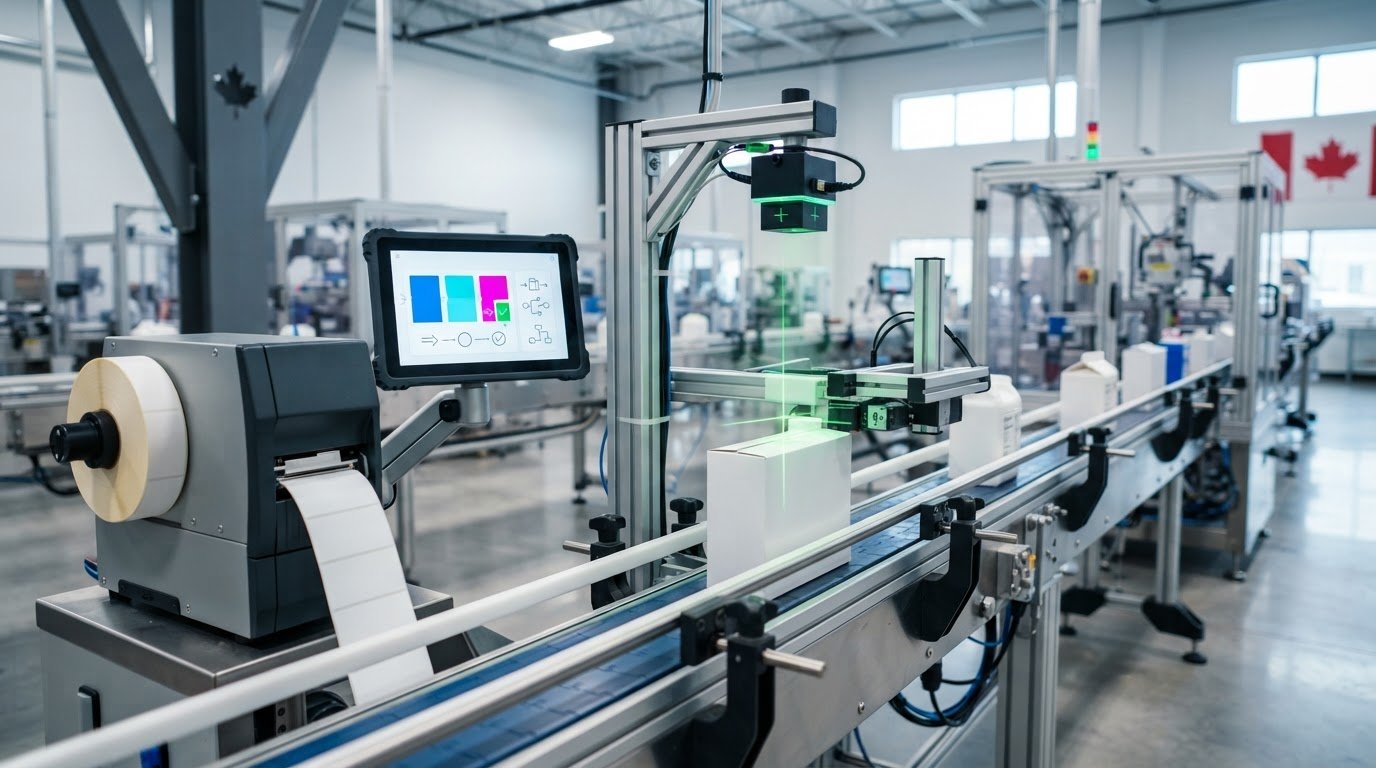
What if packaging label errors begin before the printer? Outdated product data, manual entry and rushed changeovers can all send incorrect information to the line. Reducing packaging errors with automated labeling means controlling the full workflow, from approved product information to the label applied to the package.
Automation can make repeatable tasks more consistent, but it won’t fix inaccurate source data or unclear approval steps. To control the process, check where information comes from, who approves changes, which template reaches the printer, and how the finished label is verified.
This guide explains how to identify common causes of labelling errors and build checks into label creation, approval, printing and application. It also covers how to compare software, printers and compatible supplies for your workflow, and how to make errors easier to trace. The goal is a controlled process that supports accuracy without adding unnecessary complexity.
Key Takeaways
- Separate data, template, print-quality, application and inspection errors to find where an issue enters the process.
- Reducing packaging errors with automated labeling depends on checking each stage, not relying on printing automation alone.
- Compare manual, semi-automated and automated approaches to find controls that fit your production needs and staffing.
- Use existing records to set a baseline, then map, test, train and review changes before expanding a new workflow.
- Check printer, label stock, ribbon or ink, and software compatibility using the actual label and application.
Where packaging labelling errors start, and what they put at risk
A wrong SKU, outdated product copy, unreadable barcode or correct label placed on the wrong package can interrupt a packaging run. These mistakes may look similar at the end of the line, but they can begin in different places: product data, template setup, printing, application or inspection. Finding the source is essential. A print-quality check won’t catch an incorrect product identifier that was already present in the source data.
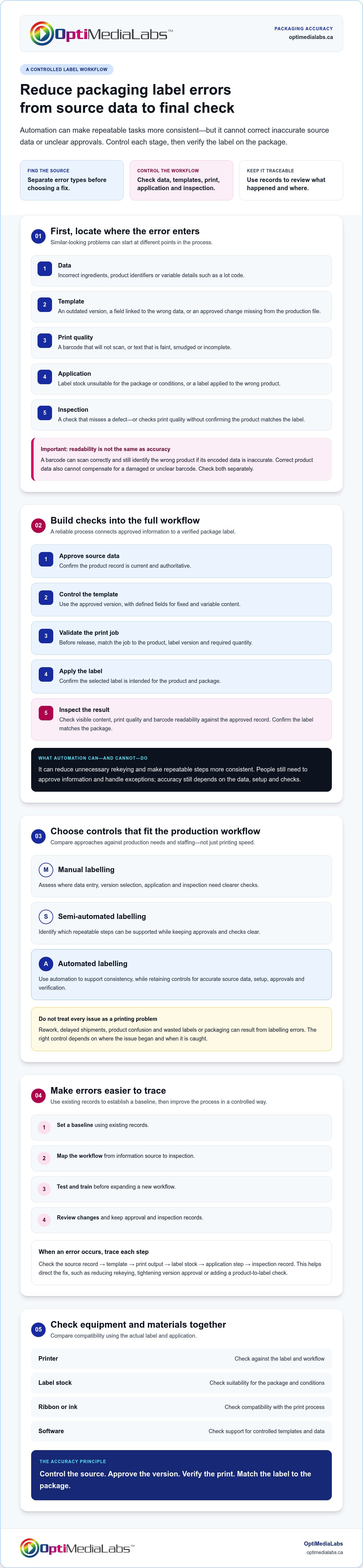
Classify the error before choosing a control:
- Data: Incorrect ingredients, product identifiers or variable details, such as a lot code.
- Template: An outdated version, a field connected to the wrong data, or an approved change missing from the production file.
- Print quality: A barcode that won’t scan, or text that is faint, smudged or incomplete.
- Application: Label stock unsuitable for the package or conditions, or a label applied to the wrong product.
- Inspection: A check that misses a defect or verifies print quality without confirming the product matches the label.
A barcode can scan correctly and still identify the wrong product if its encoded data is inaccurate. The reverse is also true: correct product data won’t help if the printed barcode is damaged or unclear. These require separate checks.
Which packaging label errors happen most often?
Content errors affect what the label says. Production errors affect how approved information is prepared, printed and applied. Duplicate or outdated files can lead to version-control mistakes, while incorrect variable data can put the wrong batch detail on an otherwise accurate label. A mismatch between label stock and the print process can also affect output. Treat these as distinct failure modes rather than one general “labelling problem.”
Consequences can include rework, delayed shipments, product confusion and wasted labels or packaging. The impact depends on where the error is caught. A label on the wrong package may require sorting and relabelling, while a print defect may be found before application. Automation can standardize repeatable steps, but printing faster won’t make source information accurate or confirm that the label reached the right package.
Why do manual checks miss repeatable mistakes?
Entering the same data more than once creates another opportunity for a value to be mistyped. A rushed changeover can leave the previous label version or stock in place. If approval responsibilities are unclear, staff may not know which file is current. Similar packages and near-identical label versions can also make visual review difficult, particularly when the checker is looking for small differences rather than comparing each field.
When an error occurs, trace the affected product and run through the source record, template, print output, stock, application step and inspection record. This helps identify the right intervention, such as reducing rekeying, tightening version approval or adding a product-to-label check. For context on how application equipment differs, see this overview of a manual or semi-automatic labeling process. The next step is to control the workflow from approved data through final verification.
How automated labelling controls data, printing, and package checks
Automated labelling connects approved product information to a controlled template, a checked print job, label application and verification. The aim is to reduce unnecessary rekeying and make repeatable steps more consistent, while keeping people responsible for approvals and exceptions. Automation can support accuracy, but it can’t guarantee it. Reliability still depends on the data, setup and checks behind the process.
Build the workflow in sequence:
- Approve source data: Confirm that the product record is current and authoritative.
- Control the template: Use the approved version, with defined fields for fixed and variable content.
- Validate the print job: Before release, match the job to the product, label version and required quantity.
- Apply the label: Confirm that the selected label is intended for the product and package.
- Inspect the result: Check visible content, print quality and barcode readability against the approved record.
Compare both the human-readable text and encoded barcode data with the same approved product record. Scanning can confirm that a barcode is readable, but not that it identifies the intended product. Compare the decoded value with the expected identifier, then confirm that the label matches the package. Keep approval and inspection records so the workflow can be reviewed if a mismatch occurs.
How does label software reduce data-entry and version errors?
Approved templates and controlled fields can reduce repeated typing by drawing defined values from a source record. Depending on the software and configuration, role-based review and version control may help separate preparation from approval and clarify which template is current. Check the specific functions and any integration requirements for the software and workflow you are considering. For an overview of available options, see this barcode and label software category.
What should happen between printing and packaging?
Before production continues, inspect a first-off label against the approved record. Check product text, variable data, barcode readability, print quality and label stock. Repeat relevant checks after a changeover. Select and validate scanners or verification equipment for the barcode, label, package and operating conditions. Set sampling or inspection frequency in a site-specific procedure, then review it against production results and process changes.
Reducing packaging errors with automated labeling requires connected data, print controls and package verification, not just a printer. OptiMediaLabs Canada distributes labelling equipment and supplies, including printers, media, ribbons and software. If you’re evaluating equipment for your workflow, discuss your labelling equipment requirements.
Manual, semi-automated, and automated labelling: compare the controls
Automation isn’t an all-or-nothing decision. The right level depends on where errors occur and which steps need more consistency. A manual workflow may suit short, stable runs with clear checks. Semi-automation can target a bottleneck, such as label application, while staff handle other steps. A more automated line can connect data, printing, application and inspection, but still needs setup, validation and oversight.
| Control | Manual | Semi-automated | Automated |
|---|---|---|---|
| Data handling | Entered or selected by staff | May combine entered data with system-fed fields | Can draw from approved records, if configured |
| Repeatability | Depends on consistent work practices | Some steps are standardized | Repeatable steps can be controlled by the system |
| Changeovers | Relies on documented manual checks | Checks can focus on the automated station | Requires controlled job setup and changeover validation |
| Inspection and staffing | Staff perform and record checks | Staff oversee the process and verify output | Equipment may support checks, with people reviewing results and exceptions |
These are typical distinctions, not guaranteed features. Actual controls depend on equipment, software, integration and procedures. Automation takes time to configure and validate, and doesn’t remove the need for trained operators, approvals or checks. When reducing packaging errors with automated labeling, compare the control effort and complexity with the problem you need to solve. A fully automated line isn’t automatically the right answer.
When is a manual process still workable?
Manual labelling can work for low-volume production, infrequent changes and straightforward products, provided checks are documented and followed. Repeated rekeying, frequent label revisions or inconsistent sign-offs are reasons to review the workflow. They don’t automatically make the process unsuitable, but they may signal that controls need strengthening or that one step could benefit from automation.
When should a team consider automating more steps?
Assess repeat volume, variable-data requirements, changeover frequency and error history. Identify the task causing delays or repeat mistakes, then weigh the setup, validation, training and ongoing controls against the operational issue. Semi-automation may address one step without replacing the full line. For broader selection considerations, consult an industrial labelling solutions guide and check that any equipment and software suit your workflow.
How to implement automated labelling without disrupting production
Introduce changes in stages, starting with the existing process rather than a new machine. Map how product information becomes a printed and applied label. Then use production records, rejected labels and operator reports to establish a baseline. Record the error types, where they occur and how they’re detected. This gives you a consistent way to assess a change without assuming automation will resolve every issue.
Assign clear ownership next. Identify who maintains master product data, approves template changes, sets up printer jobs and authorizes production release. Categorize the errors the workflow needs to control and define a check at each relevant step. Keep the initial scope focused on a specific problem, such as reducing manual entry or preventing an incorrect label version from reaching a production run.
How should a team pilot a new labelling workflow?
Choose a representative product or run, and document the current steps, checks and exceptions before testing. Confirm the approved source data and template version, then test the intended printer and media combination with the actual label. Check the printed content and barcode, and confirm that the label is suitable for the package and application.
Record what happens during the pilot, including mismatches, reprints, unclear responsibilities and workarounds. Resolve issues and update procedures before expanding the workflow. Compare pilot results with the baseline using the same measures and definitions. This helps distinguish a process improvement from a change in how errors are recorded.
What should operators verify at changeover?
Before releasing a new job, use a documented checklist to confirm:
- Job and product: The job identifier matches the product scheduled for the line.
- Label version: The approved version is selected, including the correct variable fields.
- Materials: The label stock matches the job and printer setup.
- First-off label: An authorized person checks the first output against the approved record and package before production continues.
Provide a clear escalation path for mismatches. Train operators to stop and report uncertainty rather than changing data or substituting a label on their own. Review pilot and production records after rollout, and revisit controls when products, templates or materials change. This makes reducing packaging errors with automated labeling a managed process, not simply an equipment change.
If you’re assessing printers, media or labelling software for a controlled workflow, contact OptiMediaLabs to discuss your equipment needs.
Choose printers, media, and software that support packaging accuracy
Choose equipment to meet label and production requirements, rather than adapting the label to a preferred machine. The printer, label stock, ribbon or ink, and software need to work together for the specific application. Confirm compatibility and print quality using the actual label and package before purchasing or introducing a setup into production. Testing can reveal issues that a product description or specification review alone may not show.
Which equipment factors matter for reliable label output?
Start with label dimensions and substrate, then consider print method, colour requirements, variable data and the production environment. For a thermal printing workflow, check the label material and compatible ribbon requirements. Thermal label printers may suit that application. Colour label workflows may need a different printer and media combination, such as Afinia colour label printers. For either setup, test legibility, barcode scanning and print quality on the actual stock before release.
- Label and package: Confirm dimensions, material and application surface.
- Print method and supplies: Match the printer with appropriate label stock, ribbon or ink.
- Content and workflow: Account for colour, variable data, job changes and the production environment.
How should software and supplies fit the workflow?
Check that the selected software, printer, media and consumables are compatible with one another and with the way labels are created, approved and printed. Barcode labelling software may help organize label jobs, but confirm its specific features and compatibility with your setup rather than assuming it integrates with every printer or data source. OptiMediaLabs Canada offers printer, label media, ribbon, ink and labelling software, including BarTender and NiceLabel. Confirm model-specific compatibility before selecting products.
To achieve success in reducing packaging errors with automated labeling, evaluate the complete setup using representative label files and materials. Check both human-readable information and barcode output, and document any adjustments before adopting the workflow. When comparing options, provide label dimensions, substrate, print method, variable-data needs and production conditions. These details help clarify equipment and supply requirements without assuming a particular product will fit.
Contact OptiMediaLabs Canada to discuss your printer, media, ribbon, ink and software requirements.
Build a more controlled labelling workflow
Reducing packaging errors with automated labeling starts with understanding where mistakes enter the process. Accurate source data, controlled templates, clear approvals, and checks at printing and application work together to reduce reliance on repeated manual entry. Automation can support consistency, but it still needs testing, trained operators and oversight.
Start with a baseline from existing records, then pilot targeted changes and compare results. Choose printers, media, ribbons or ink, and barcode software based on your actual labels, packages and production requirements. Confirm compatibility before adopting the setup.
OptiMediaLabs distributes professional label printers and supplies, including printer, media, ribbon and barcode software options. Share your application requirements to discuss equipment that fits your workflow. Discuss your labelling equipment requirements and take a practical next step towards a more controlled process.
Frequently Asked Questions
Can automated labelling eliminate packaging errors?
No. Automation can make repeatable steps more consistent, but it can’t guarantee every label is accurate. Incorrect source information can still flow into an approved template, and setup mistakes or incorrect package application can still occur. Keep human approval and verification in the workflow. Define who checks product data, releases print jobs and handles mismatches, then review production records to identify where controls need adjustment.
How does automated labelling reduce packaging errors?
Automated labelling can reduce unnecessary rekeying and standardize steps such as selecting an approved template, creating a print job and applying a label. Reducing packaging errors with automated labeling means connecting approved product data to controlled templates and adding checks before and after printing. Confirm that barcode data and visible label content match the approved product record. Automation supports accuracy, but validation and operator oversight remain essential.
What packaging label errors can automation help prevent?
With suitable controls, automation can help prevent the use of an outdated label version, incorrect variable data, repeated manual-entry mistakes and some mismatches between a print job and its intended product. Print checks can also help identify unreadable barcodes or poor-quality output. These controls won’t automatically catch inaccurate source data or every label applied to the wrong package. Match each check to the specific error it is intended to detect.
Do I need barcode verification for automated labelling?
Use barcode checks when packages need to be scanned or when correct encoded data matters to your workflow. A basic scan can show whether a barcode is readable, but you should also compare its decoded value with the expected identifier. Choose a scanner or verification device suited to the barcode, label and application, then validate it under actual operating conditions. A readable code can still contain the wrong product information.
How should a manufacturer start automating label checks?
Begin by mapping the current labelling process and reviewing existing records for errors, reprints and exceptions. Establish a baseline, identify where mistakes enter, and assign ownership for product data, template approval and production release. Pilot one representative product or run. Check approved information, template version, print output and package match, then document issues and refine procedures before expanding the workflow.
Which printer and software should I use for automated labelling?
Choose based on label dimensions and material, print method, colour needs, variable data, production conditions and software requirements. Confirm that the printer, media, ribbon or ink, and software are compatible, then test print quality using the actual label and package. OptiMediaLabs distributes professional label printers and supplies, including printer, media, ribbon and barcode software options. Check model-specific compatibility before selecting equipment.