
Upgrade a Datamax to a Zebra Industrial Printer: 2026 Decision Guide
A new printhead can be the wrong fix, even when print quality is the problem. Should you replace it, or upgrade Datamax to Zebra industrial printer hardware? For Datamax I-Class users, the decision is more urgent: Honeywell ended official spare-parts and maintenance support after December 31, 2025, though third-party replacement printheads remain available as of September 2026.
It’s reasonable to focus on the component causing the immediate fault. But recurring print issues can stem from more than the printhead, and a printer swap can affect label formats, ribbons, media, software, interfaces and production routines. The right choice depends on the condition of the full setup, repair prospects and the operational risk of changing equipment.
This guide compares printhead replacement with a Zebra upgrade, then walks through compatibility checks for printer hardware, labels, ribbons, software and workflows. You’ll get practical criteria for deciding whether to repair or replace, plus a controlled transition plan with validation steps to help limit disruption. Before ordering, confirm the exact Datamax model and printhead part number, then verify every part of the proposed configuration.
Key Takeaways
- A print defect alone doesn’t confirm printhead failure. Learn what to verify before choosing a replacement part.
- Compare repair and upgrade options against printer condition, output needs, downtime, and the effort of changing workflows.
- Use a compatibility checklist to verify label stock, ribbon, print method, software, printer language, and connection requirements.
- Plan an upgrade Datamax to Zebra industrial printer transition with baseline samples, compatibility testing, operator training, and a staged production switch.
- Know which decision signals point toward investigating repair and which call for assessing a printer upgrade.
Datamax I-Class printhead replacement or Zebra upgrade: define the decision
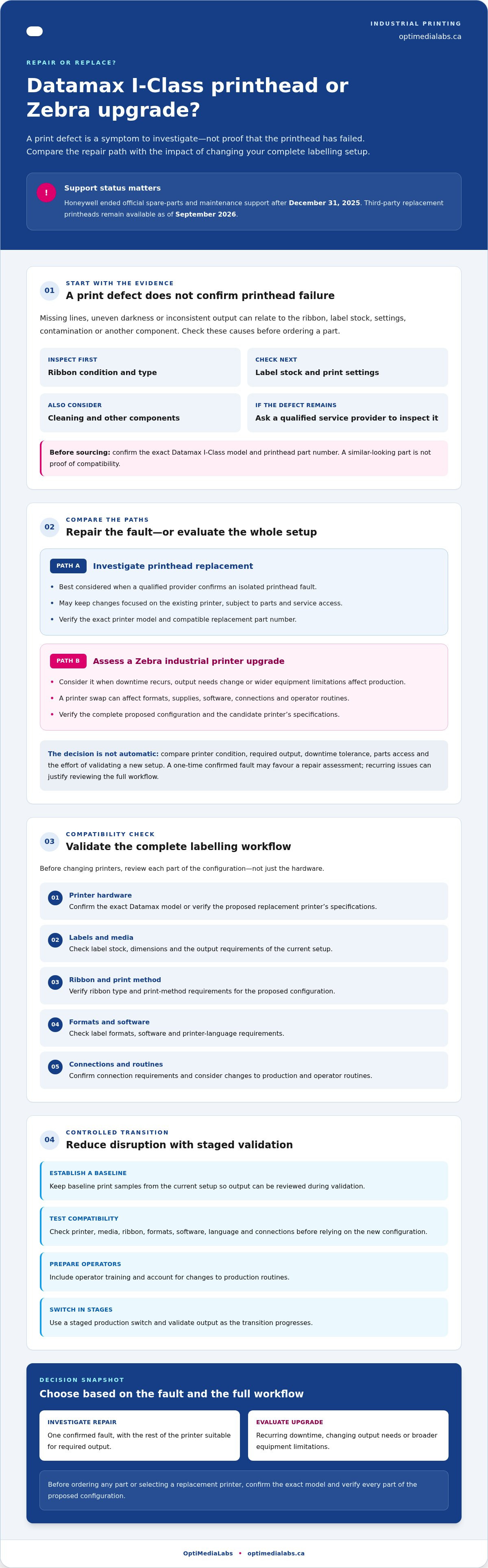
A print defect can make the printhead a suspect, but it doesn’t confirm that the part has failed. Missing lines, uneven darkness or inconsistent output can also relate to the ribbon, label stock, printer settings, contamination or another component. Before deciding to replace a printhead or upgrade Datamax to Zebra industrial printer hardware, identify the fault and consider the entire labelling workflow.
The two paths are distinct. A repair decision means having a qualified service provider assess the printer and confirm that a compatible replacement printhead is appropriate. An upgrade means evaluating a different industrial printer against your output needs, supplies, software and production setup. Printer age and overall condition matter, as do parts access, downtime tolerance and the effort required to validate a new configuration. For background on the company behind the potential replacement, see Zebra Technologies.
| Decision factor | Printhead replacement | Printer upgrade |
|---|---|---|
| Immediate need | Address a verified, isolated printhead fault. | Address broader equipment or workflow requirements. |
| Workflow impact | May limit change to the existing printer, subject to parts and service access. | Can require checks to formats, supplies, software, connections and operator routines. |
| Validation required | Confirm the exact printer model and compatible part number. | Verify the complete printer, media, ribbon and software configuration. |
| Decision signals | One confirmed fault and an otherwise suitable printer. | Recurring downtime, changing output needs or wider equipment limitations. |
What can point to a printhead issue?
Look for recurring missing lines or inconsistent print, but treat these as symptoms to investigate, not a diagnosis. Check ribbon condition and type, label stock, print settings and cleaning requirements first. If the defect remains, ask a qualified service provider to inspect the printer and confirm the exact Datamax I-Class model and printhead part number before sourcing a replacement. A part that appears similar isn’t proof of compatibility.
When is an upgrade worth evaluating?
Assess an upgrade if downtime keeps recurring, throughput requirements have changed, or the printer’s broader condition and workflow limitations are affecting production. A one-time, verified fault may call for a focused repair assessment; repeated issues can justify reviewing the full setup. Replacement isn’t automatically better. Compare the operational impact of both paths, and verify current specifications and availability before selecting a printer. You can review Zebra printer options as part of that hardware comparison.
Compare Datamax repair and a Zebra industrial printer across the full workflow
A repair quote and a printer purchase answer different questions. Repair focuses on whether a qualified technician can resolve a verified fault and return the Datamax to the required output. A purchase decision asks whether another printer can meet production needs and fit the existing labelling workflow. Keep those assessments separate, then compare their operational effects before choosing.
Use evidence from your current setup, not the age of the printer or one print defect alone. These signals can help frame the comparison:
- Verified condition: A confirmed, isolated fault with the rest of the printer functioning as required may favour investigating repair. Multiple issues or wider equipment limitations may support assessing replacement.
- Required output: Compare current and anticipated print volume, label dimensions, print quality and operating environment with the repair outcome or candidate printer’s verified specifications.
- Downtime and scheduling: Ask a service provider about the repair process and production scheduling implications. For an upgrade, account for testing, configuration and operator familiarization before production changes.
- Compatibility and change effort: A repair may preserve the existing setup, if the part and repair are suitable. A new printer requires validation of supplies, label formats, software, connections and operating procedures.
What to verify before replacing a Datamax printhead
Have a qualified technician confirm the exact Datamax model, printhead part number and whether replacement is suitable. Ask them to consider whether ribbon selection, label media, cleaning or printer configuration could explain the issue. Also clarify parts access, available service options and the expected repair process, so production scheduling reflects the actual plan. OptiMediaLabs Canada sells printing supplies and hardware, not printer repair services.
What to compare when considering a Zebra printer
Start with requirements, not a model name. Check the candidate’s current specifications against your print volume, label dimensions and operating environment. Then confirm its interface, connectivity, printer language or emulation, and software fit with the production system. Compare compatible consumables and loading routines with the Datamax setup, too. A decision to upgrade Datamax to Zebra industrial printer hardware should follow verification of the complete configuration. Browse Zebra industrial printers as one step in comparing hardware options.
There’s no universal winner. Evidence of a suitable printer with a repairable, isolated fault can support investigating repair; recurring constraints or changed output needs can justify a wider upgrade assessment. For help comparing available printer hardware and supplies, contact OptiMediaLabs Canada about your configuration. Confirm service arrangements with an appropriate provider separately.
Check label, ribbon, software, and system compatibility before changing printers
A printer change affects more than the hardware. Before you upgrade Datamax to Zebra industrial printer equipment, map the existing configuration and check each component against the proposed setup. Don’t assume a label roll, ribbon or print file will work simply because it runs on the Datamax today.
Use a compatibility matrix to keep the checks clear. Record the current requirement, the candidate printer’s verified specification and who must confirm the match.
- Labels: Document label width and length, roll and core dimensions, material, sensor requirements and required print quality. Confirm the intended printer supports the full combination.
- Ribbon: Record ribbon width, length and formulation, along with the current print method and application needs. Verify the proposed ribbon against both the printer and label stock.
- Printer and system: Check printer language or emulation, drivers, connection method, software settings and any integrations. Confirm requirements with the printer, software and system vendors.
- Output: Identify representative label designs and barcodes, then test print quality and scan results on the candidate configuration before production.
If you’re comparing print methods and supplies, review the thermal transfer printer options alongside the proposed printer’s specifications. Treat every match as something to verify, not assume.
Can the existing labels and ribbons carry over?
Measure the roll and core, label dimensions and material, and note how the printer senses each label. Then compare those details with the candidate printer’s media requirements. For ribbons, check width, length and formulation against the intended printer and application. A ribbon that fits physically may still need verification for print method and output quality. Confirm the full supply combination before ordering.
Will label software and data formats still work?
Inventory templates, variable fields, barcode symbologies, database connections, drivers and other integrations. Check whether the candidate printer understands the commands produced by your software; if emulation is being considered, verify support for the specific printer and configuration with its vendor. Test representative files, including data-driven labels, and scan the printed barcodes. Ask your software vendor whether formats need edits or settings need reconfiguration. Standard enterprise barcode software options should be included in your configuration review.
Keep a record of test results, including settings and any file changes. That gives the team a clear reference for resolving differences before the new printer enters production.
Plan a low-risk Datamax-to-Zebra transition with a staged validation checklist
A controlled changeover turns “it seems to work” into documented evidence. Before you upgrade Datamax to Zebra industrial printer equipment, record how the current setup performs, test the replacement against real production jobs and agree on who can approve the switch or call a rollback.
Build a test plan around real production jobs
Set a baseline from current print samples, barcode scan results, output volume and known failure patterns. Choose both high-use labels and exceptions, such as variable-data formats or labels with critical barcodes. Test with representative data and operating conditions, then compare results with written requirements.
Check clarity, alignment, media handling, scan success and repeatability. Record the printer settings, software or file changes, issues found and approved results so the configuration can be reproduced. Don’t move to production until designated stakeholders agree that the tests meet acceptance criteria.
Use this staged sequence to organize the change:
- Document requirements: Capture label formats, data sources, output needs, supplies, connections and current performance.
- Confirm compatibility: Verify printer specifications, media, ribbon, software, interfaces and any required emulation with the relevant vendors.
- Test the setup: Run representative labels and data through the candidate configuration, and record results against the baseline.
- Train operators: Review loading, routine settings, approved procedures and who to contact when a problem occurs.
- Switch production: Proceed only after acceptance checks pass, with rollback steps and escalation contacts agreed in advance.
Schedule the change without avoidable disruption
Coordinate procurement, a qualified service provider, operators, software owners and production stakeholders before setting the cutover. Define who approves test results, who handles printer or application issues, and who decides whether to pause or revert. Keep the existing workflow available until the replacement setup passes the agreed checks. That gives the team a practical fallback if a production condition exposes an issue the pilot missed.
Reusable acceptance checklist
- Representative high-use and exception labels print to documented requirements.
- Critical barcodes scan successfully using the intended scanning setup.
- Media feeds and registers as expected; output is repeatable.
- Required data, software settings and printer connections work as tested.
- Operators know the approved process, escalation contact and rollback trigger.
- Test settings, results and sign-off are recorded for the production configuration.
Use this checklist to prepare a supplier discussion about hardware and consumables. For help discussing printer requirements, contact OptiMediaLabs Canada. Arrange repair or service questions with an appropriate service provider.
Choose the next step: repair the Datamax or source a Zebra printer
Use the confirmed fault and business priorities to select what to investigate next. A qualified service provider can assess whether an isolated Datamax issue is suitable for repair. If equipment limitations or production needs have changed, compare a replacement configuration instead. For either route, verify the model-specific details and operational fit before making a commitment.
Before proceeding, confirm the I-Class model and printhead part number, relevant parts access, and repair arrangements. For a printer purchase, check current specifications and availability, then verify the proposed combination of hardware, supplies, software and interfaces. These details help make an upgrade Datamax to Zebra industrial printer decision based on the actual setup, rather than assumptions about compatibility.
What information should you have before requesting a quote?
Prepare the details a supplier or service provider will need to understand your setup:
- Datamax I-Class model and printhead information, if available.
- Label size and material, media format, and ribbon currently in use.
- Sample label files, barcode formats and any variable data requirements.
- Print volume, software, interfaces and operating conditions.
- Your main priority, such as limiting downtime, retaining current supplies or meeting new production needs.
This information helps focus discussions on the decision at hand and identify outstanding checks before proceeding.
How can OptiMediaLabs Canada help with the equipment decision?
OptiMediaLabs Canada distributes Zebra printer hardware and Datamax and Zebra ribbons. The company can discuss relevant products and supplies, but does not provide printhead diagnosis, printer repair, installation or label design. For those needs, contact an appropriate service provider.
To discuss hardware and supply requirements, contact OptiMediaLabs Canada about your printer setup with the details you’ve gathered.
Make your next printer decision with confidence
Choose based on verified needs, not a single print symptom. An isolated fault may warrant a repair assessment; recurring constraints or changed production demands can justify evaluating an upgrade. Either way, confirm the printer, supplies, software and workflow together before committing.
If you decide to upgrade Datamax to Zebra industrial printer hardware, use your documented requirements to guide selection and keep transition checks tied to real production needs. OptiMediaLabs Canada distributes Zebra printers and Datamax and Zebra thermal transfer ribbons, helping you compare relevant hardware and supplies. For printhead diagnosis, repair or installation, contact an appropriate service provider.
Discuss your Datamax-to-Zebra printer requirements with OptiMediaLabs Canada and share the details of your current setup. A clear comparison is a practical first step toward a reliable decision and a smoother path forward.
Frequently Asked Questions
Should I replace a Datamax I-Class printhead or upgrade to a Zebra printer?
Choose based on the confirmed fault and the printer’s wider condition. If a qualified technician verifies an isolated, repairable printhead issue, replacement may address the immediate problem. If downtime recurs, output needs have changed, or the existing workflow is constrained, compare an upgrade. Before deciding to upgrade Datamax to Zebra industrial printer hardware, verify part or printer availability, full configuration compatibility, and the operational impact of each option.
Can I use my existing labels and ribbons in a Zebra printer?
Possibly, but don’t assume the supplies will transfer unchanged. Compare the candidate printer’s verified media requirements with label dimensions, roll and core format, material, sensor needs, and ribbon configuration. Check the ribbon’s width, length, and formulation against the printer and application. Then test representative jobs for media handling and print quality. Confirm the complete combination with the printer and consumable suppliers before ordering or changing production.
Will my Datamax label templates work on a Zebra printer?
Some templates may work as-is, while others may need adjustment. Review the printer language, driver, barcode software, fonts, barcode formats, variable fields, and data connections each template uses. Test representative files on the proposed printer and inspect the printed labels and barcode scan results. Ask the printer and software providers to confirm model-specific requirements before production, especially if templates rely on device-specific commands or configuration.
How can I tell whether an I-Class printhead needs replacement?
You can’t confirm printhead failure from a print defect alone. Missing lines or uneven output can also result from media, ribbon, settings, cleaning needs, or another printer issue. Check the supplies and configuration, and follow the printer’s recommended cleaning process. If the defect persists, ask a qualified service provider to inspect the exact Datamax I-Class model and determine whether a compatible printhead replacement is appropriate.
Will upgrading to a Zebra industrial printer require new label software?
Not necessarily. Software changes depend on the current application, printer language, drivers, interfaces, templates, and the specific Zebra printer being considered. Inventory those requirements, then verify compatibility with the software provider and printer documentation. Run a pilot using actual label files and data sources, and check both print output and barcode scans. Confirm whether formats or settings need adjustment before relying on the new configuration in production.
How do I reduce downtime when changing from Datamax to Zebra?
Prepare before the cutover. Document existing label jobs, media, ribbons, settings, interfaces, and acceptance requirements. Test the proposed configuration with representative labels and data, confirm barcode scans, and train affected operators. Agree on who approves the change, who handles software or service issues, and what would trigger a rollback. Keep the Datamax workflow available until the replacement setup passes the agreed checks.
Does OptiMediaLabs repair Datamax printers or install Zebra printers?
No. OptiMediaLabs is a distributor of hardware and printing supplies, not an on-site printer repair or installation provider. It offers Zebra printer hardware and Datamax and Zebra ribbons. For printhead diagnosis, repair, or installation, contact a qualified service provider. To discuss relevant printer hardware and supplies, prepare your model, media, ribbon, and workflow requirements so the configuration can be checked before you select products.